
Participant
August 22, 2021
Answered

Transparent Background "Bleed Through"

  • August 22, 2021
  • 1 reply
  • 1831 views

Hello! I have no experience with PSE 2021, or anything like it, and yet here I am trying to make a gift for someone by using it! I am working on pics of a white dog sitting in a sunbeam on an off-white sofa, and the same dog sitting on a box with magic marker writing and labels on it. I've tried numerous tutorial techniques to create a transparent background, and they all work to varying degrees, but in every image there always remains parts around the finished product which are dark smudges. Adjusting contrast using curves doesn't work at all due to lack of contrast on the original. I can't seem to get those cleaned up. The most recent technique I'm trying to use is: Select Subject, Select Lasso Tool to Add & Subtract from Selection, Refine Edges - "Paint" around image to mask background, adjust feather, contrast... Parts of every pic where there is heavy shadow, bright sun, subject & background close in color, reflective tape, dark writing, tile grout lines remain as lines and/or smudges. I've selected outputs as Selection and New Mask on New Layer, then tried to go back over the areas, but I can not find anything that works. Any and all suggestions would be appreciated. Thank You!

This topic has been closed for replies.
Correct answer hatstead

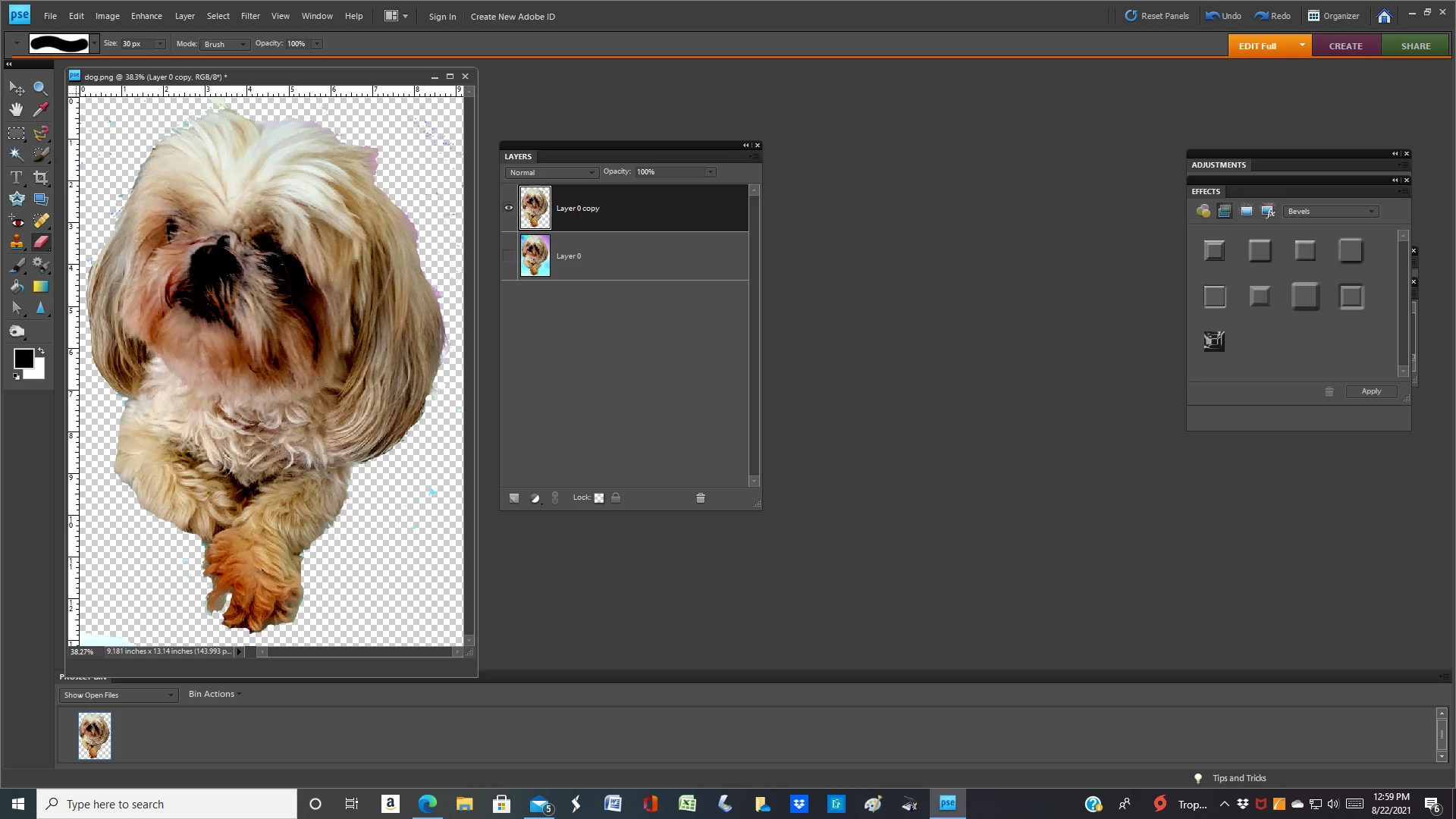
1. Open the picture file, duplicate the Background layer, and shut off the visibility of the Background layer. Work on the Background Copy layer.

2.Go to Enhance>Adjust Lighting>Levels and move the left slider towards the middle

3. Activate the Magic Wand tool. On the tool's option bar, set tolerance to 32, check "Contigous" Left click on an area of  the background and hit delete on the keyboard. Work your way around the dog in order to delete the background serially.

4. To tidy up any remaining pixels, activate the Eraser tool  and clean up.

5. The checkerboard pattern denotes transparency.

6. If you wish to save the file with transparency, use PSD or PNG for the file format. JPEG will give you a white background


1 reply

hatstead
hatsteadCorrect answer
Inspiring
August 22, 2021

1. Open the picture file, duplicate the Background layer, and shut off the visibility of the Background layer. Work on the Background Copy layer.

2.Go to Enhance>Adjust Lighting>Levels and move the left slider towards the middle

3. Activate the Magic Wand tool. On the tool's option bar, set tolerance to 32, check "Contigous" Left click on an area of  the background and hit delete on the keyboard. Work your way around the dog in order to delete the background serially.

4. To tidy up any remaining pixels, activate the Eraser tool  and clean up.

5. The checkerboard pattern denotes transparency.

6. If you wish to save the file with transparency, use PSD or PNG for the file format. JPEG will give you a white background


Mic RAuthor
Participant
August 22, 2021

Thank you so much!!!

hatstead
Inspiring
August 22, 2021

You're welcome. Glad to help.