mcdon47
Known Participant
November 2, 2018
Answered

Turn 4:3 photo into 16:9

  • November 2, 2018
  • 3 replies
  • 8608 views

A friend gave me a 4:3 high resolution photo to import into Premiere Element. I would like to edit it first in Photoshop Elements 2018 but if I use the crop method I do not want to distort the image. How do I ensure that it is exactly 16:9?

Thanks.
    This topic has been closed for replies.
    Correct answer Mark_Sand

    There are several ways to do this.

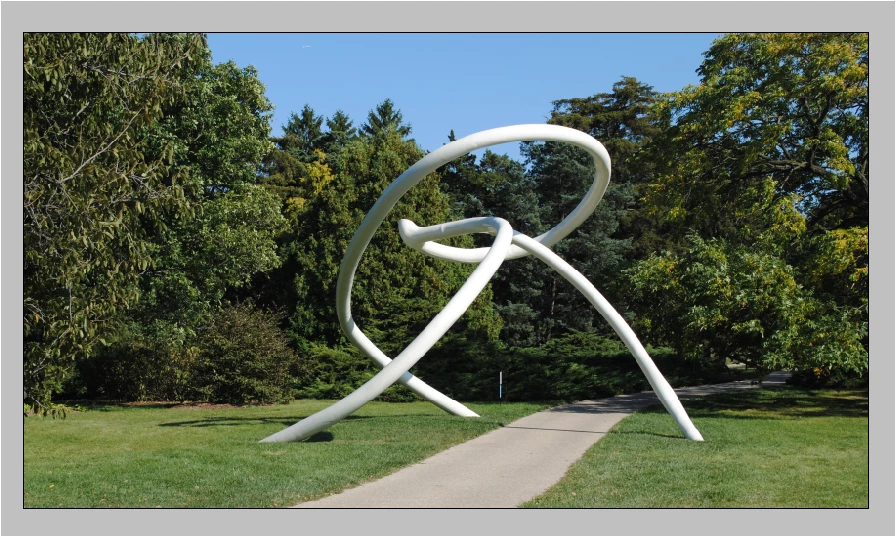
    Here I have a 4:3 picture.

    1. Activate the Rectangular Marquee tool with the options Style: Fixed Aspect Ratio, Width 16, Height 9.

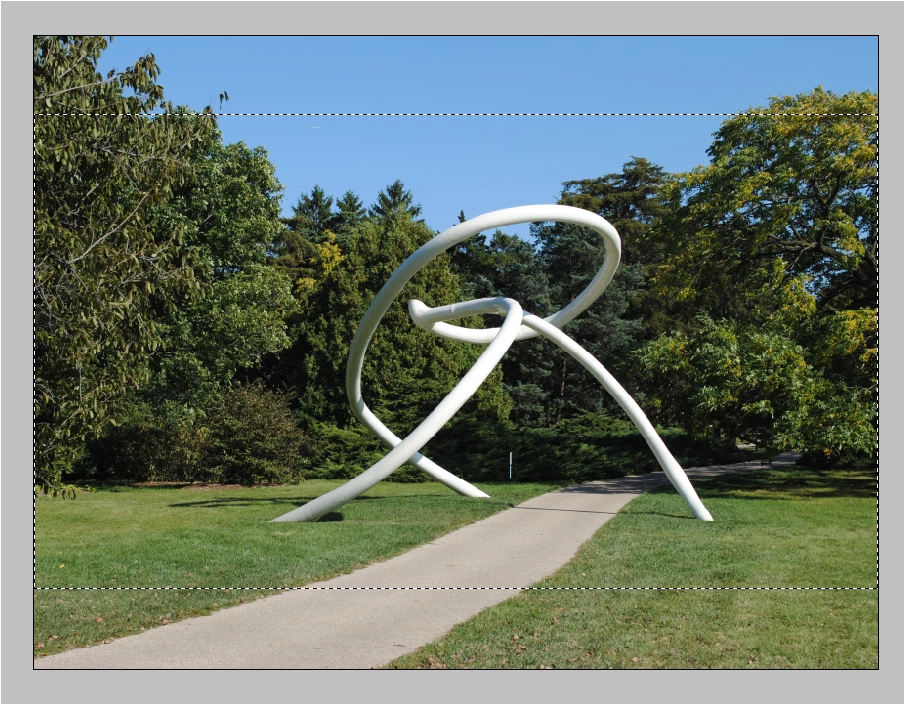
    2. Draw out the rectangle where you want the crop:

    3. Image > Crop:

    3 replies

    mcdon47
    mcdon47Author
    Known Participant
    November 4, 2018

    Thanks.

    How do I mark it as 'correct'?

    Mark_SandCorrect answer
    Inspiring
    November 2, 2018

    There are several ways to do this.

    Here I have a 4:3 picture.

    1. Activate the Rectangular Marquee tool with the options Style: Fixed Aspect Ratio, Width 16, Height 9.

    2. Draw out the rectangle where you want the crop:

    3. Image > Crop:

    November 2, 2018