
Glenn 8675309
Legend
June 30, 2021
Answered

Turn off X,Y coordinates when using move tool

  • June 30, 2021
  • 2 replies
  • 4530 views

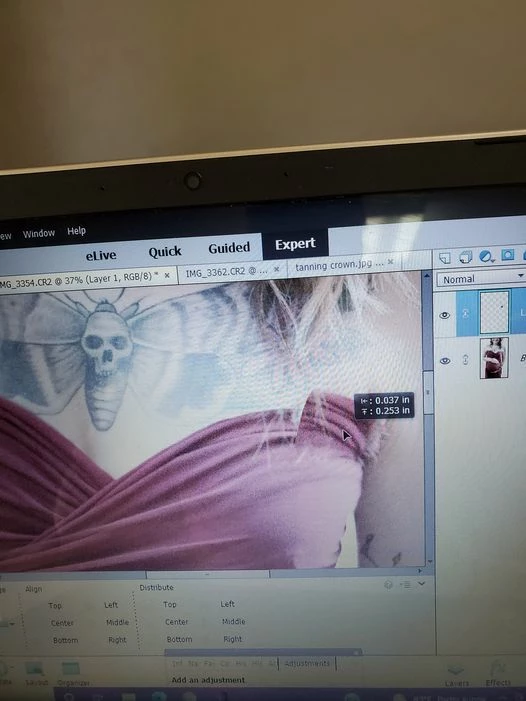
A user in a FB group wants to know how to turn off the x,y coordinate display (as seen in the image) when moving something... something I've never really noticed before, but for me, is useless.   When using the arrow keys, the coordinates do not display.  I've tried al lthe usual stuff in preferences, but suspect it's just an odd keyboard shortcut. 
This topic has been closed for replies.
Correct answer Phil Pickering

Hi @Glenn 8675309 ,


It's a preference setting in Photoshop CC, but not one that's available in Photoshop Elements. 


Julieanne Kost writes:


"Show Transformation Values — When dragging the transformation handles, the transformation values appear at the top right of your cursor. This display can be controlled via Preferences > Tools > Show Transformation Values (Never, Top Left, Top Right, Bottom Left, Bottom Right)."


If Julieanne doesn't give you a shortcut, you can be pretty certain there isn't one - not even in Photoshop CC 🙂


Like you've already pointed out, if you use the cursor keys you can move your selection without the transformation values being displayed.

2 replies

Phil Pickering
Phil PickeringCorrect answer
Legend
July 1, 2021

Hi @Glenn 8675309 ,


It's a preference setting in Photoshop CC, but not one that's available in Photoshop Elements. 


Julieanne Kost writes:


"Show Transformation Values — When dragging the transformation handles, the transformation values appear at the top right of your cursor. This display can be controlled via Preferences > Tools > Show Transformation Values (Never, Top Left, Top Right, Bottom Left, Bottom Right)."


If Julieanne doesn't give you a shortcut, you can be pretty certain there isn't one - not even in Photoshop CC 🙂


Like you've already pointed out, if you use the cursor keys you can move your selection without the transformation values being displayed.

Glenn 8675309
Legend
July 2, 2021

It's little things like being to turn off the coordinates which makes me want to cotinue with PS. All the years I've been using PSE IAnd I've never noticed them, ever.  

Greg_S.
Community Expert
Community Expert
June 30, 2021

I know of no way to turn that off.  And I've never seen anyone want to do that before. 

whcressall
Known Participant
March 4, 2022

Frankly, this is a common issue. It's a popular search on Google too. And you can turn it off - thankfully.

If you work with a ton of layers and a ton of details that have to nest neatly on top of other details...seeing the layer underneith your move is essential.

So that's what I'm here and seeing the answer bsaved me a lot of time.

In fact, finding the answer above, I opted to relocate the coordinates to lower left of the move took and all is well.

MichelBParis
Legend
March 4, 2022
quote

If you work with a ton of layers and a ton of details that have to nest neatly on top of other details...seeing the layer underneith your move is essential.
By @whcressall


What's the percentage of PSE users meeting the above limitation?


If you want Adobe to change that controversial feature, that's not a good point. Adobe will be too glad to answer that you need the customizable 'pro' PS version for your 'expert' needs. After all, they might find that a tiny part of the PSE users would be unhappy with the change. Generally, they want to make clear that customization is a key criteria to distinguish between the 'pro' and the 'consumer' softwares.