
Participant
July 21, 2019
Answered

Remove all white background from graphic

  • July 21, 2019
  • 4 replies
  • 13152 views

Hello, can anyone tell me if there's a way to easily and quickly remove all the white background from this logo? I want just the black to stay on a completely transparent background. I can use the magic eraser tool to remove it but there is so much white inside the intricate picture frame I'm finding it to be so time consuming and it's hard to get all of it. I have Photoshop Elements 9. Any help is appreciated!!!
    Correct answer hatstead
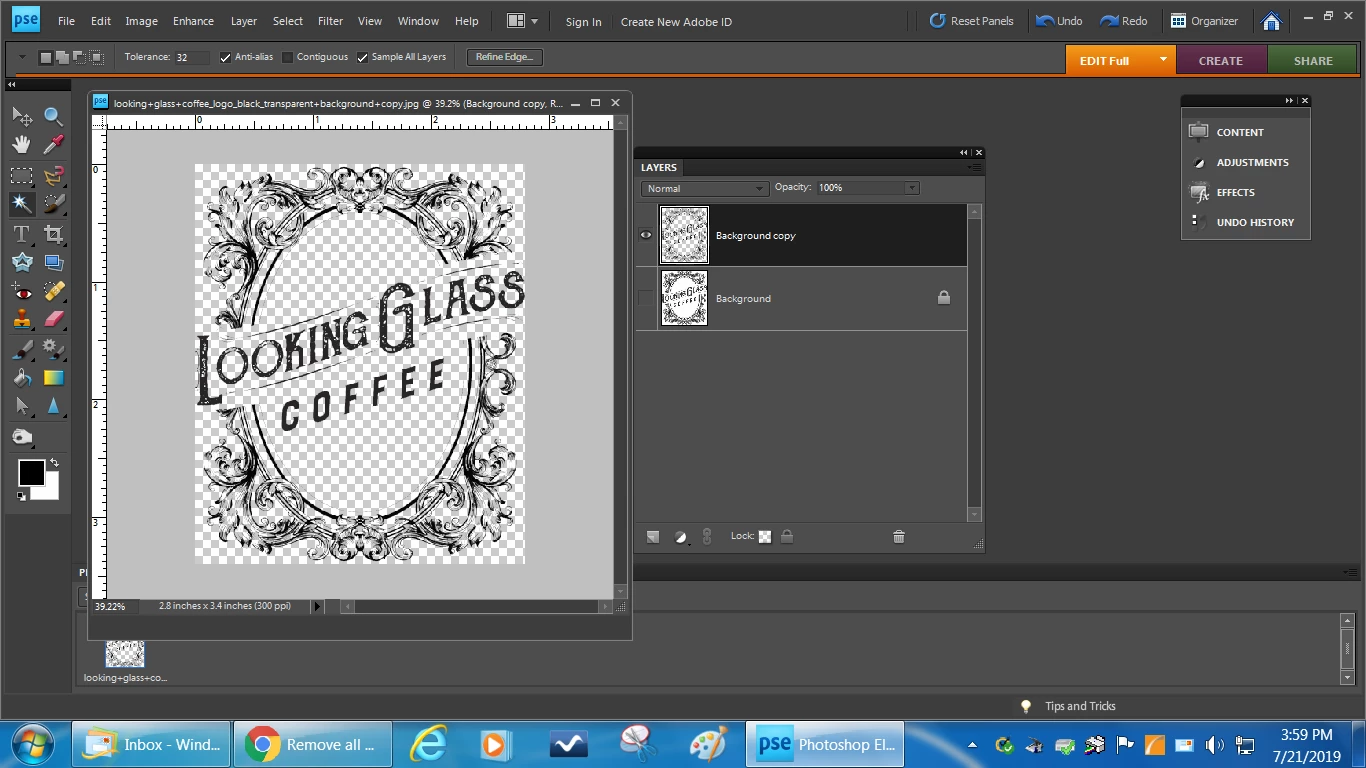
    1. Open the picture file
    2. Duplicate the background layer and shut off the visibility of the background layer. Work on the background copy layer
    3. Activate the Magic wand tool, set tolerance to 32  (default), and uncheck "Contiguous." Left click on a white area and hit Delete on the keyboard.
    4. Press CTRL+D to get of of the marching ants.

    4 replies

    Inspiring
    July 24, 2019

    lgclaura, for an extremely detailed logo like your example, using the Magic Wand can fail to pick up all the white or even remove some of the logo.  Here is the before-after using the Magic Wand. You can see how some of the fine black lines in the logo have disappeared.

    There is a free PSE add-on KillWhite which does just that: replace white with transparency.

    KillWhite | Mike's Extra

    Here is before-after.  Nary a change!

    lgclauraAuthor
    Participant
    July 24, 2019

    Holey moley, you're right! The one on the left was made with the magic wand tool while the one on the right is the kill white filter. It's much denser. This filter is awesome - thank you!!

    Inspiring
    July 24, 2019

    Glad to help

    lgclauraAuthor
    Participant
    July 23, 2019

    Thank you, that worked

    hatstead
    Inspiring
    July 23, 2019

    You're welcome. Glad to help.

    hatstead
    hatsteadCorrect answer
    Inspiring
    July 21, 2019
    1. Open the picture file
    2. Duplicate the background layer and shut off the visibility of the background layer. Work on the background copy layer
    3. Activate the Magic wand tool, set tolerance to 32  (default), and uncheck "Contiguous." Left click on a white area and hit Delete on the keyboard.
    4. Press CTRL+D to get of of the marching ants.

    Jeff Arola
    Community Expert
    Community Expert
    July 21, 2019

    If you want to put your image on a background other than white you can change the Layer Bending Mode to Multiply.

    If you want actually remove the white background, follow these steps

    1. Go to Select>All

    2. Edit>Copy

    3. Go to Layer>New Fill Layer>Solid Color and set the color to Black

    4. Alt or Option click on the layer mask and go to Edit>Paste

    5. Click Command+i or Ctrl+i to invert the layer mask.

    6. Click on the Eye to turn off visibility of the Background Layer to see the transparency.

    Then you can use File>Save for Web and use PNG-24 to save your transparent image.