Participant
April 25, 2017
Answered

Bitmap error

  • April 25, 2017
  • 1 reply
  • 3404 views

Hi everyone,

I have a problem with bitmap.

I want to separate a graphic I made into the four CMYK channels for printing.

I start with my design in RGB mode. At first, I reduce the layers to one and change the mode to CMYK.

Then, I separate the channels with the "split channels" function.

Now I have my channels in grayscale and separated.

I go to Mode —> Bitmap —> Input & Output are on 300 Pixels/Inch, Method is Halftone.

Next, I choose the calculated frequency of 30 (120 mesh count, screen printing) and for my first color an angle of 15°. For shape, I choose ellipse.

Then I press Ok.

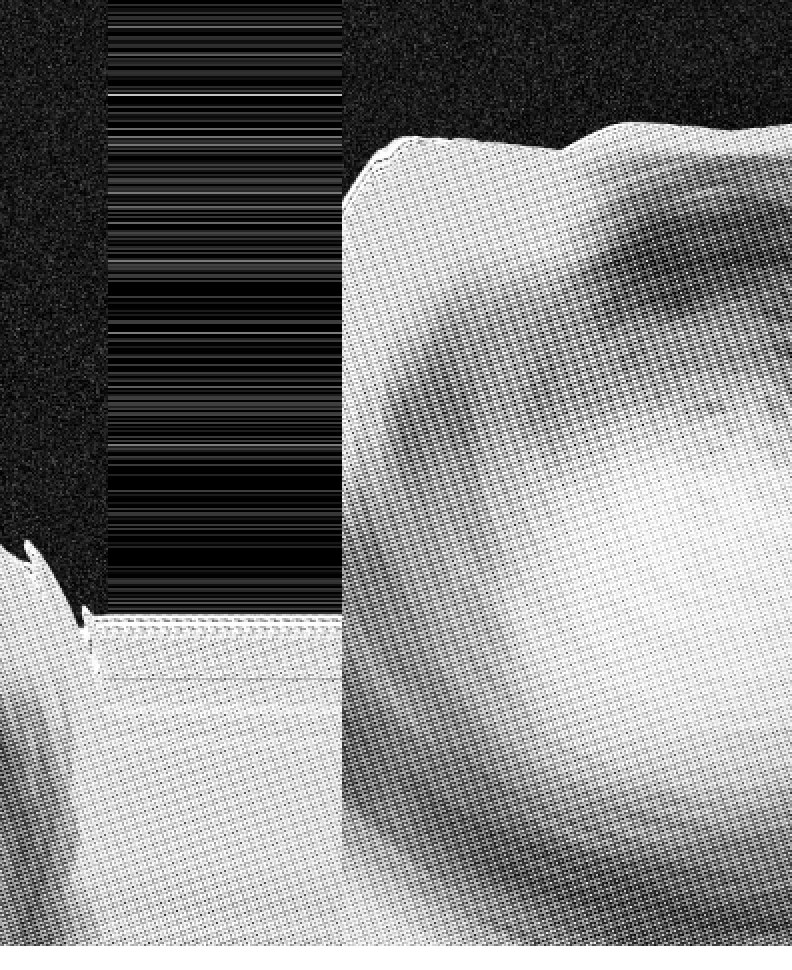
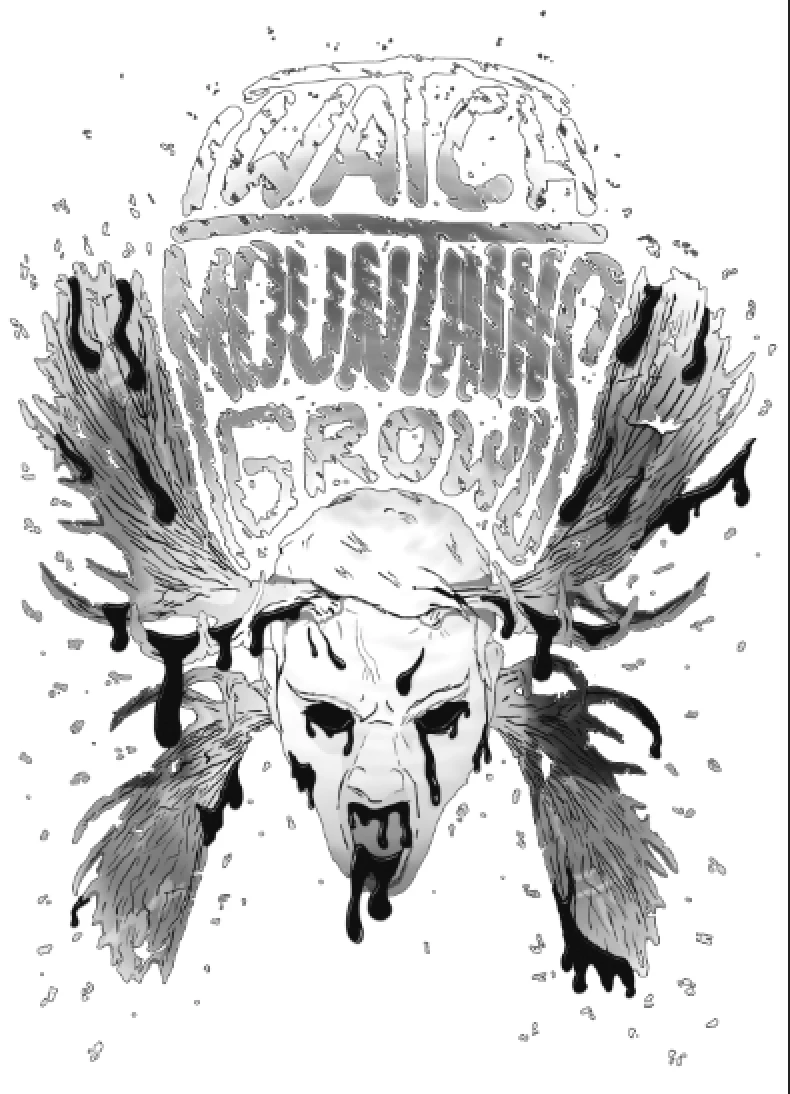
The result is a completely weird, digital error like picture in halftone, with elements from different layers of the project and sometimes even layers from different projects. It seems like Photoshop somehow empties it's whole media cache into my picture.

Here I have the result before and after bitmap:
I don't really think I'm doing something wrong here, but who knows.

Maybe, it's a common error and I need to install a driver or whatever...

I hope someone can help me with this.

Background information:

I'm working on a MacBook Pro 2014 on OS X 10.10.5

My Photoshop version is CS6, version 13.0

Do you need any further information?

Thank you in advance for your help!

Best regards,

Benjamin

This topic has been closed for replies.
Correct answer c.pfaffenbichler

I restarted Photoshop and the issue is visible at any view. It does not change when I'm zooming in or out.

These pixels are definitely a part of the composition after converting the image to bitmap, it is not a display error.

I can convert the image to grayscale or whatever and work with these weird structures.


Did you flatten the image before converting?

https://feedback.photoshop.com/photoshop_family/topics/split-channels-on-large-cmyk-files-gives-glitches-when-converted-to-bitmap-or-saved-as-tiff

Photoshop CC 2015: Convert to halftone bitmap wacks the image into unusable tiles | Photoshop Family Customer Community

1 reply

c.pfaffenbichler
Community Expert
Community Expert
April 25, 2017

Does turning off »Use Graphics Processor« in the Performance Preferences (Photoshop > Preferences > Performance > Graphic Processor Settings) and restarting Photoshop have any bearing on the issue?

1-bit bitmaps should usually have 1200ppi by the way.

Why do you do manual separations anyway?

Participant
April 25, 2017

Hi!

Nope, it kinda stays the same.

I think 1200ppi is too fine for screen printing.

Well, I don't have a program to do it for me and the last time I checked, they were pretty expensive.

The photoshop way is usually pretty simple and works well enough. But not this time.

c.pfaffenbichler
Community Expert
Community Expert
April 25, 2017

The 1200ppi referred to the bitmap file’s resolution, not the Halftone Screen Frequency.

Just to make sure: Did you restart Photoshop after changing the Graphics Processor Setting and is the issue visible at View > 100%?