cyBartek
Inspiring
December 9, 2017
Answered

Camera RAW makes image darker after importing.

  • December 9, 2017
  • 4 replies
  • 17869 views

Hello,
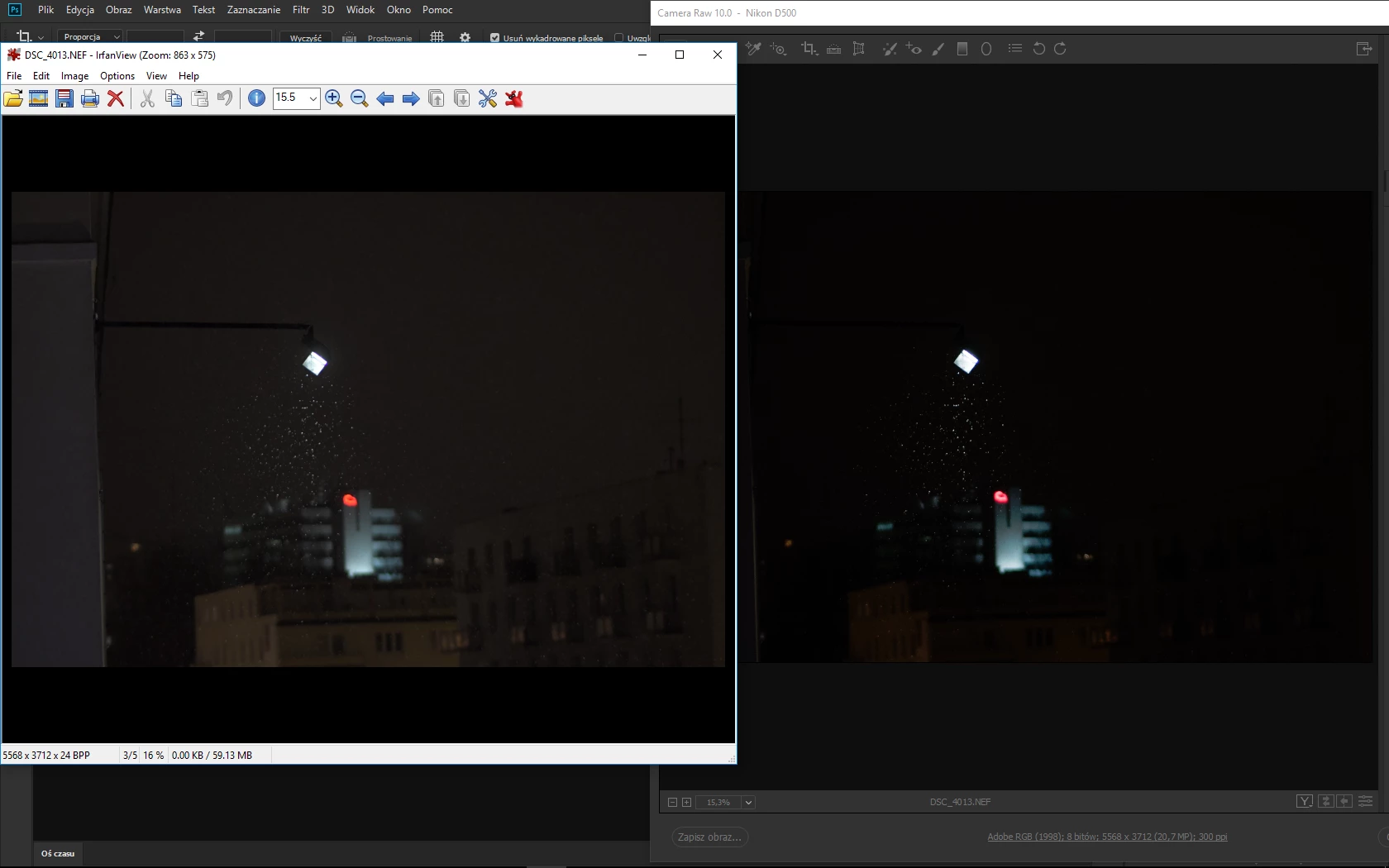
I have this problem. When I'm importing NEF files to Photoshop or Lightroom the photo appears darker in comparison to Windows photo viewer or Irfanview.

On my D500 photo is much lighter as well.

Anyone know why it happens? How to fix it?

Photo comparison below.

Hope for your support!

This topic has been closed for replies.
Correct answer Per Berntsen

One possible cause is that you have set the camera to use Active D-lighting, which will lift the shadows and lower the highlights.

As explained by D Fosse​, these proprietary settings are ignored by Camera Raw, and you can achieve the same effect using the Shadows and Highlights sliders.

See also this thread: Photo change after import

Irfanview is in fact color managed, but it has to be enabled under Options > Properties/Settings.

The Windows Photo Viewer is as far as I know color managed on Windows 10, but the Photos app is not.

Edit: Irfanview and the Photo viewer do not display raw files, but use the jpg embedded in the raw file.

The jpg will have all the settings from the camera applied, like Active D-lighting.

So that would explain the difference between Camera Raw and the other applications.

4 replies

ricardob71105761
Inspiring
April 4, 2020

I`m facing exactly the same issue. Suddenly my images imported to Lr becomes darker than the JPG on the LCD and exposure meter (photometer) of my camera by 2 stops.

Below, an example.

In the right, the image recognized by Lr after the importation.

In the left, the JPG exported by Lr.

Notice that no exposure was performed in the RAW File. Nevertheless I got the expected exposure in my printing.

Did you succeed to fix the issue?

Participant
April 27, 2020

I have same issue. "Correct answer" above help me to understant problem (this was a discovery for me) and solve it. 

RAW file already contains "in-camera JPG" file! All photo viewers (ACDSee, IrfanView, even special tethered shooting software like ControlMyNikon/ControlMyCanon) use only this in-camera baked JPG to display RAW file, these programs does not calculate anything like Adobe Camera Raw/Photoshop/Lightroom does. 

Thus camera image settings like D-Lighting affect JPG and appearance of RAW file in photo viewers.

I checked this by myself, disabling of Active D-Lighting in camera settings makes photo looks similar both Photoshop/Lightroom and photo viewers.

cyBartek
cyBartekAuthor
Inspiring
December 14, 2017

I'm not sure if that's the issue here. I'm using photoshop and Camera Raw a few years now and yes, it always did tweak contrast after importing the files, but this time it looks really extreme. It helped a little when I set Flat profile instead of Adobe Standard in Camera Raw, but it's still quite a big difference.

Anyway thanks for your replies and suggestions!

Per Berntsen
Community Expert
Per BerntsenCommunity ExpertCorrect answer
Community Expert
December 14, 2017

One possible cause is that you have set the camera to use Active D-lighting, which will lift the shadows and lower the highlights.

As explained by D Fosse​, these proprietary settings are ignored by Camera Raw, and you can achieve the same effect using the Shadows and Highlights sliders.

See also this thread: Photo change after import

Irfanview is in fact color managed, but it has to be enabled under Options > Properties/Settings.

The Windows Photo Viewer is as far as I know color managed on Windows 10, but the Photos app is not.

Edit: Irfanview and the Photo viewer do not display raw files, but use the jpg embedded in the raw file.

The jpg will have all the settings from the camera applied, like Active D-lighting.

So that would explain the difference between Camera Raw and the other applications.

D Fosse
Community Expert
Community Expert
December 14, 2017

https://forums.adobe.com/people/Per+Berntsen  wrote

Irfanview and the Photo viewer do not display raw files, but use the jpg embedded in the raw file.

Of course... <slaps forehead>

I completely forgot that the photo viewers actually do display raw files, in the form of the camera jpeg. I assumed these were processed versions.

And again - I know you pointed out earlier that Irfanview is color managed if you manually set it to be. I'll try to remember it this time (I don't use it).

D Fosse
Community Expert
Community Expert
December 10, 2017

Windows "Photos" and Irfanview are not color managed.

They ignore the document profile, and they ignore your monitor profile. No correction for the display takes place. Photoshop displays the file correctly, Photos/Irfanview incorrectly. They will never match if you have set things up properly - this is normal and expected!

As long as you have a valid monitor profile, and the file is correctly tagged with the correct document profile, Photoshop will always be the reference. That's how the file really looks.

As for the different display on the camera LCD, that's a completely different story. That's the camera-processed jpeg. ACR has no intentions to match that, nor is there any particular reason to do that, nor would it even be possible because Nikon's processing is proprietary and they're not giving the algorithms away to anybody. Certainly not Adobe, which they see as a "competitor". See the ACR and Lightroom forums for numerous threads about this.

Mylenium
Legend
December 10, 2017

Are you actually using color management? If not, then that could be your problem. Also alternate image viewers use different RAW routines, so differences in appearance are inevitable. You would have to create a "flat" format like TIFF for reliable and consistent appearance.

Mylenium