November 2, 2012
Answered

cropping just one layer in CS6?

  • November 2, 2012
  • 6 replies
  • 168294 views

I have multiple layers. I lock the other layers and turn them off (the "eye" is turned off).
I attempt to crop the ONE layer that's selected. All layers are cropped.

What am I doing wrong? I searched tutorials and didn't find this issue,
I did go through the tutorial with the new crop functions.
This topic has been closed for replies.
Correct answer Luanne Seymour

Hi Anita,

Here is an illustrated version of what R_Kelly is recommending:

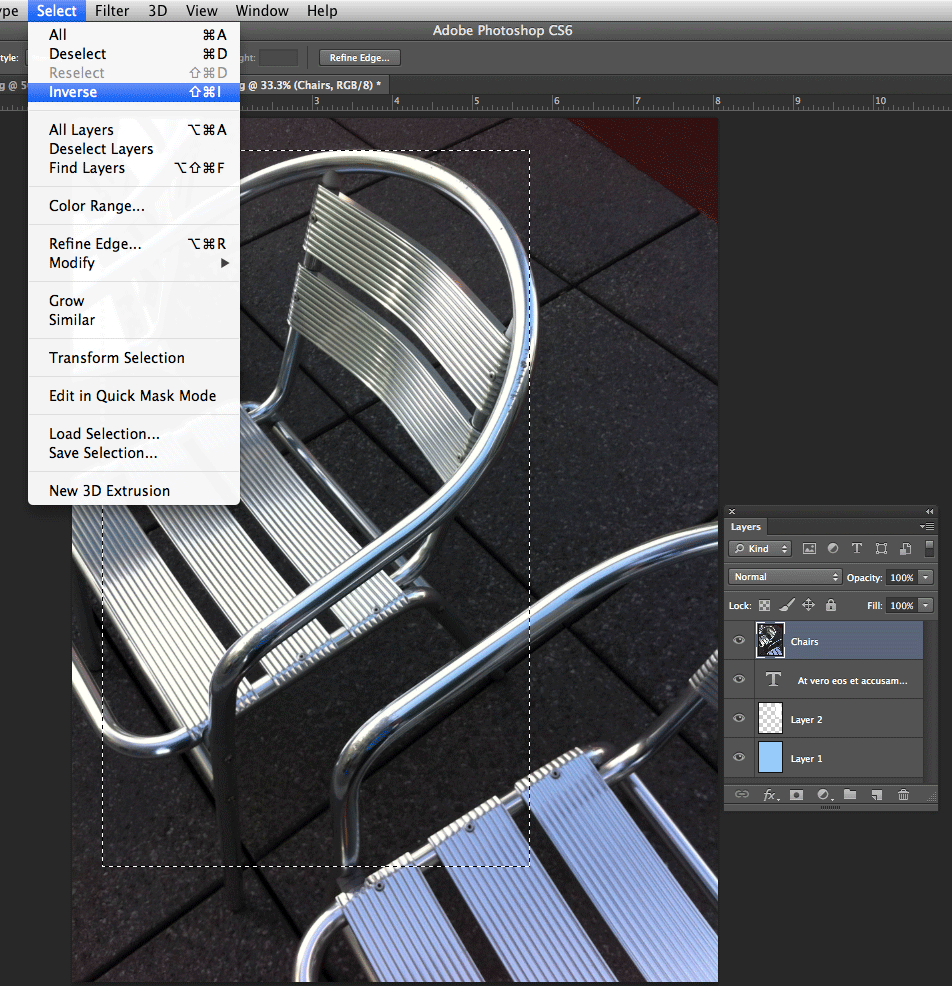
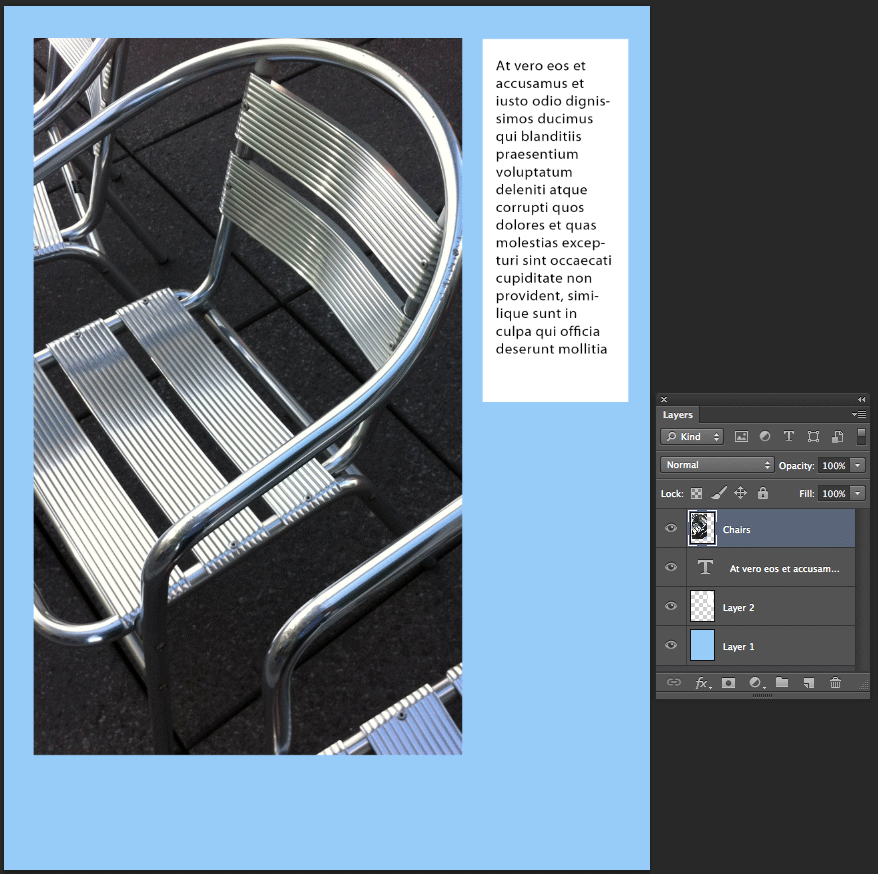
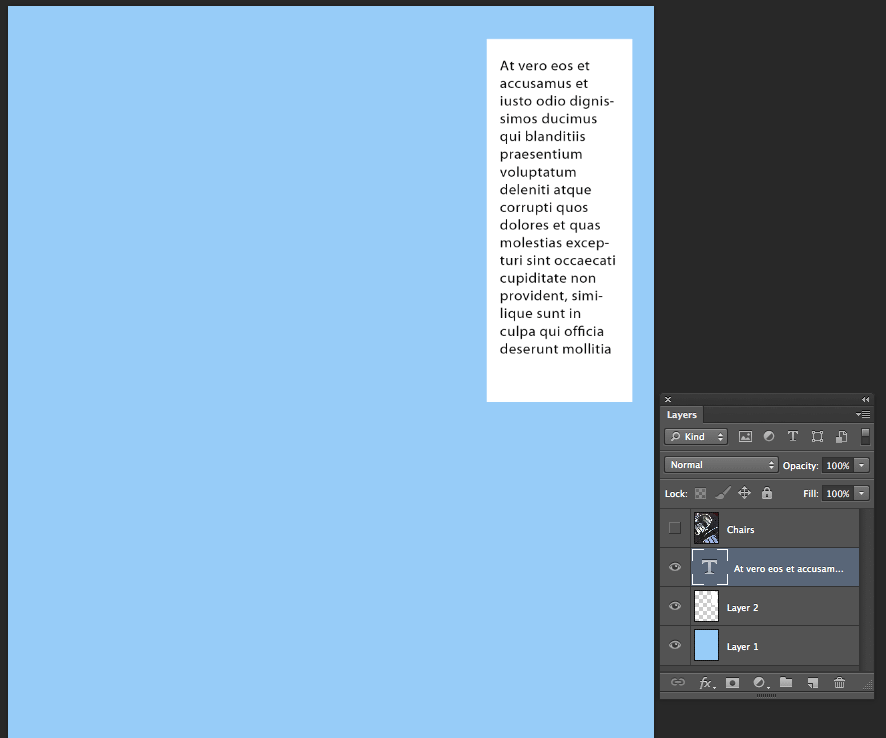
In the example below I have a file with multiple layers. The top layer (hidden in this illustration) is too large and will cover up the other layers. It needs to be "cropped".  The recommended way to crop that layer would be to make a layer mask. Click here for a some great tutorials about  layers and layer masks. A quick and easy way to crop it would be to do the following steps.


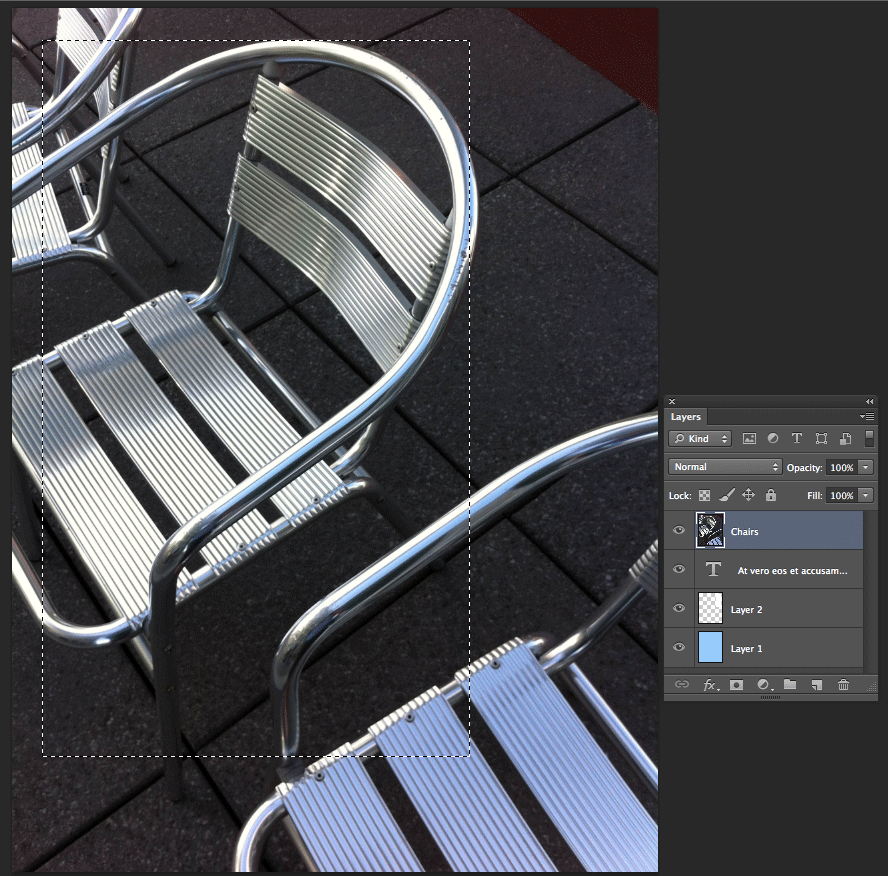
  1. Using one of the selection tools, create a selection that represents the shape you want for your layer. In this example, I used the rectangular marquee tool. Be sure you've targeted the correct layer when you make the selection.


  2. Once the selection is made, choose Select > Inverse. This will select all the pixels outside of the original selection.


  3. To remove the unwanted pixels, choose Edit > Clear. The layers below your newly cropped layer should be visible now.

I hope this helps,

Luanne

6 replies

Known Participant
January 3, 2020

Hi, I just bought the program, so I'm literally brand new, but I can't seem to get your result. When I invert the selection, no matter what layer I've highlighted, it crops out both layers. 

Is this no longer the way to do it?

Bootsuk
Known Participant
February 22, 2015

The answer was just whatI was looking for.

Thanks

Participating Frequently
September 3, 2014

1. Make selection (Cmd+A if entire image)

2. Cmd+J

3. Turn off visibility of original layer and move above new layer

4. Select both layers and Cmd+E

This will create your crop and merge the name of your original layer. It sounds complicated but it's not, and fast when you've done it a few times.

Participant
November 7, 2013

Hi

I have had this challenge a few times too.

However I found a way to do it, assuming you have all other layers within the size of your canvas.

If you, like me, then import/paste a new layer with some thrash you dont need, but its way bigger than your canvas.

You can either move your big layer around and bit by bit delete the unwanted pixels, but you dont want to do this.

Instead do this:

1) Make sure what you need from the larger-than-canvas-layer is inside your canvas

2) Select all (your whole canvas)

3) Use the crop tool (only it's a "zero-crop" in respect of your canvas size)

4) larger-than-canvas-layer is now same size as your canvas and unwanted thrash is gone.

Skeeto

Participating Frequently
March 28, 2014

I know this is years old, but I was just looking for an answer to this and found this thread... what I ended up doing was just shift-dragging my enormous layer onto another document that is the same size.... then I cropped it there with the regular crop tool then shift-dragged it back to my original document.  Let's you crop a single layer to your document size without having to crop anything else. 

Luanne Seymour
Adobe Employee
Luanne SeymourCorrect answer
Adobe Employee
November 2, 2012

Hi Anita,

Here is an illustrated version of what R_Kelly is recommending:

In the example below I have a file with multiple layers. The top layer (hidden in this illustration) is too large and will cover up the other layers. It needs to be "cropped".  The recommended way to crop that layer would be to make a layer mask. Click here for a some great tutorials about  layers and layer masks. A quick and easy way to crop it would be to do the following steps.


  1. Using one of the selection tools, create a selection that represents the shape you want for your layer. In this example, I used the rectangular marquee tool. Be sure you've targeted the correct layer when you make the selection.


  2. Once the selection is made, choose Select > Inverse. This will select all the pixels outside of the original selection.


  3. To remove the unwanted pixels, choose Edit > Clear. The layers below your newly cropped layer should be visible now.

I hope this helps,

Luanne

Inspiring
November 2, 2012

Luanne,

In your example if the Chair layer extended beyond the canvas... there is no way to use Select+Inverse to delete the data beyond the canvas?

At one point, I think, you could do that in Photoshop. But no longer.

Luanne Seymour
Adobe Employee
Adobe Employee
November 2, 2012

You are correct Charles. If you invert the selection and delete, it does not delete anything that extends beyond the canvas.

Jeff Arola
Community Expert
Community Expert
November 2, 2012

Hi Anita,

The crop tool will crop the whole image. (all the layers)

You might use the Rectangular Marquee Tool and either use a layer mask or invert the selection and delete the pixels on that layer.