Exit
  • Global community
    • Language:
      • Deutsch
      • English
      • Español
      • Français
      • Português
  • 日本語コミュニティ
  • 한국 커뮤니티
0

Cutout object blend seamless?

Contributor ,
Jun 18, 2018 Jun 18, 2018

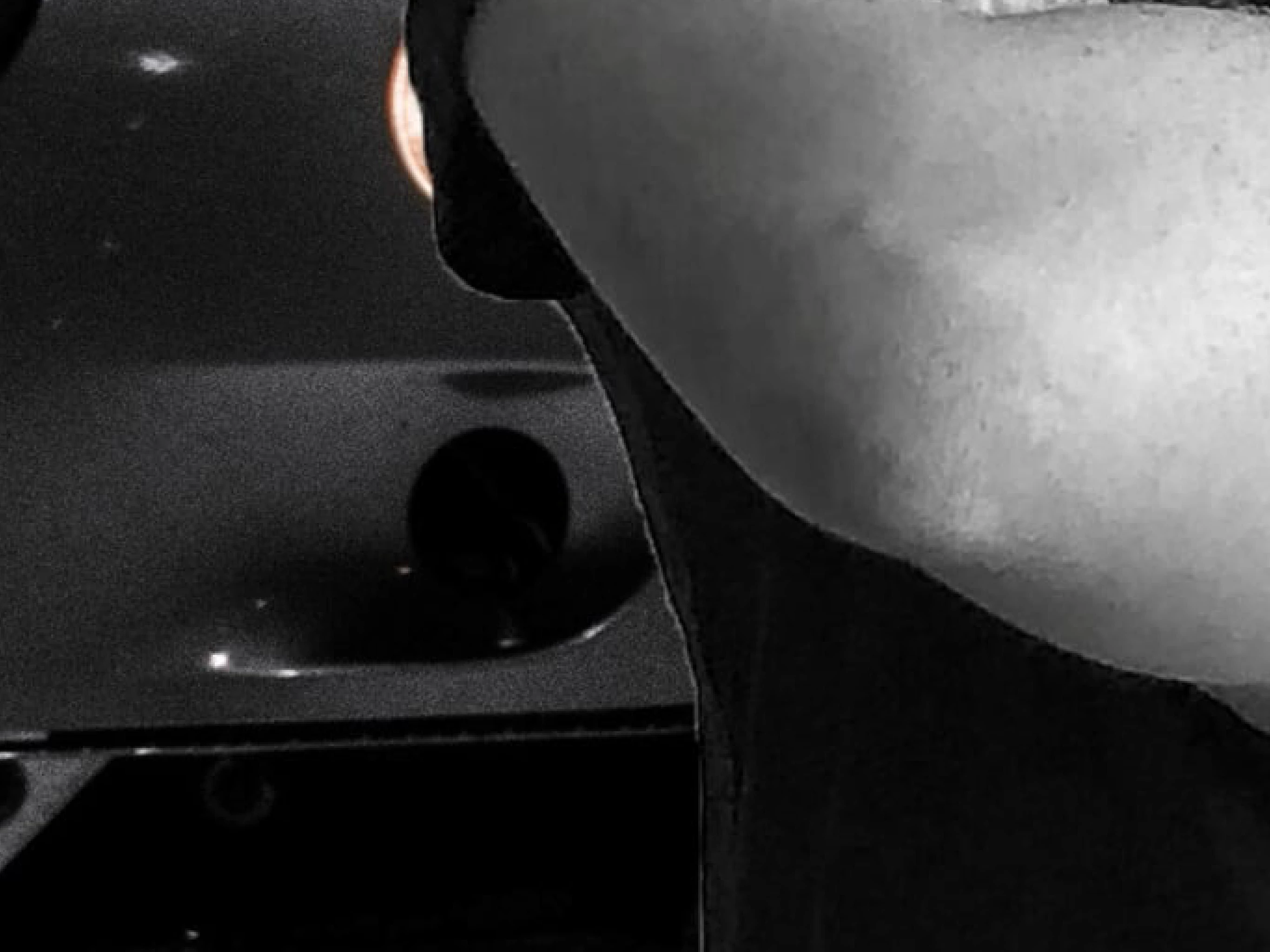
02DCC5ED-04E1-4AFC-8CAD-66AD5022097B.png

quick question, just need a simple solution, ive cut myself out of a photo and placed it onto a new background, there is a very slight border around myself, which upclose zoom in , you can notice (the final image is, desaturated), i just want easily blend the background and cut out layer of me so that the “border” isnt noticeable, the cut out of myself edge is smooth, and would look fine, if the “border” wasnt noticable.

or would it be easier to go around again?

cheers.

5.0K
Translate
Report
Community guidelines
Be kind and respectful, give credit to the original source of content, and search for duplicates before posting. Learn more
community guidelines
Adobe
Advocate ,
Jun 18, 2018 Jun 18, 2018

You Can use Select &Mask Command (refine Edge in previous version) to adjust these borders

You can also contract your original selection. Select object you want and go to Select>Modify>Contract enter 1-2 pixels and try drag object into a ne background

pawel

Translate
Report
Community guidelines
Be kind and respectful, give credit to the original source of content, and search for duplicates before posting. Learn more
community guidelines
Enthusiast ,
Jun 18, 2018 Jun 18, 2018

I always take my cutout and convert it to a Smart Object and the smart object. Once the smart object is editable, I duplicate the layer and turn the original off. I then Select>Modify>Contract enter 1-2 pixels on the duplicated layer.

Translate
Report
Community guidelines
Be kind and respectful, give credit to the original source of content, and search for duplicates before posting. Learn more
community guidelines
Community Expert ,
Jun 18, 2018 Jun 18, 2018

Fig_.png

Fig 1. Original image.

Fig 2. Make a Selection of the edge you would like to blend to hide any fringing.

Fig 3. Select > Modify > Border and add a pixel width that creates an avenue for blending. Then, Cmd+J to put that avenue on a separate layer. Finally, Filter > Blur > Gaussian Blur to soften and blend the edge.

Fig 4. Result

Translate
Report
Community guidelines
Be kind and respectful, give credit to the original source of content, and search for duplicates before posting. Learn more
community guidelines
Contributor ,
Jun 19, 2018 Jun 19, 2018
LATEST

cheers for the info guys, i will give it a go, ,

Translate
Report
Community guidelines
Be kind and respectful, give credit to the original source of content, and search for duplicates before posting. Learn more
community guidelines