Inspiring
March 28, 2019
Answered

Edit Anchor Point in Photoshop so the Shape Actually Changes.

  • March 28, 2019
  • 2 replies
  • 3419 views

Hi

I've drawn a path in photoshop, but I want amend it. When I use the white arrow tool it allows me to move the anchor points, but when it moves the anchor point the original path shape remains.

This is so infuriating when you're used to using something intuitive like Adobe illustrator.

Does anyone know how you edit a path in Photoshop, so the actual path and fill etc change when you move the anchor point as you would expect to happen if you're from planet Earth?

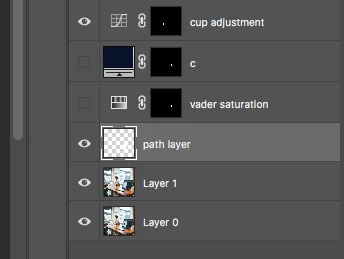
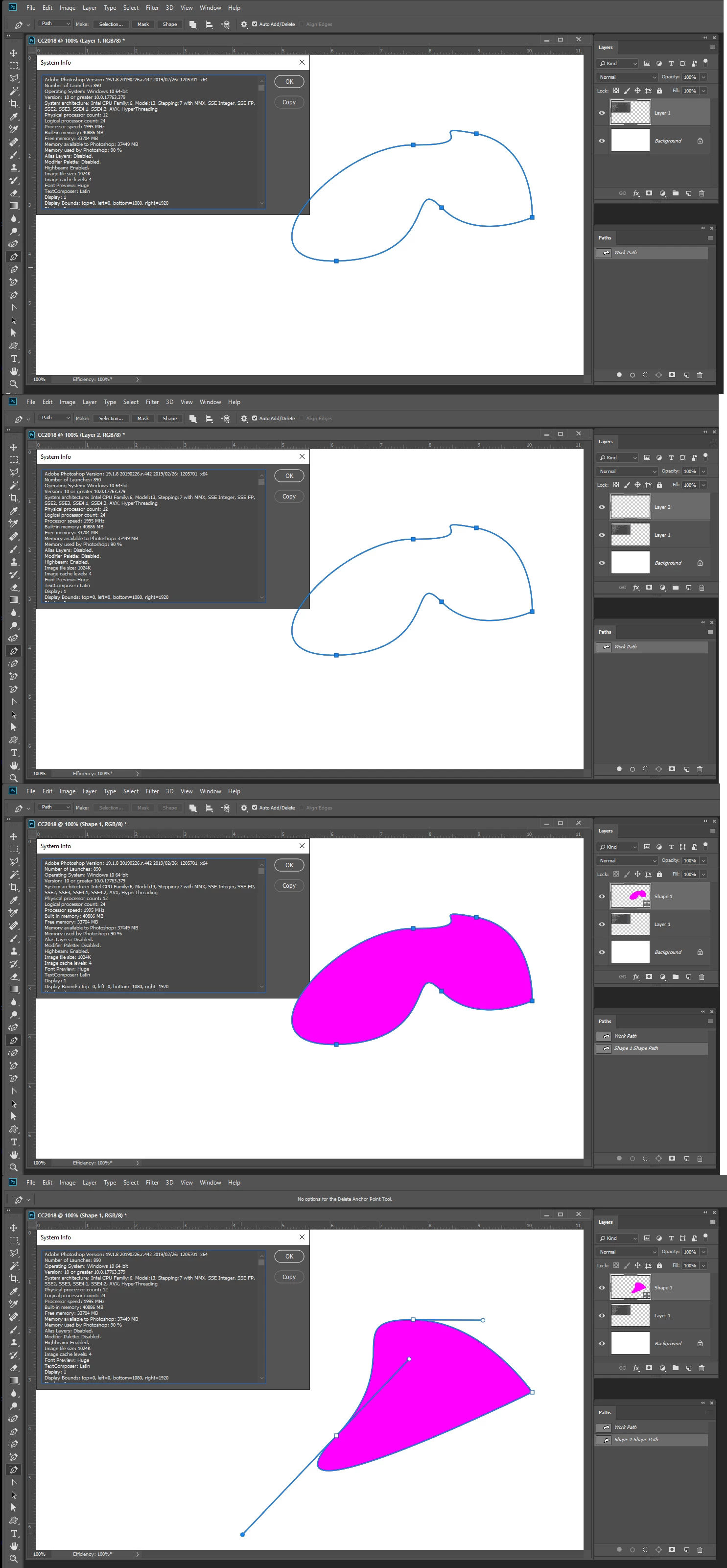
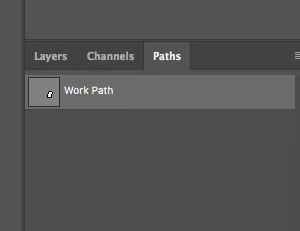
In the 4 images below I've shown 1) the path in the paths panel, 2) the path layer, 3) how the path looks when the fill is applied, 4) how the old shape remains after you move the anchor point and hit return.

Any help would be amazing.        
          

    This topic has been closed for replies.
    Correct answer JJMack

    Can i ask

    Have you drawn that with the pen tool on it's own transparent layer?  Just in case I'm doing part of the basics wrong


    I use the pen tool set to shape  that creates a new  shape layer.   Using the pen in path mode draws a path its not associated with any pixels or layer.  I can add an empty layer on top then clock the shape button in the pen tool option bar and the empty layer will be converted to a shape layer I cal edit with the ten tools and the path selection tools. I do not see a problem in CC 2018 on my machine.

    2 replies

    davescm
    Community Expert
    Community Expert
    March 28, 2019

    Hi

    You do not have a shape layer.

    Draw the path then in the options bar, choose make shape.

    It will gain a small symbol in the layers panel (arrowed below) and you can alter the fill and stroke by clicking on any shape tool and changing the fill in the options bar. Now when you move the path, the fill will follow.

    Dave

    JJMack
    Community Expert
    Community Expert
    March 28, 2019

    Adobe change the way transform works recently and made its operation inconsistent.  You can revert Photoshop toe it old consistent behavior by adding a  PSUserConFig to you Preferences folder and you should also set your Preferences to display the rotation point.

    JJMack
    Inspiring
    March 28, 2019

    Hi JJ

    I'm not on that version, I'm on cc2018 and i don't have that option. Also I don't think that would solve my problem. I want to work out how when I've drawn a path I can edit it and the edits show after i've hit return/enter, instead of just the blue path outline changing but the shape/path doesn't.

    Here is the dialogue box i see under preferences anyway

    Inspiring
    March 28, 2019

    *** please not on the original post the 4th image is what is showing after I hit return. The blue path outlines shape changes but the actual shape/path doesn't.