
Participant
January 27, 2011
Question

Eraser tool not working on layer

  • January 27, 2011
  • 2 replies
  • 120759 views

Hello!

I am very new to Photoshop having only started using it a week ago. I was trying out some photo painting effect and it worked out great the first time. However, just yesterday, in the middle of swapping pictures to edit, my eraser tool got a bit 'wonky'. I cannot seem to erase on a layer but it appears to be working on the thumbnail.
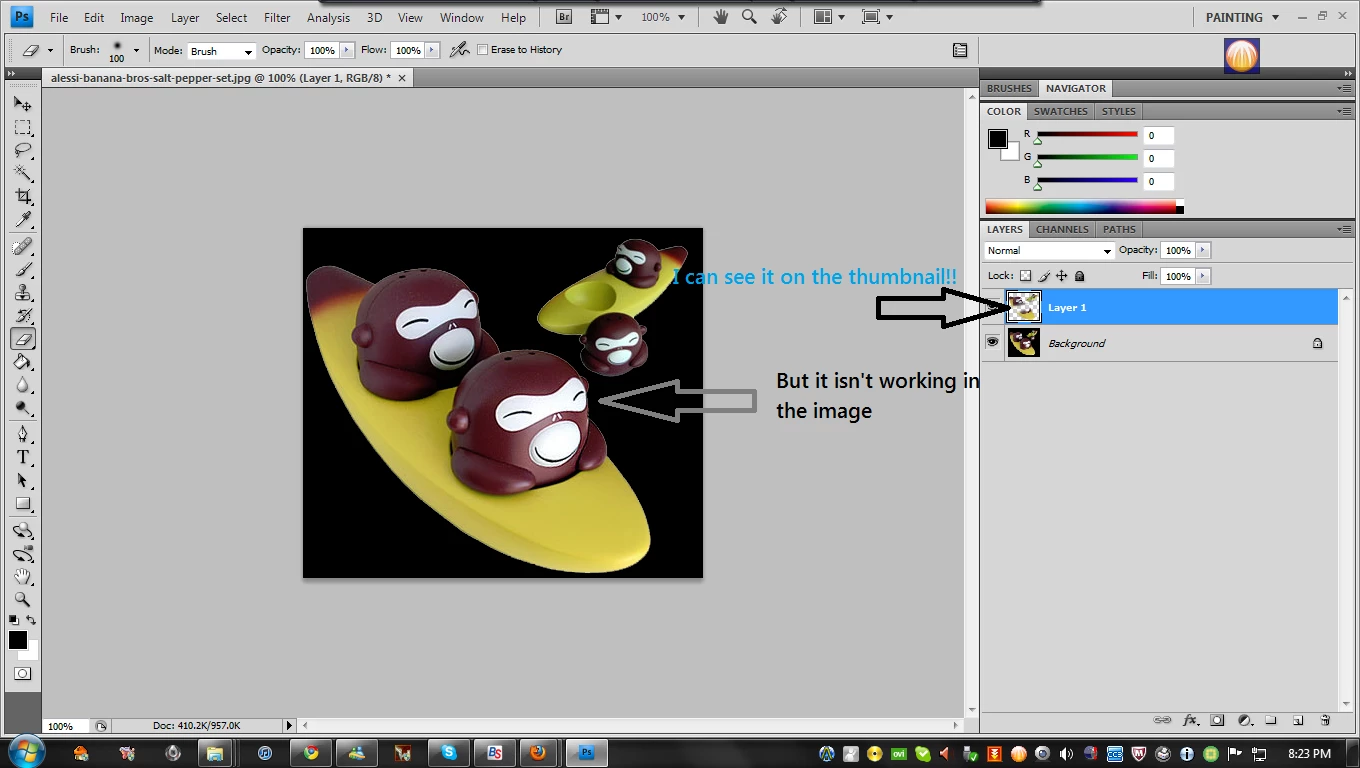
What i did was use the magic wand for selection, inverted the selection, copied as layer, filled the background, then tried to erase on the layer.

Any help given would be greatly appreciated!!! I'm using PS CS4 on windows 7, intel quad core with 4GB RAM, no tablet installed.

This topic has been closed for replies.

2 replies

Semaphoric
Community Expert
Community Expert
January 27, 2011

Hide the background layer.

JJMack
Community Expert
Community Expert
January 27, 2011

Make sure you have no active selection do a deselect. Make sure your only seeing the layer your trying to erase on by turning off the visibility of all the other layers. Check the options in the option bar like opacity, fill and erase to history and check which erase you have active. From your screen capture you will see the background layer in the erased area and Ctrl-H 0r other view option could be hiding an active selection.

JJMack
Participant
January 27, 2011

did like you suggested. only the layer i want to erase is active. opacity and fill is 100%, erase to history box is unchecked. the tool is on eraser only.

Noel Carboni
Legend
January 27, 2011

From the screen grab you posted, we're "seeing through" the top layer, with the erasure, but the background is the same as what you erased, so what's displayed doesn't look any different.

You say you did as suggested - clicking the eyeball icon to hide the background.  In that case it should have updated the screen and showed you the checkerboard pattern where the image is partially transparent.

If it did not do that, then you may have a setting wrong, or an OpenGL problem with your video driver.  There are several things you can do:

1.  Check how transparency is supposed to show by looking at Edit - Preferences - Transparency & Gamut.

2.  Update your video driver from the web site of the maker of your video card.

3.  If the video driver update does not correct the problem, go into Edit - Preferences - Performance and click the [Advanced Settings] button.  Try changing to a different Mode (e.g., "Basic").

4.  Try disabling OpenGL Drawing entirely.

-Noel