Participant
Sep 25, 2019 5:16 PM UTC
Answered

GREY Colours are brown in photoshop CC2019

I had a problem with my photoshop CC2019, GreyScale colours suddenly become bownscale and I can't have a pure grey or black colour in any situation, could that be fixed ?

thanks for replay

This topic is closed to new replies. Start a new post to keep the conversation going.
D Fosse
D FosseCorrect answer
Community Expert
Sep 25, 2019 6:08 PM UTC

That's a defective monitor profile.


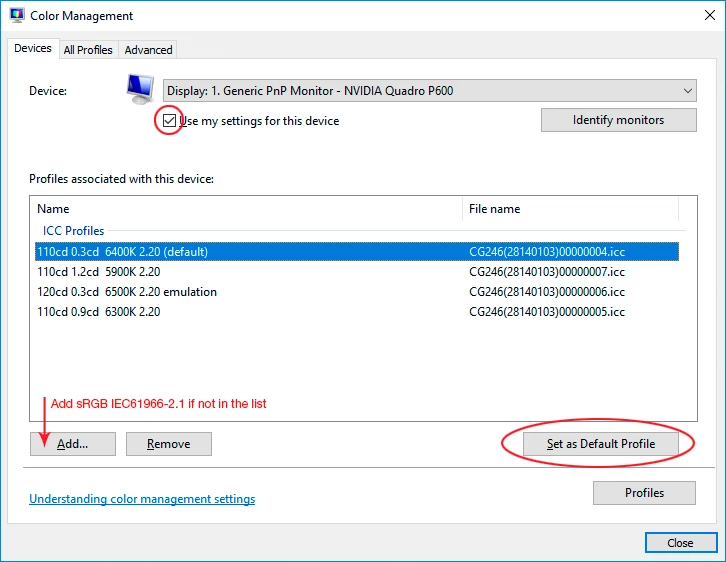
Use a calibrator to make a new one, or if you don't have a calibrator, replace the current profile with sRGB IEC61966-2.1. That won't be entirely accurate, but often close enough for most people. If accuracy is important you really need a calibrator.


Relaunch Photoshop when done, it needs to load the profile at application startup.

8 replies

Participant
Jul 13, 2022 1:00 AM UTC
Hi Friends, uninstall photoshop cc 2019 from a mac, sierra 10.12.06 system 
and now you can't reinstall it. What should I do? Please help! Thank you!!
 
Translate
Beachcolonist
Inspiring
Oct 20, 2019 5:57 AM UTC

I had a monitor calibration eye and stopped using it as it was a waste of time on a good LCD panel. But to your inquiry I was wondering do you mean that a measured grey like 125/125/125 LOOKED brown? or a white looked brown, or do you mean that an object you know to be grey was not grey with respect to it's rgb values? The first is the display calibration or the reflected room light you are in, but the second is the color profile of the camera or the lighting. In any case only use srgb if all your work is for the web because it really kills reds ie it is narrow. If you want the best results use AdobeRGB or a wider gamut.

Translate
melissapiccone
Community Expert
Community Expert
Sep 25, 2019 6:09 PM UTC

What are the actual colors - the rgb values? The surrounding colors and interface can make it look brown.

Translate
Melissa Piccone | Adobe Trainer | Online Courses Author | Fine Artist
HusArChAuthor
Participant
Sep 26, 2019 9:34 AM UTC
srgb colors, and a calibraiton had solved the problem 🙂
Translate
D Fosse
Community Expert
D FosseCommunity ExpertCorrect answer
Community Expert
Sep 25, 2019 6:08 PM UTC

That's a defective monitor profile.


Use a calibrator to make a new one, or if you don't have a calibrator, replace the current profile with sRGB IEC61966-2.1. That won't be entirely accurate, but often close enough for most people. If accuracy is important you really need a calibrator.


Relaunch Photoshop when done, it needs to load the profile at application startup.

Translate
HusArChAuthor
Participant
Sep 26, 2019 9:33 AM UTC
thank you very much 🙂
Translate
Per Berntsen
Community Expert
Community Expert
Sep 25, 2019 6:05 PM UTC

This sounds like a defective or incompatible monitor profile.

Try setting the monitor profile to sRGB (use Adobe RGB if you have a wide gamut monitor).

How do I change my monitor profile to check whether it’s corrupted?


If this fixes the issue, you should ideally calibrate the monitor with a hardware calibrator, which will also create and install a custom monitor profile that accurately describes your monitor.

When running the calibration, make sure to create version 2 (not version 4), matrix based (not table based) profile.

Translate
HusArChAuthor
Participant
Sep 26, 2019 9:33 AM UTC
Thank you for the advice , it solved , it seems like the problem appears after a card graphic update.
Translate