
Overground555
Known Participant
April 4, 2019
Answered

How do I bring back the Missing Fonts window if I permanently dismissed it?

  • April 4, 2019
  • 1 reply
  • 1767 views

I think I may have accidentally permanently dismissed the missing fonts window that shows up when a file is opened up that has a font that isn't currently installed on my computer. How do I bring this window back? I have tried closing and reopening the same file with missing fonts multiple times without success in bringing the window back. It seems nice to have access to that window so I can quickly find and replace missing fonts.

Thanks in advance for any help given!
    This topic has been closed for replies.
    Correct answer Jeff Arola

    Hey there Ronald.

    Resetting the preferences did not solve my problem. It did not bring back the Missing Font Window on files that are missing fonts.


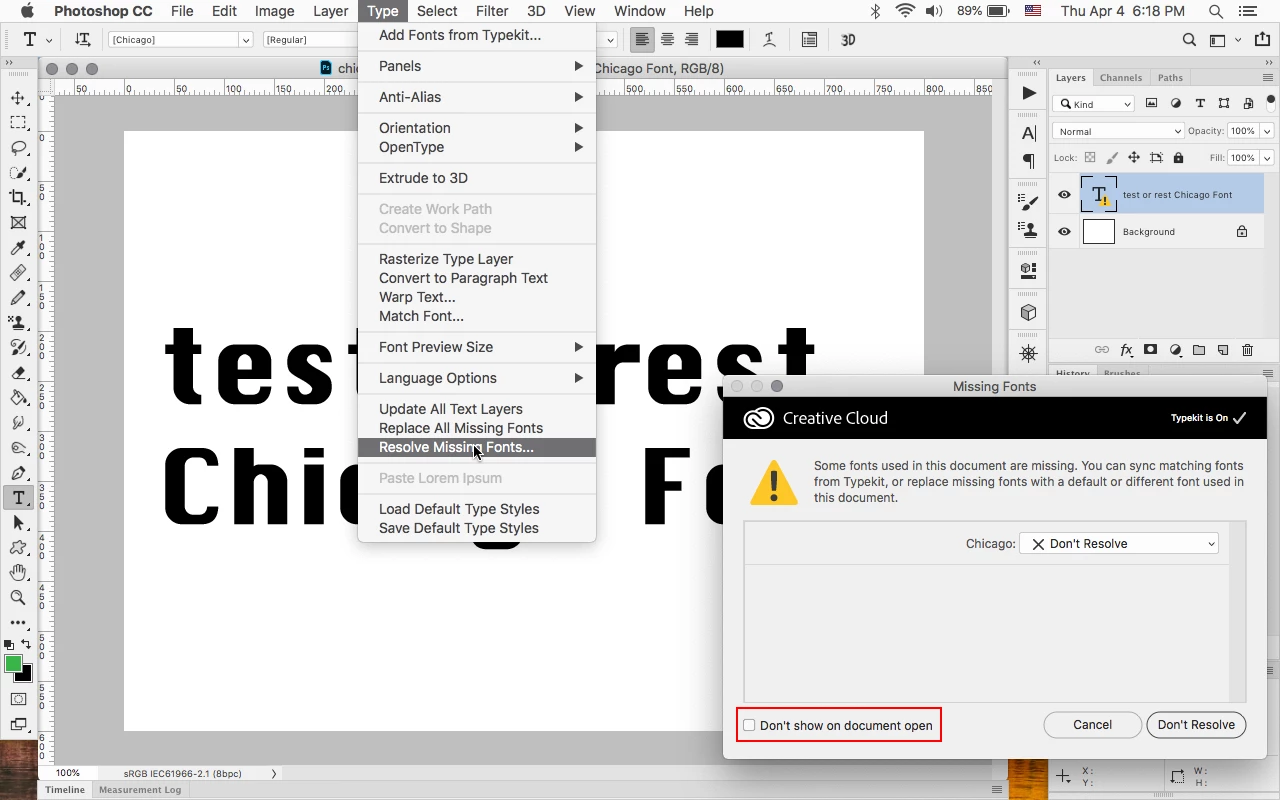
    After you open the file with the missing font(s) go to Type>Resolve Missing Fonts, then you'll get the dialog

    where you can uncheck Don't show on document open.


    1 reply

    Legend
    April 4, 2019

    Try Preferences > General > Reset All Warning Dialogs.

    Overground555
    Known Participant
    April 4, 2019

    Thanks for the suggestion Ronald,

    I tried it out, and unfortunately, it did not work.

    I tried resetting Photoshop, and opening a different file with missing fonts multiple times, with no success...

    Legend
    April 4, 2019

    Bummer.

    Are you sure the font is not on your system?

    Photoshop can have fonts outside of the Windows fonts folder.