Although that works, it’s a lot more work than the other suggestions. Using the automatic tiling in Acrobat or InDesign means you just set it up, click Print, and it works.
The Slice tool method also has several problems:
- The Slice tool cannot create overlaps like real print tiling features do. Auto-tiling can automatically create overlaps between tiles to cover up any gaps between printed tiles when they are mounted together later.
- Because each slice gets exported as a separate file, you have to print them individually. 20 tiles means you do 20 print jobs. With automatic tiling, you print once and you are done.
- Because Save for Web is not designed for printing, the image resolution metadata (and therefore the print dimensions) may be lost unless it is exported with All Metadata selected.
- If print color quality is important, attention must be paid to the document color profile vs what Save for Web is set to export.
Overall, it is much easier, faster, and more reliable to use automatic tiling.
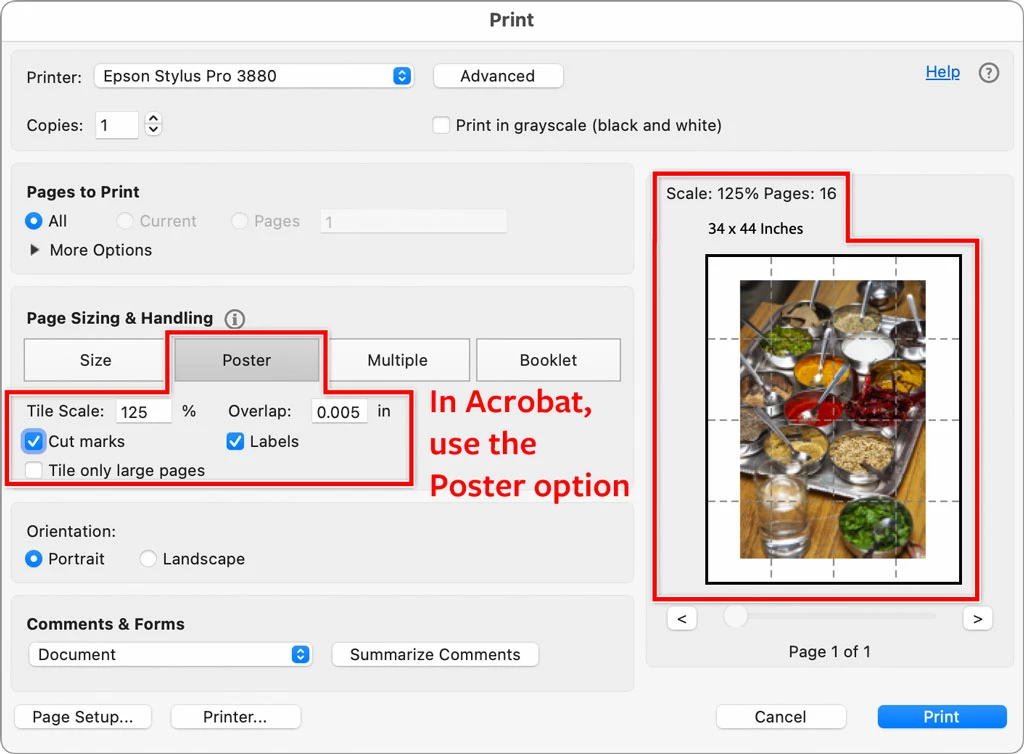
Using Acrobat is easy because the Reader is free, and can open Photoshop files, so you can be ready to print in less than a minute. Just open the Photoshop file in Acrobat, choose Print, set up tiling, and you are done.
I agree this feature should be in Photoshop. But until then, tiling in Acrobat or InDesign is the simplest, fastest way. In the picture below, a Photoshop file is shown ready to tile in the Print dialog box in Acrobat.




 AdChoices