
June 8, 2019
Question

How to create text, edit with vector tools and save changes?

  • June 8, 2019
  • 3 replies
  • 2878 views

Hello everyone!

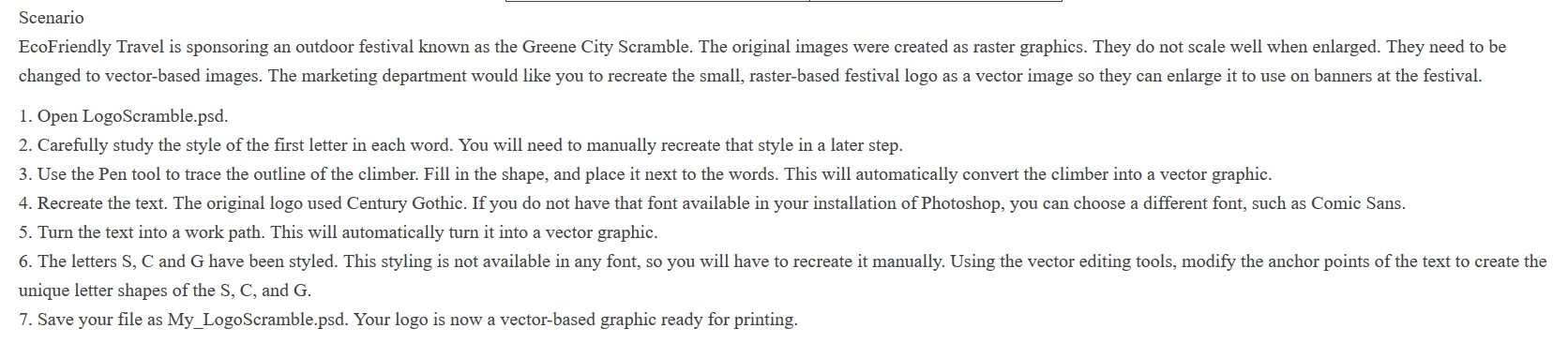
I am currently taking an online Photoshop class. I am enjoying it but must admit Photoshop is more difficult than I anticipated. I have more respect for you masters! I have a class assignment, which you will see in the first image below. I have been working on this for a few days now and I spent probably at least 15 hours searching for how to do this online. The class PDF and tutorial video does not cover the step I am stuck on. I am also not able to find it online anywhere.

Step 3:  I traced the climber and filled him with no issue

Step 4: I used the text tool and typed out the text with no issue. I chose to make the text green.

Step 5: I right clicked and turned the text into a Work Path as directed with no issue

Step 6: Customize the text using vector editing tools. This step is where I am stuck when I use the steps below.

1) Select Direct Selection Tool

2) I selected the Curvature Pen Tool

3) I then customize the text by moving the anchor to a new position using the Curvature Pen Tool.

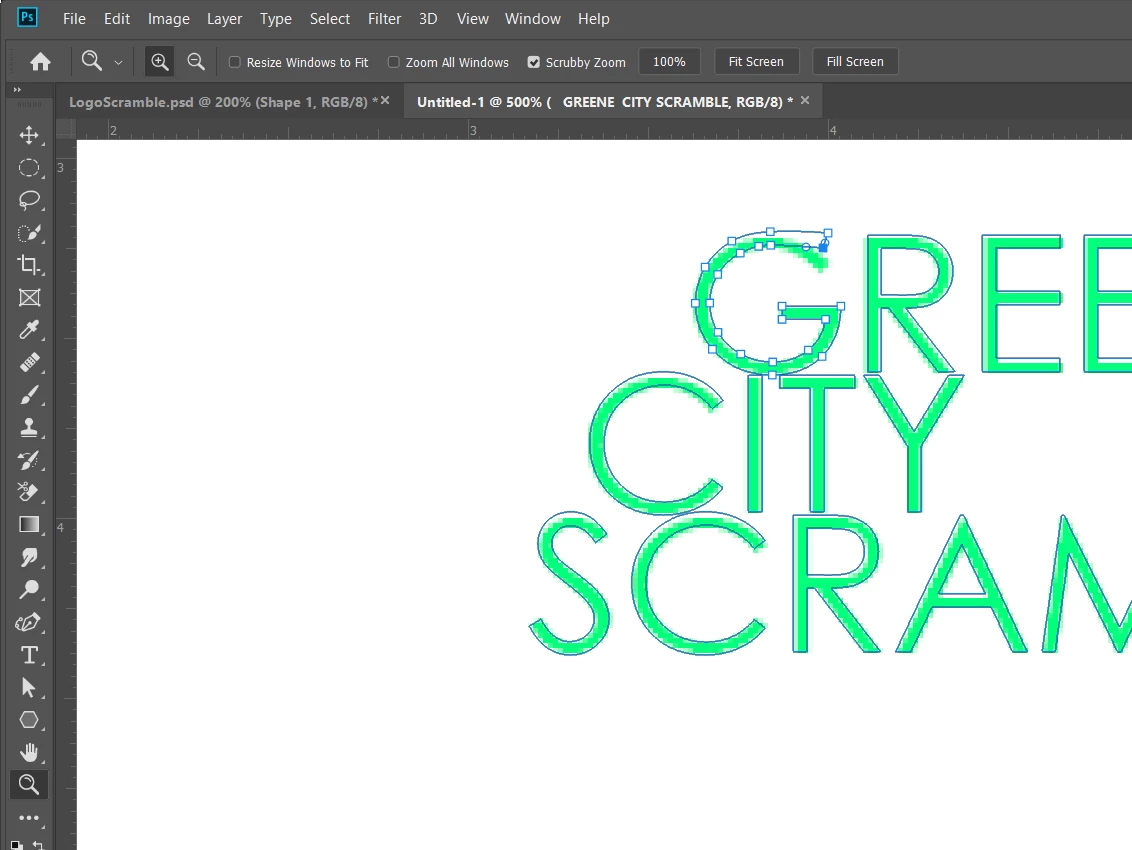
The issue is the original green text font stays where it is when I move the anchor points to the new desired position. I also cannot save where I moved the new anchor points.I tried to fill in the paths but was unable to. I tried hitting enter but then the paths and anchor points completely disappear.

Would you be able to help me with how to save the text in my new desired shape and how to fill the text with a color?

Sorry but I have spent a few days and probably more than 15 hours on this one simple issue. This includes reading the PDF, Google and YouTube.

Thank you for any help you can provide!

The first image is the assignment. As it mentions it must be a vector image.

The second image is a screenshot of the product I end up with but cannot save the text like how I changed it or fill it in with color.
This topic has been closed for replies.

3 replies

JJMack
Community Expert
Community Expert
June 8, 2019

A shape layer is a fill  layer with a vector layer Mask  Over the years Adobe changed the way the depict this in  the layers Palette. They not longer show the Fill Layer  thumbnail as the layer content with a linked vector mask Instead  Adobe show a thumbnail for the shape with and overlay icon denoting its a shape layer.  The Vector Path exists and if you look in the path palette with the shape layer targeted you will see that path and  you can duplicate it and  give it a name like text path.  Don't do that you want to edit the actual shape layer Path.  If you want you can duplicated the shape layer path then delete the  shape layer and just edit the path.

JJMack
JJMack
Community Expert
Community Expert
June 8, 2019

You need to learn how to use Photoshop Tool well.  If you use the black arrow path selection tool an click one the edge of an e all the control points will be selected.  If you then  use Ctrl+T free transform to can transform the e path.  Move it; rotate it, size it distort, warp it.  You do not learn Photoshop overnight...

JJMack
JJMack
Community Expert
Community Expert
June 8, 2019

I would also convert Text to shape. You are not limited to the curvature pen other pens can add delete and convert control points. You can  use other tools like free transform, use  paths selection tool and direct select vector tools.  You can move control and adjust line segment  with the vector selection tools you do not even need to use a pen tool to edit a path.

JJMack
June 8, 2019

JJMack,


That does seem to help by turning it into a shape. However, the first image below is the assignment. Step 5 says to turn the text into a work path, not a shape. I believe this is the issue.

The second image is how I want it to turn out, which is the way you instructed me to do it. Turn it into a shape and then move the anchor points as I wish. Once again this is how I want it to look, but the assignment instructions say to turn it into a work path.

The third image is how it turns out if I turn it into a work path and then try to edit it. I have to make a video tutorial for my assignment and when I follow the steps by the assignment it turns out like the third image, with only the path moved but not the letter itself. I hope this makes sense.

Do I maybe have to turn it into a work path like step 4 says and then maybe turn it into a shape from there?

Bojan Živković11378569
Community Expert
Community Expert
June 8, 2019

Instructions are confusing it seems. If you alter work path it won't affect text because they are not the same thing nor on the same layer. Work Path actually exist only in the Paths panel not in the Layers panel.

If you want to convert path to shape do the following:

  • Select path in the Paths panel
  • Go to Layer > New Fill Layer > Solid Color

Once you turn path into shape any change to anchor point will reflect on the shape layer. Text on type layer will stay as it is because it is on separate layer and not connected to shape layer in any way. Note: you can not manipulate text on type layer created using Type tool with Direct Selection Tool as you can path on shape layer.

c.pfaffenbichler
Community Expert
Community Expert
June 8, 2019

Step 5: I right clicked and turned the text into a Work Path as directed with no issue

Instead of a Work Path try

Type > Convert to Shape

(after making a duplicate of the Type Layer to be save) .

June 8, 2019

The issue with that is Step 5 of the assignment says to turn the text into a Work Path.