


jjonez642
Known Participant
April 21, 2017
질문

How to prevent Photoshop from auto correcting the colors of my images

  • April 21, 2017
  • 9 답변들
  • 21316 조회

Hey everyone,

There's this issue that keeps occurring from time to time and I can't find any fix even after an extensive Google search.

When I open some pictures on Photoshop (I specifically use CS5 for Mac if that makes any difference) the colors automatically change without me even doing the slightest little thing.

Now as I said, it only happens to some pictures, not all of them, which is strange. I cannot find a fix for this guys. I'm suspecting there's got to be somewhere in Preferences an auto color correction setting enabled, but I don't know if that's the case or where to find it.

My Color Settings are set to North America General Purpose 2, if that matters.
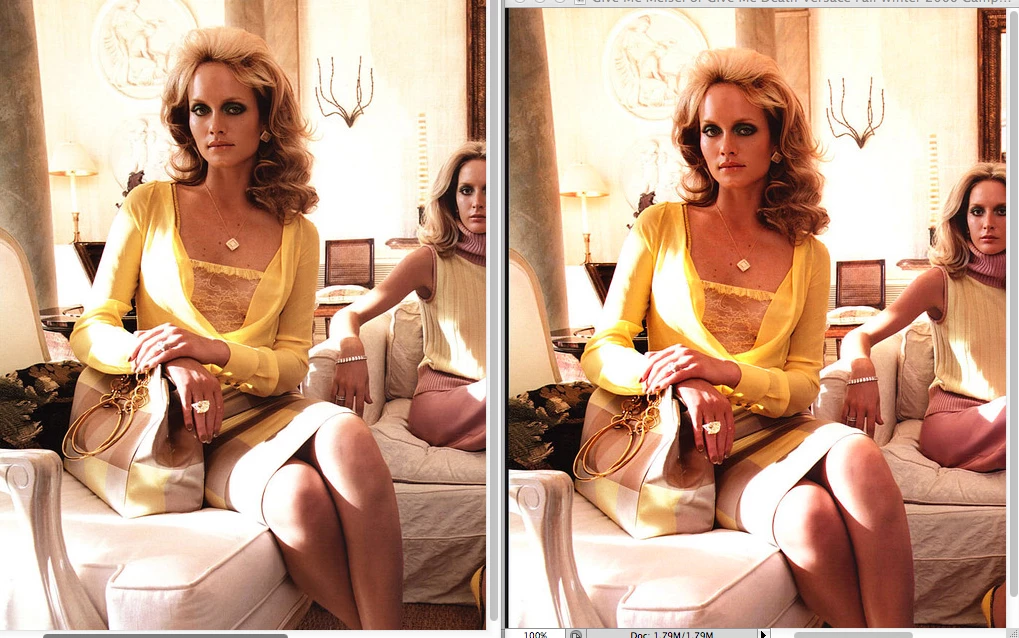
On the left is the picture opened on Preview (and several other apps) and on the right is the exact same picture opened on Photoshop. Both pictures are unaltered by me, meaning this is what I get just by opening them. As you can see the one on the right has brighter colors.

Anyone knows a fix for this? Please help me cause this bug has rendered Photoshop unusable to me, on one too many occasions from time to time.

Thank you very much for your time.

이 주제는 답변이 닫혔습니다.

9 답변

Legend
June 7, 2017

No. A simple no.

davifrn
Participant
May 11, 2017

since no one answered, I will answer for it (soooooo late, but I just found it)... here's the screenshot, but since I'm abroad for a while I just have a random laptop display, so color fidelty could be really low...but they still look different to me...

BTW since non one explained it correctly, you can consider Photoshop as filtering the original color profile through the ICC profile of your monitor (said with an extremely easy explanation)...I had the same problem on this image:

I rendered it from C4D with an sRGB profile and tweaked on Nuke (that don't have color managing) then tried to upload it on Firefox and it turned purple! so I imported it in Photoshop to see what was going on and it was purple as well... (don't really have a screenshot for that...) but that's because Ps, as well as the browser, was reading the ICC profile of my Laptop (yeah, I know I shouldn't argue about colors from a laptop, but this is the situation at the moment) and tweaking the sRGB to make colors display as they are supposed to be...but what's the story? well, since I had the WHOLE process before Ps on a non-managing colors applications (my first render was even in .exr, which uses a linear color space) I tweaked everything on a non-filtered sRGB profile, this means that once my ICC profile was read, the colors on Ps got a mess, because they weren't those seen until that moment...and guess what? if I was assigning my ICC to the image color profile, it displayed correctly...

D Fosse
Community Expert
Community Expert
May 12, 2017

davifrn  wrote

since no one answered, I will answer for it

Did you read the preceding posts? This is fully answered and fully explained, and there's no reason to complicate this further.

Color managed applications show it correctly, non-color managed ones incorrectly. End of discussion. This is why we have color management.

What made this a long story was that the OP preferred the wrong version over the right version. That's his right I suppose.

jjonez642
jjonez642작성자
Known Participant
June 8, 2017

j64253144  wrote

So, is there any way to "dye" the t-shirt marigold?

Yes - bring it into a colour-managed environment and make your colour judgements and adjustments ('dyeing') there.

In your case, a possibility would to profile the monitor you liked the colours on, open the file in Photoshop, assign that monitor profile, then convert it to something more standard (probably sRGB).


https://forums.adobe.com/people/Danny+Whitehead.  wrote

j64253144   wrote

So, is there any way to "dye" the t-shirt marigold?

Yes - bring it into a colour-managed environment and make your colour judgements and adjustments ('dyeing') there.

In your case, a possibility would to profile the monitor you liked the colours on, open the file in Photoshop, assign that monitor profile, then convert it to something more standard (probably sRGB).

Thank you for your response Danny.

Just to be sure, is the process I described in post #31 the right way to do this?

Step 1: I opened the original file (downloaded from the internet) with PS

Step 2: Edit > Assign Profile > selected Profile: Display > OK

Step 3: Edit > Convert to Profile > selected Destination Space: Profile: Working RGB - sRGB IEC61966-2.1 > OK

Step 4: Saved file

Legend
April 23, 2017

Ok, I think we're on the same page. There's been a lot following from your initial and very clear assertion that this is a Photoshop bug, and hence people have put a lot of energy into proving that it isn't. But what matters is that you see this image with the colour mix you like, and you want to get into Photoshop what you see. And, presumably, go somewhere from there - make something in Photoshop from that image, and also see it as you want. That could be harder. As you've found, you can tag the image with the monitor profile, and you see what you want in Photoshop. But people are drawing your attention to this having problems later, and probably looking even less like you want.

Now, I'm stronger on theory than practice, but perhaps people can critique this idea.

1. Get the image into Photoshop.

2. Tag it with the monitor profile [since that is the profile needed to get the colour balance you want].

3. Convert (not tag) it to sRGB.

This sRGB image is probably (it seems to me) your best shot at an image which will look reasonably consistent on YOUR system. If your monitor is calibrated, it may also look consistent on other people's calibrated systems. Any comments?

jjonez642
jjonez642작성자
Known Participant
April 23, 2017

Ok, so let's see if I did it right:

Step 1: I opened the original file (downloaded from the internet) with PS

Step 2: Edit > Assign Profile > selected Profile: Display > OK

Step 3: Edit > Convert to Profile > selected Destination Space: Profile: Working RGB - sRGB IEC61966-2.1 > OK

Step 4: Saved file

The file I got out of this process is identical to the original, i.e. the exact way I want it to be.

Here's the files for you to examine:

Original image:

File after the aforementioned process on PS:

On my computer they're 100% identical, would you please verify that they look the same on yours as well?

barbara_a7746676
Community Expert
Community Expert
April 23, 2017

If you're asking whether the two images look the same in your post, they do not look the same on my computer. The second one, the one that is processed, has less red.

D Fosse
Community Expert
Community Expert
April 22, 2017

I took a closer look at the two screenshots.

Assigning the "other" profile to each does not produce the expected match. There's still a difference. So that's not it. In addition - NA general purpose has sRGB as working. So that would produce the opposite result if the file was untagged.

So I'm back to my original theory: Photoshop is using the wrong display profile - whether on its own, or it gets that profile from the OS, or it's Mac OS doing it on its own. All three are just as likely (except on Windows the third would be impossible).

But we still haven't heard back from the OP, as to whether this is in fact a dual display setup, and if so what particular displays are used.

K´mo
Participating Frequently
April 21, 2017

I suspect that it happens when there is no color profile tagged in file and it differs from working profile and the warning is turned off. Then PS assignes working profile to image which is made with another profile.

Please check policies for "profile mismatches" and "missing profiles". I'd check also the pasting. They are all good to be checked.

D Fosse
Community Expert
Community Expert
April 21, 2017

Yeah, it could be that.

I can never wrap my head around why anyone would want to punish themselves by producing untagged files, so I tend to disregard that possibility.

K´mo
Participating Frequently
April 21, 2017

I feel you. But it could happen by accident or something. And it's not rare if I think all the images that clients have sent me for advertising or something.. And sometimes you get untagged images from image banks.

D Fosse
Community Expert
Community Expert
April 21, 2017

Converting won't matter. It will display the same. This is a color managed application, which displays everything correctly whatever the document profile.

This is most likely, yet again, a display profile problem. Probably not a corrupt profile, more likely just the wrong one.

Is this a dual display setup? If so, exactly what displays are used (make and model)? This is what it would look like if the display is wide gamut, but the application uses an sRGB-type display profile for it.

jjonez642
jjonez642작성자
Known Participant
April 22, 2017

Ok, bingo!

This is fixed by Assigning Profile: Display

Now the picture and its colors are identical whether I open it with Preview or Photoshop.

Finally.

Thank you all for your help guys.

jjonez642
jjonez642작성자
Known Participant
April 22, 2017

Oh, sorry, one last thing.

Is there any way to set it that it assigns the "Display" profile by default, so I don't have to do it every time manually?

Thanks.

barbara_a7746676
Community Expert
Community Expert
April 21, 2017

Check Edit > Color Settings. Color management may be converting images to working RGB without asking.

Danny Whitehead.
Legend
April 21, 2017

Looks like the image has the AdobeRGB profile assigned. If that's the case, then the image on the right, in Photoshop, is the correct colours (as intended by whoever assigned that profile). If you prefer the appearance on the left, Edit > Assign Profile, and try assigning sRGB.

Bettina Di Virgilio
Participating Frequently
April 21, 2017

Check if you've on the soft proof. Press Cmd/Cltr + Y to enable or disable it.

jjonez642
jjonez642작성자
Known Participant
April 21, 2017

Hi, thanks for your response.

I tried that and there's no difference whatsoever.