
Participant
December 20, 2017
Answered

Not Black & White but Blue & White!

  • December 20, 2017
  • 5 replies
  • 1568 views

Hello experts - I'm trying to create a blue & white image from a colour photo I took (of Manhattan skyline at night). What I'd like to do is turn it black and white, invert it (so that the lights of the buildings and windows become black dots) and then replace the black in the photo with a mid-blue.

I've tried 'replace colour', but when I change the black to blue it doesn't seem to work - the black just goes grey.

What am I doing wrong? Your help and expertise hugely appreciated on this...
This topic has been closed for replies.
Correct answer davescm

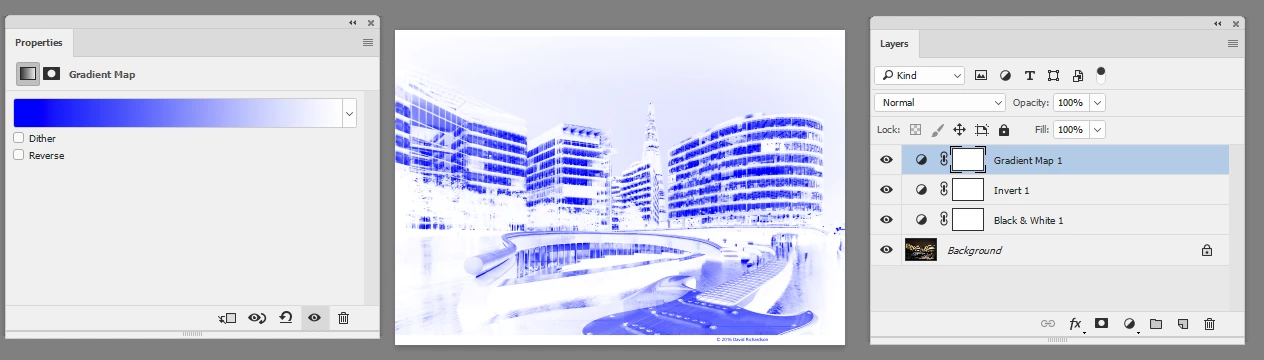
As an alternative to Derek's approach you could use a gradient map adjustment layer.

Dave

5 replies

JM88Author
Participant
December 20, 2017

Many, many thanks all. For my particular image, davescm's gradient map technique worked particularly well.

Hugely appreciated - may you all find fifties on the pavement tomorrow.

davescm
Community Expert
Community Expert
December 20, 2017

Haha - you're welcome

Dave

S_Gans
Community Expert
Community Expert
December 20, 2017

JM88​ - I love norman.sanders answer, but when I read your original question, it appears to me that you went to black and white using the Image>Mode>Grayscale menu option. That will result in you ONLY being able to get variations of gray, no matter what color you pick.

Derek Cross and davescm have some excellent options, using your start from RGB, but one other option might be to invert your original layer, and use a Black and White adjustment layer, with TINT turned on, then adjust your color to taste. I don't currently have the perfect image for this, but perhaps you can infer what I mean by this screenshot:

Adobe Community Expert / Adobe Certified Instructor
Norman Sanders
Legend
December 20, 2017

1. Open the image. Choose your Foreground Color of Blue

2. Image > Adjustments > Invert

3. Edit > Fill > Foreground Color... with Blending Mode Set to: Color

Trevor.Dennis
Community Expert
Community Expert
December 20, 2017

Norman, you didn't use LAB mode!!!

Norman Sanders
Legend
December 20, 2017

Trevor, you are not going to believe this, but I did!

Made the dupe layer, switched to LAB and transposed the Lightness curve.

Then came back to RGB for the Fill with the same blue and compared them.

Very minor difference. Since the one I posted took fewer steps, I used that one.

But rest assured, Lab Man is back!

(It bugged me not to be able to use it last night with that Polar Coordinate post.)

Derek Cross
Community Expert
Community Expert
December 20, 2017

Convert your image to grayscale mode then convert it to duotone then and select the second color.

Use duotones in Photoshop

davescm
Community Expert
davescmCommunity ExpertCorrect answer
Community Expert
December 20, 2017

As an alternative to Derek's approach you could use a gradient map adjustment layer.

Dave

John T Smith
Community Expert
Community Expert
December 20, 2017

Please post the name of the program you use so a Moderator may move this message

-A program would be Photoshop or Dreamweaver or Muse or Premiere Pro or ???

JM88Author
Participant
December 20, 2017

Hi John - thanks for the heads-up! I'm using Photoshop.

[Here is the list of all Adobe forums... https://forums.adobe.com/welcome]

[Moved from generic Cloud/Setup forum to the specific Program forum... Mod]