
Known Participant
November 12, 2019
Answered

Pen tool drawing disappearing when save to jpeg

  • November 12, 2019
  • 6 replies
  • 14852 views

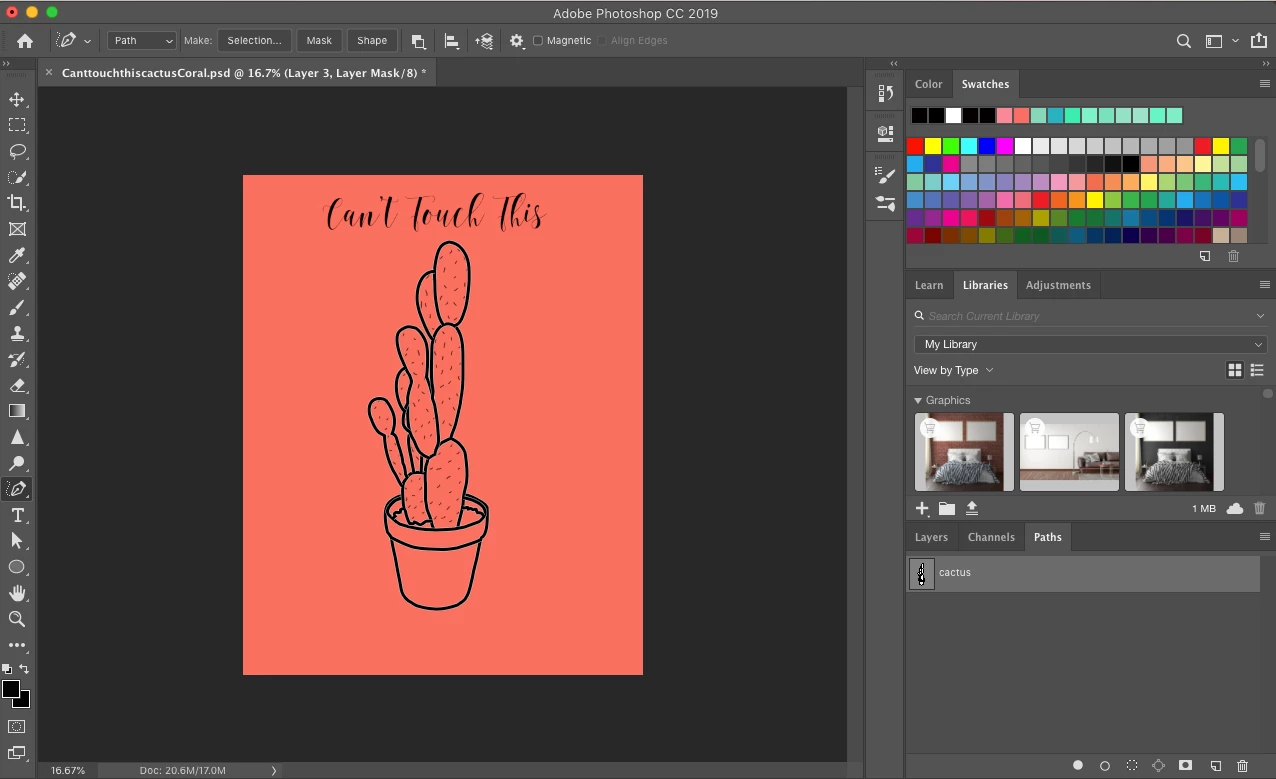
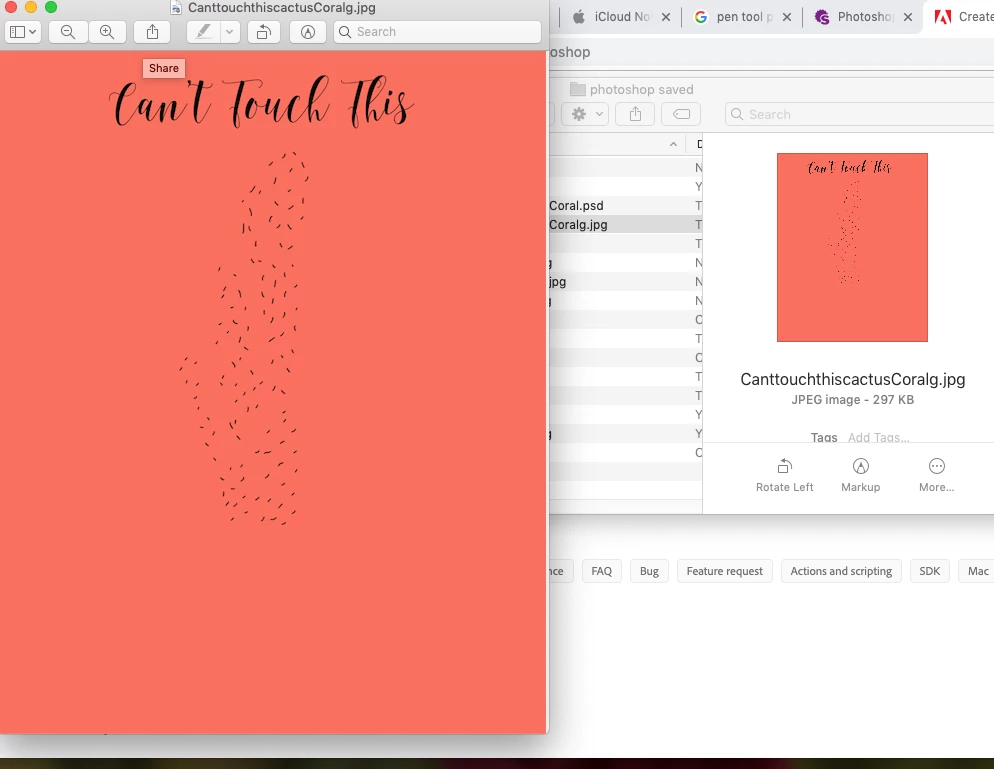
So for the second time i drew something with the pen tool. It was on a seperate layer from the background colour. I saved the file as a jpeg and when i went back to open it, the entire pen drawing was gone. In a seperate layer i had added some tecture with the brush tool, this is the only thing that remained from the image i drew. why is this happening? when I go to look at the jpeg the image is missing. Heres a screen shot for reference
Correct answer Conrad_C

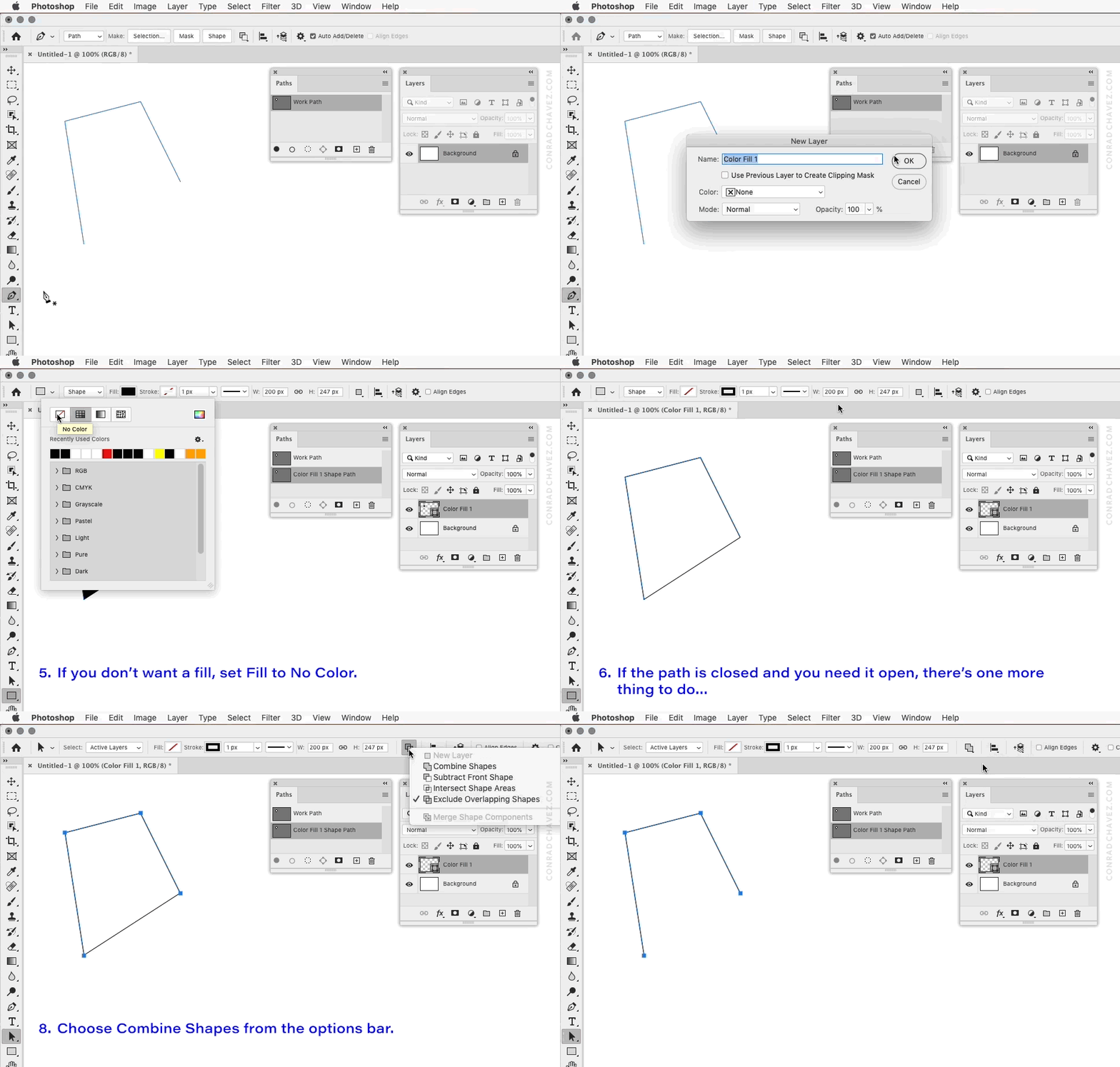
Sorry it took a while to reply. I thought I knew how to solve this by converting it to a shape layer, but it would end up filled and closed. I finally figured out how to make it unfilled and open, so the solution is in the animation below. Does it solve your problem?


A shape layer can be printed or exported, so once you get it there, that should take care of things.

In the future, if you want a path to be drawn as a shape layer, be sure the tool is set to Shape in the options bar before you begin drawing.


More notes:

  • After you convert the path into a shape layer, you can delete your original "cactus" path.
  • If the animation is confusing, pay attention to what is happening in the Paths and Layers panels at each step.
  • The Color Fill layer is the name of the new shape layer. You might want to rename it so that you remember that you're not really using it as a color fill, but as a vector shape layer.

6 replies

Participant
August 20, 2020

What a genius. Thank you so much.

Participant
August 7, 2020

That solved it for me, but I think it is insane that Adobe makes it so complicated to create a simple line in Photoshop (much simpler in Illustrator). If this is NOT working for some of you guys, make sure you check the stroke pixel size. Mine defaulted to zero, so the newly created Shape stroke kept disappearing when I deleted the original path. Don't get me started about Adobe defaults...

Participant
November 17, 2021

I had this exact same issue while drawing something today. It's beyond me that the creators of PS make it so complicated to draw a few simple lines. And I don't get the options to apply stroke weight. I am sure it gets enabled with some other, even more complex setup hidden somewhere. Absolute nightmare!

Participant
May 14, 2020

Hello, I tried this but even when the path are now a layer they only when the layer is marked. When I deselect the layer the paths are no longer visible. They disappear when I convert to JPEG. See attached screenshots.

Conrad_C
Community Expert
Community Expert
May 14, 2020

What Fill color and Stroke color/weight settings are applied to the shape layers?

If they disappear when the layer is deselected, that indicates the shape layer might not have a Stroke weight or color applied to it.


(I traveled on some of those airline routes many years ago!)

Participant
May 17, 2020

OK. I think I see what is going on.


There are two sets of color and weight options for a shape path. The Path Options you have revealed do not affect visibility when printing or exporting, because they’re only for making a path more visible for editing.


The options you want to change are to the left. Look at the Fill and Stroke options, because those do control appearance when printing or exporting. Notice that both the Fill and Stroke boxes have red lines through them. That means the currently selected shape layer has neither a Fill nor a Stroke applied, so it will be invisible when printed or exported. If you want the airline routes to print or export, click the Stroke box and apply a color, then adjust the stroke weight next to it.


Fortunately, it looks like if you select multiple shape layers, you can adjust their Stroke and Fill for all of them at the same time, so you might be able to fix them quickly.


Thank you for the tip but it seem that this is not quite the solution yet since making the lines visible then creates additional straightlines between between the start and end point. See screenshot.

Legend
November 15, 2019

JPG format does not save any layers or paths.


Or I did not understand the problem. )

Kukurykus
Legend
November 16, 2019

Sometimes I know more than you, but only sometimes 😉


JPG can save paths, just check it out yourself 😄

Conrad_C
Community Expert
Conrad_CCommunity ExpertCorrect answer
Community Expert
November 15, 2019

Sorry it took a while to reply. I thought I knew how to solve this by converting it to a shape layer, but it would end up filled and closed. I finally figured out how to make it unfilled and open, so the solution is in the animation below. Does it solve your problem?


A shape layer can be printed or exported, so once you get it there, that should take care of things.

In the future, if you want a path to be drawn as a shape layer, be sure the tool is set to Shape in the options bar before you begin drawing.


More notes:

  • After you convert the path into a shape layer, you can delete your original "cactus" path.
  • If the animation is confusing, pay attention to what is happening in the Paths and Layers panels at each step.
  • The Color Fill layer is the name of the new shape layer. You might want to rename it so that you remember that you're not really using it as a color fill, but as a vector shape layer.
Known Participant
November 15, 2019

Thank you so much! this worked 🙂

Conrad_C
Community Expert
Community Expert
November 12, 2019

The options bar shows that the Pen tool is currently set to Path. That means the path might exist only as a path and not a shape layer. If it isn't a layer, it won't print or export. Can you show your Layers panel so we can see if the path is available for export to JPEG?

Known Participant
November 12, 2019

here is a photo of my layers panel. Is there a way to move the drawing from "path" into "layers" without loosing the image when i save it? or is there a way to convert that path into a shape to transfer it to a layer? I did a test and switched to "shape" when using the pen and saved it and the image came showed up, however as you will see in the second and third photo the shape isnt showing up in the layer, only shows up in the path. is that supposed to happen?


Also how do i save a path drawing for future use and ensure it comes up in the layer so i can print it as a jpeg. 


Thanks for all your help, im new to adobe spent many hours trying to figure this out 😞