Participant
March 10, 2020
Answered

Photoshop Move Tool Not working

  • March 10, 2020
  • 8 replies
  • 43157 views

Hello all, 


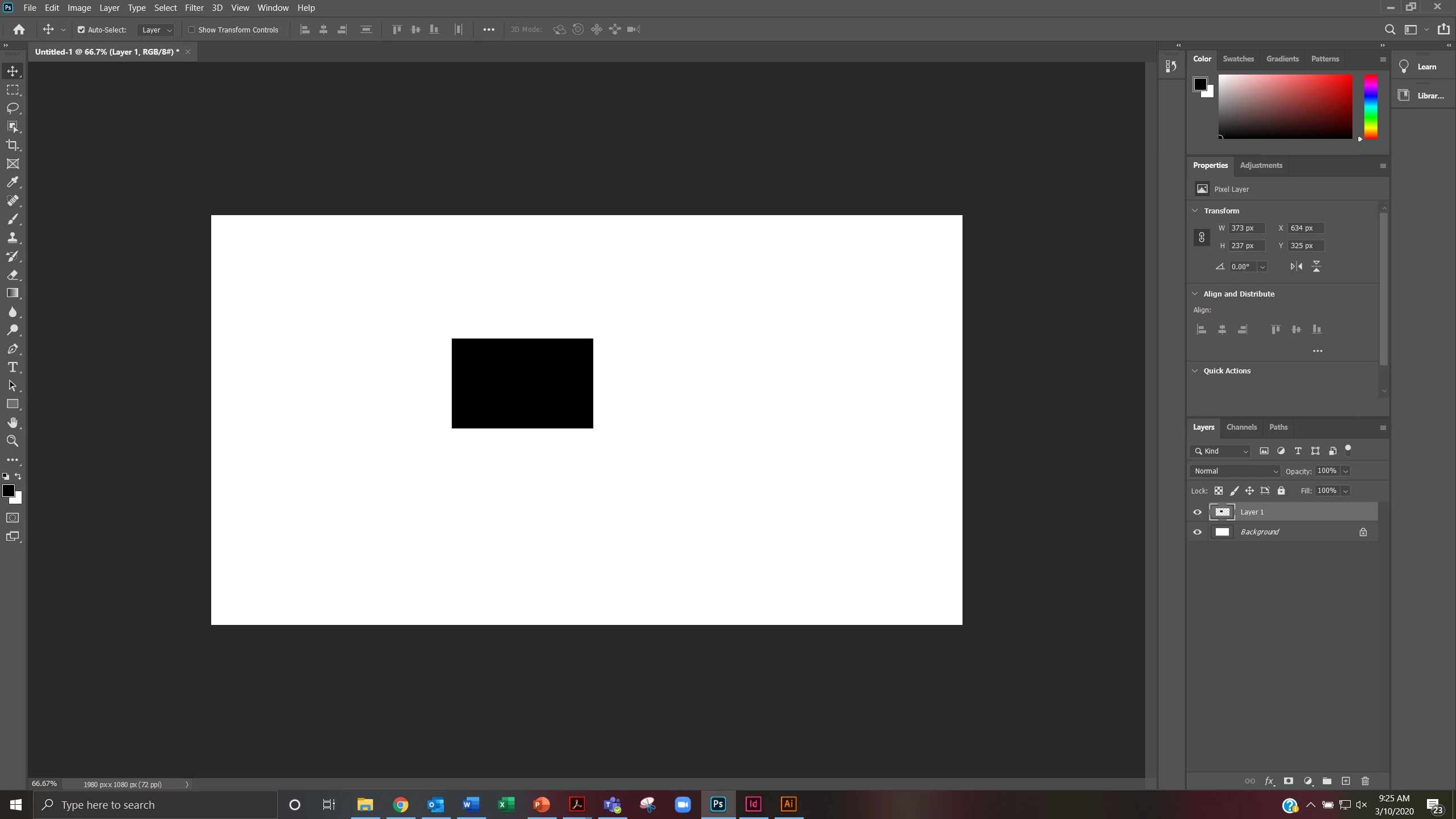
For some reason, the move tool in photoshop is not working at all. Every time I try to move the black rectangle with the Move tool (V), it will not "drag" it anywhere around the document. Unselecting "Auto-Select" will not fix this issue. I have already reseted my prefences by clicking ctrl+alt+shift when I opened Photoshop. 


See screenshot for reference below. 


Please advise. Thank you. 


~ TeleIowa


EDIT: 

Oddly enough, after about an hour or so and restarting Photoshop and my laptop once or twice, the Move tool seems to be working now. I have no idea what I did to remedy that, because after the first time I reset the prefences, restarted photoshop and laptop, I still had the same issue. But after the second time, it seems to be doing okay. 

I'm sorry I cannot provide an answer to this, but I just wanted to give you an update. 


Thank you! 
    This topic has been closed for replies.
    Correct answer

    Hi

    What exact version of Photoshop do you have, just tested on 21.1 and 20.0.9 and the move tool works fine, what happens when you hit Ctrl + T can you move it around then

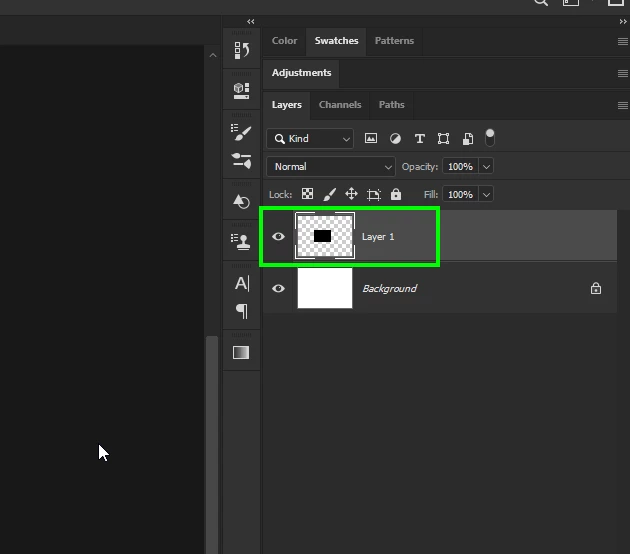
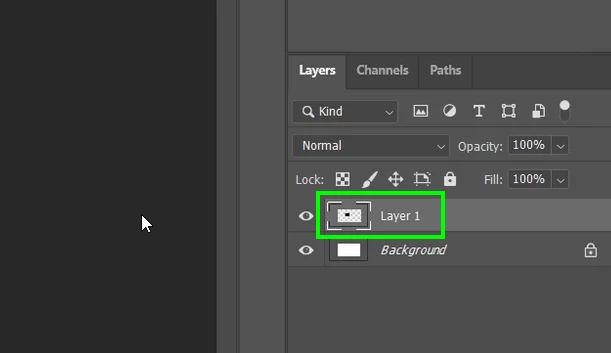
    You layer icon looks unusual

    This is what mine shows


    8 replies

    Participant
    June 17, 2022

    Hi. I think I have came accross the solution for this bug. Choose the layer you need to move and turn on "lock position" option and turn it off. There you have it. Hope it helped.


    Participant
    February 25, 2022

    When I have the issue you're having, it's because I bumped a key. Either something gets selected from W or I hit the Q shortcut and I'm in quick mask mode (but the layer doesn't highlight showing this). I either somehow selected a pixel somewhere or I got stuck in quickmask (but the layer may not have highlighted reflecting this).


    In my case, I continually hit Q to free transform or deselect or something. I could have sworn Q used to be something else other than Quick Mask (Q) but I think I've just been using Flash and Animate for too many years now, that I hit Q to free transform.

    Participant
    August 11, 2021

    Hi guy. Did you use Illustrator at the same time of Photoshop. I had the same bug here and i try close all adobe apps and open only photoshop and it works.

    Participant
    November 30, 2021

    Thank you, this worked for me.

    Sabbra Cadabra
    Participant
    February 24, 2021

    Im on 22.2 and the same problem....crist sake, you pay a lot to have this stupid bug
    Adobe is SO great....

    Participant
    October 26, 2020

    I am having the same issue but on top of not being able to move anything on the artboard I also can not move layers up or down in the layers panel. 

    Known Participant
    November 3, 2020

    (cursing removed) Adobe?? Every single update introduces a new glitch. I can only move using arrow keys! This is insane. They are taking basic functions that have been as is for decades and messing them up. I mean they know we are professionals, right? I do this for my job not for fun. I am seriously searching for  new software....

    AmySykes
    Known Participant
    October 6, 2020

    I am having the same problem with Adobe Photoshop move tool. I tried to go back one update, and even with the previous update the problem still occures. You can't drag with the move toos or duplicate using alt key and drag. Very frustarting 

    AmySykes
    Known Participant
    October 6, 2020
    jane-e
    Community Expert
    Community Expert
    November 9, 2023

    @AmySykes 


    Hi Amy,

    Unlike the OP who had a "Layer 1", you drew the shape with the Rectangle Shape tool and your layer is "Rectangle 1", so the answer for you is not the same.


    Instead, use the Path Selection tool (black arrow, keyboard shortcut "A") to move shapes.


    https://helpx.adobe.com/photoshop/using/tool-techniques/path-selection-tool.html


    Jane


    Participant
    July 28, 2020

    when using move tool, try to untick auto-select on the top left bar, so you move things on the layer selected

    if auto-select is on, your mouse must land on the pixel of the object to move it, or it will jump to other layer, e.g. background, and nothing will be moved

    Inspiring_magic15C3
    Participating Frequently
    July 14, 2021

    Thanks. This fixed my same bug with the move tool.

    Participant
    February 16, 2022

    Same here.

    Correct answer
    March 10, 2020

    Hi

    What exact version of Photoshop do you have, just tested on 21.1 and 20.0.9 and the move tool works fine, what happens when you hit Ctrl + T can you move it around then

    You layer icon looks unusual

    This is what mine shows


    TeleIowaAuthor
    Participant
    March 10, 2020

    Hello. My current version is the 21.1. 


    When I hit ctrl+T, I am able to move it around yes, but I would prefer to use the Move tool if possible. 

    You are right about the layer icon being unsuaul. Do you know how to fix that? That may be causing the issue. 


    Thank you!

    March 10, 2020

    Alas there's a lot of issues/bugs with version 21.1, I only use it on my work PC occasionally for testing issues reported on the forum. I reverted back to 21.0.3 on my home PC where I use Photoshop a lot more, you can do this via the CC app