
henrywl
Known Participant
July 1, 2020
Answered

Photoshop "Export As" size limits?

  • July 1, 2020
  • 14 replies
  • 55697 views

Hello folks,


Got an issue that confused me and suprised me that I couldn't find an answer by googling...


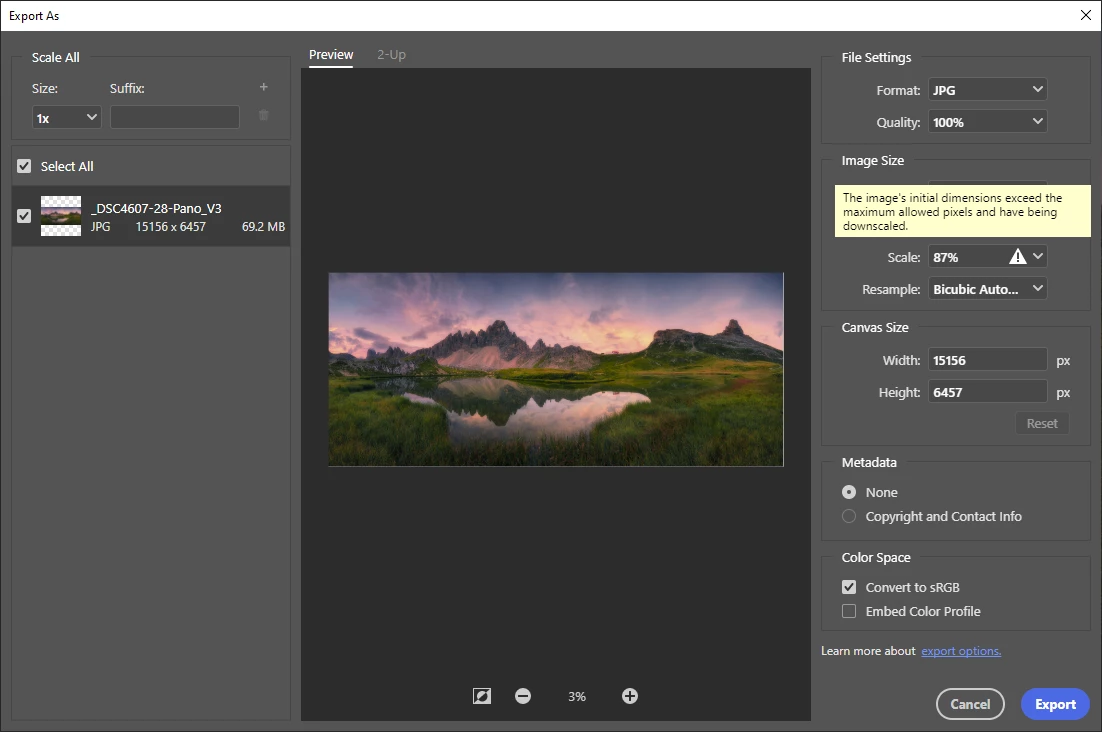
When I try to export one of  my panorama pictures using "Export as", Photoshop (V21.2) automatically scales down my pictures and gives following message: "The image's initial dimensions exceed the maximum allowed pixels and having be downscaled".


What caused this problem? Did I do anything wrong?
Correct answer Conrad_C

Ok, how can I check what are limitations?


The dimension limitations for Save for Web are 8192 × 8192 pixels. That is why a long dimension above 8192 is reduced to 8192. The limit exists because Save for Web is very old code, and that is why Adobe has named it Save for Web (Legacy). They want to remove this old command eventually.


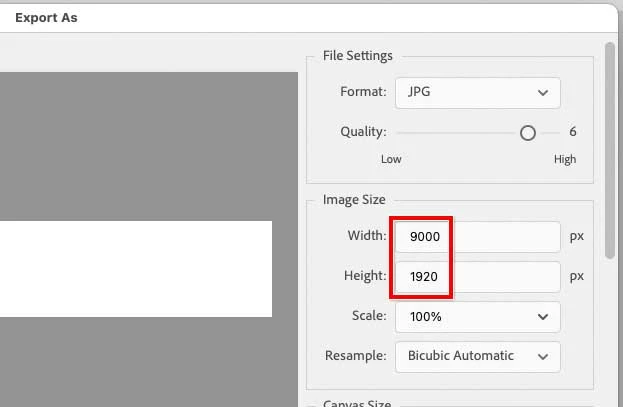
There is a much newer command for web graphics export, intended to eventually replace Save for Web (Legacy). The new command is File > Export > Export As. The Export As command has no problem allowing and exporting a 9000 × 1920 px image in JPEG format.


So:

  • For a very large JPEG graphic optimized for the web or mobile, use Export As. 
  • For a very large JPEG graphic to be printed, containing additional metadata such as ppi resolution and (if used) a clipping path, use File > Save a Copy.

14 replies

Participating Frequently
September 6, 2024

Same issue, but for PNG, specifically PNG8.  Why do I need PNG8?  Stupid high pixel count, but functionally low color count?  I could have many reasons, and don't appreciate being told what will and will not be a best-fit for a given use case.  I come at digital art from a programming standpoint and have sometimes needed files with very particular structures and constraints, for sometimes not entirely visual use cases.  I could conceive of a use for a 20k x 20k x 1-bit image.
Granted this is the first time in ~20 years that I've hit the export size limit, but it's still odd.  Save For Web has been my go-to for indexed-color export since the outset, and I'm so glad that Adobe has preserved it into modern day, but I 100% forgive it not going above 8192px or whatever.  I would expect better of Export As, even if it doesn't give as tight control over what gets included and how.  Weirdly, I only noticed that my image was being allegedly scaled by 50% after committing a Save For Web, as I was waiting for the operation to complete (and ultimately leaving work for the day).  Back the next morning, I confirmed that Save For Web absolutely would not give me more than 50% on paper, but as noted, Export As also hard-capped at 15000.  At which point I looked on my filesystem, and the Save For Web'd file... was the same 16384x8192 as the source, but 1/3 the file size.  Every other quick test I can do seems to suggest that it really is the file I want - original size, but reduced color count - but that would suggest that the size limit _really is_ 100% artificial, and can sometimes be accidentally bypassed due to some bug somewhere.

Participant
December 14, 2023

Hi,


I just had the same problem while exporting an image about 17165 × 33071 and I could not export it 100% size.

The solution was to go File->export->quick export as PNG. The image was exported at full size.


D Fosse
Community Expert
Community Expert
December 14, 2023

Export is intended for web/screen/mobile devices.


Where do you need 33 000 x 17 000 pixels on the web? (You don't even need that for print, for that matter).

DANNY_FIG
Participant
January 14, 2024

Although rare, I need a relatively large image size, about 20,000 pixels, for printing on a blanket to achieve 300 dpi with Printful's printer. However, when I upload an image at 15,000 pixels, which appears to be the maximum resolution Photoshop accepts, it only results in 126 dpi, which is below the desired quality.

NB, colourmanagement
Community Expert
Community Expert
May 2, 2023

I suggest you archive the original (tiff or PSD ideally), make a copy, resize the file manually, sharpen, convert to sRGB then use "save as" and set it to Jpeg 


some notes on Jpeg

Jpeg is the worst possible format if you want to keep high quality - you should always archive a copy of your original, with adjustment layers intact - if that’s how you work.

Jpeg compression (at any setting*) really is "lossy”, irreversible and cumulative, so should ONLY be used only for final delivery AFTER resizing & cropping to the FINAL size and crop.

Why? Any edits to size or crop, or even just re-saving a Jpeg file means further compression, potentially that’s very damaging.

The jpeg damage is not always immediately apparent, which is perhaps why it's still widely used - however, the compression will soon cause issues if you do further work and save again. That’s when you’ll see a jpeg with some real issues.


*don’t imagine that selecting maximum quality for your Jpeg is preserving the original data, it’s still compressing a lot which discards information.


I hope this helps
neil barstow, colourmanagement net - adobe forum volunteer - co-author: 'getting colour right'
google me "neil barstow colourmanagement" for lots of free articles on colour management

Participant
April 27, 2023

I have the same issue, my image is 9,000 x 1920 px and when I tried to save for web as jpeg the sizi is changing to 8,192 x 1638 (85,33%)

Legend
April 27, 2023

This should not be a problem. The image is too big for the web. For the web, make it smaller. For non-web use, use SAVE AS or SAVE A COPY in the usual way.

Participant
April 27, 2023

Ok, how can I check what are limitations?

Dynast
Participant
October 19, 2022

Under file, do "Save a copy". It'll allow you to save as a jpeg at the big size.

Participating Frequently
March 24, 2022

I seem to have same or similar issue, but it's not always happening.

I have large file, 19200x12800 pixels. First time using "export as", it came out as expected full resolution. Next day it wouldn't export anything higher than 15000 on the long edge.

Couple days ago as I was editing further, export worked ok again. And now today it's again setting maximum 15000 pix on the long edge. Same PC, same PS, and same-ish file.

Participating Frequently
March 24, 2022

Tried restarting PS, still failed. Rebooted whole computer, then it exported at full resolution. Very strange.

Legend
March 24, 2022

The basic message above is: Export is for web use. This is, yes, a very bad name for a limited function. Since your file is way too large for use on the web, Adobe expect you to use Save as or Save a copy. 

Participating Frequently
July 6, 2021

This is important...

There is no longer a way to specify the quality target percentage. Now you cant set the quality by numbers but only by adjectives (Good, Poor, great, and so on).

Please advice

D Fosse
Community Expert
Community Expert
July 6, 2021

The jpeg compression algorithm always worked in fixed increments, so the gliding % scale is a bit of a smokescreen.


I don't know how many steps are allowed in the jpeg specification. Photoshop itself has 12 steps, so this is apparently a simplified scale. Whether you can tell any difference in practice, I don't know. But I do suspect that this 7-step scale is the one that was used all along, just masked behind the % scale.


Another thing is that it was misleading. "100%" could easily mislead people into thinking the image wasn't damaged at all - which of course it was. Jpeg compression is always destructive, even at max setting.

Participating Frequently
July 6, 2021

Hi, thank you for the quick reply.

I hope I'm not derailing the original conversation but there was no other place I found about this topic.

Here is the thing....Before you were able to see and even set a target file size for the export. Now is a hit or miss.

Known Participant
May 24, 2021

Sorry to bump this post, it's one of the first options googling and the options given below didnt work for me. 

I was looking to save it in JPEG format specifically and the option did not come up in "save as".


The only fix for me was to "Save a copy". Hope this can help anyone else with this issue. 

D Fosse
Community Expert
Community Expert
May 24, 2021

This is a necessary change from 22.4. Save As now only lists formats that support all the current properties of the file. All other formats, with limited support (like jpeg) are now moved to "Save A Copy".


Apple removed the API that made it possible to strip "-copy" from the filename. With the new API, Photoshop has to present the full filename before entering the dialog. And that name has to contain "-copy" because it is a copy. If it wasn't a copy, your original would be overwritten and lost.


https://www.apple.com/feedback/macos.html 


To be clear, this is a deliberate security policy from Apple. It is not a bug. But it had to change in the Windows version too, for platform parity.

Conrad_C
Community Expert
Community Expert
July 2, 2020

Johan is on the right track, Save As JPEG has allowed both JPEG size and visual preview for many years. But I had to test a little more to figure out why it doesn’t always show.


It turns out that you won’t see the file size preview unless you enable the Preview option. If you enable the Preview option, then the Save As JPEG dialog box will display the file size estimate under the Preview option, and in the document window behind the dialog box, it will also preview the visual effect of the current compression level on the image itself. So it is quite worth it to enable Preview.


Conventional wisdom is that you don’t need to set it to above 10. Levels 11 and 12 produce much larger file sizes, but the difference in quality above 10 are not visible to the human eye.


I create panoramas and have not run into problems exporting large JPEG files, but maybe that’s because I usually do it from Lightroom Classic instead of Photoshop. That suggests that if Photoshop JPEG export has a pixel dimension limit, JPEG export from Lightroom Classic or Adobe Camera Raw (they use the same code) might work better.


I did try using Photoshop Export As and Save As to create a JPEG file of a 15117-pixel wide panorama I have, and had no problems either way.

JohanElzenga
Community Expert
Community Expert
July 1, 2020

'Save as' gives you the option to choose the quality setting. If you wait a few seconds, then Photoshop will show you the file size in the dialog too (at least on a Mac it does). It needs a little time to calculate that, maybe that is why the above screenshot does not show this.

-- Johan W. Elzenga