Participant
October 6, 2019
Answered

Photoshop Tools Bar Acting Funny

  • October 6, 2019
  • 5 replies
  • 3256 views

Hi Everyone,

When I hover over a tool in the tool bar (e.g., say the Sharpen tool), a window pops up with only the current tool. It does not show the options. For example, if I hover over the sharpen tool, only a little window that shows the sharpen tool comes up, it does not show the usual blur and sponge tool options. Just started doing this today. Anyone help with this? Thank you.


{Thread title modified by moderator}
This topic has been closed for replies.
Correct answer jane-e

Hi @Pixelnv,

I just tried again with my trackpad and both "Control+Click with one finger" and "Click with two fingers" work for me, so it must be something in Photoshop.


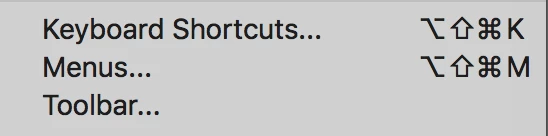
Go to Edit menu > Toolbar (toward the bottom) and choose Restore Defaults from the buttons on the right side to reset your toolbar (since clicking the ellipses at the bottom of the toolbar didn't work.)


If that doesn't work, you'll need to reset your Preferences (after backing up Actions, Brushes, and any other customization, by going to Photophop > Preferences > General > Reset Preferences on Quit.

Then Quit Photoshop and Relaunch. You might Restart your Mac from the Apple menu if you haven't done that recently.


Jane

5 replies

jane-e
Community Expert
jane-eCommunity ExpertCorrect answer
Community Expert
October 7, 2019

Hi @Pixelnv,

I just tried again with my trackpad and both "Control+Click with one finger" and "Click with two fingers" work for me, so it must be something in Photoshop.


Go to Edit menu > Toolbar (toward the bottom) and choose Restore Defaults from the buttons on the right side to reset your toolbar (since clicking the ellipses at the bottom of the toolbar didn't work.)


If that doesn't work, you'll need to reset your Preferences (after backing up Actions, Brushes, and any other customization, by going to Photophop > Preferences > General > Reset Preferences on Quit.

Then Quit Photoshop and Relaunch. You might Restart your Mac from the Apple menu if you haven't done that recently.


Jane

PixelnvAuthor
Participant
October 7, 2019
I did the Control Option Shift and opened Photoshop. Still doesn't show options when I hover over a tool. They only come up if I "right" click, which in may case is double tap my keyboard. Slows me down a bit but at least I can access them. Thank you for trying so hard. Best, Stephanie
jane-e
Community Expert
Community Expert
October 7, 2019

Hi Stephanie, When you hover over a tool, it should only show you a screen tip. To see the hidden tools you can:

  • Press and hold, then release
  • Shift + plus the tool shortcut: "O" will give you Dodge (or whatever is in front); Shift+O will cycle between the three
  • Double finger tap on your keypad (aka "right click")
  • Control+one finger tap (Control+Click is the shortcut for "right click" on an older one-button Mac mouse)
  • Go to Edit > Toolbar
    Drag the tools you don't use to "Extra Tools" and separate the ones you use a lot so they each have their own slot. Here I separated Dodge, Burn, and Sponge (because those are the ones you mentioned). This could speed things up for you.

Cheers,

Jane

Michael Bullo
Community Expert
Community Expert
October 7, 2019

Have you tried resetting the Photoshop preferences?


https://helpx.adobe.com/au/photoshop/using/preferences.html


"Press and hold Alt+Control+Shift (Windows) or Option+Command+Shift (Mac OS) as you start Photoshop. You are prompted to delete the current settings. The new preferences files are created the next time you start Photoshop."

jane-e
Community Expert
Community Expert
October 6, 2019

"Also, I can't right click because I have a MacBook Pro with a trackpad."

Hi

As do I. Here's what to do:

Go to Apple > System Preferences > Start to type "Trackpad" into Spotlight > Click the icon when it's lit up.


Confirm you are on the first of the three tabs "Point and Click" > Click "Secondary Click" (commonly known as right-click). If you haven't changed it, it will show you the default shortcut of tap with two fingers and will also show you an animated gif that shows you how.


  • If you hit the dropdown, you have two other choices for the secondary click
  • If you prefer, another method is to Ctrl+click (Ctrl+tap) to bring up the shortcut menu.


~ Jane

PixelnvAuthor
Participant
October 6, 2019
Wow, you are a dear keeping at this. I did find the track pad in system preferences and made it so if I tap with two fingers it acts like right click. However, it still doesn't work in my Photoshop. So strange. Everything worked fine. Then today it just doesn't work! There hasn't been an iOS update that might have affected it ether. Any other ideas?
jane-e
Community Expert
Community Expert
October 6, 2019

Hi


What happens when you:

  • right-click the tool or
  • press and hold, then release

instead of hover?


Jane


PixelnvAuthor
Participant
October 6, 2019
Nothing happens. Sorry. Any other ideas?
nikunj.m
Community Manager
Community Manager
October 6, 2019

Hi there,


To check the tool grouped together in the toolbar of Photoshop please check if you see a small triangle shaped icon on the bottom right of the tool. If you do, please right click on the tool and you should see the grouped tools.


If you do not see any triangle on the bottom right of the tool or a drop down menu if you right click on the tool, please right click on the tool on the bottom right of the toolbar or the 3 dot icon and select edit toolbar.


When you select edit toolbar, you can drag the tools over from the Extra Tools section on the right to the Toolbar section on the left and then click on Done.


Regards,

Nikunj

PixelnvAuthor
Participant
October 6, 2019
Thanks so much for your in-depth information. But none of that worked. There is a little triangle at the bottom right of each tool. But when I click on it nothing happens. Also, I can't right click because I have a MacBook Pro with a trackpad.. Also, I see the three dots at the bottom, but nothing happens when I click there. Is there are way to reset all of Photoshop to original default?