
Inspiring
July 26, 2019
Question

Photoshop workspace layout bug?

  • July 26, 2019
  • 1 reply
  • 5349 views

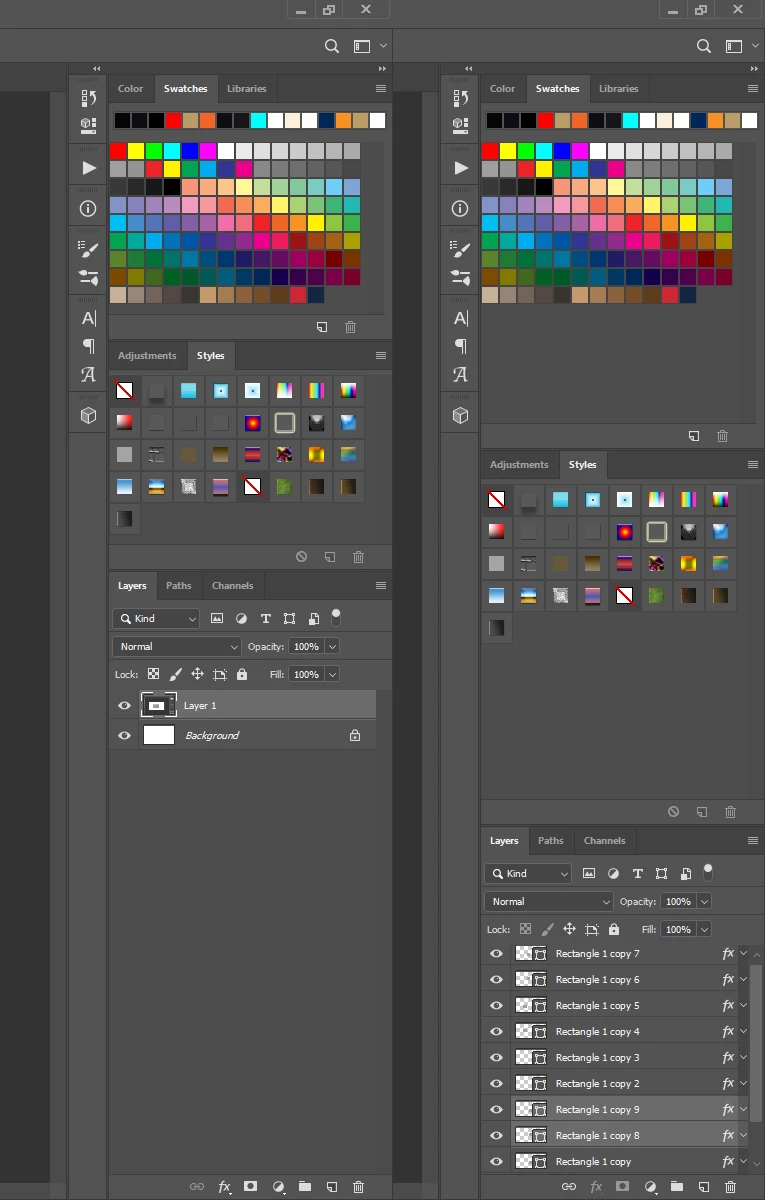
See attached image. I adjust my panels on the right side of my workspace in my layout to allow maximum height for my layers panel. The panels shown on the left in my image are my ideal layout/spacing/height. But if I take Photoshop out of fullscreen (Maximize window) to Restore Down size and then make it fullscreen again, my panels reset -- panels on the right in my image -- so each panel is equal in height (making layer panels shorter again). I have to keep resizing my panels so I can get the taller layers panel.  Can this be fixed?

Related to this issue, everytime I copy something within Photoshop to my clipboard (say a mask/clip of an image) and paste it elsewhere (say Word or Outlook), Photoshop will automatically go out of "Maximize" and into "Restore Down" size.... and I lose my panel layout again. Frustrating for the past few photoshop updated versions.

Thanks for any input.
    This topic has been closed for replies.

    1 reply

    JJMack
    Community Expert
    Community Expert
    July 26, 2019

    Save you workspace the way you want it laid out.   When your workspaces gets messed up reset you workspace.  I mess my workspace up all the time.  I have an action I use to reset my workspace and a Fn shortcut to play the action.  Anytime my workspace gets messes up I simply tap the function key.

    I have never seen Photoshop change its displayed layout when I use Ctrl+C in photoshop and Ctrl+V is some other application. On Windows are you using a Mac? CMD+C CMD+V

    The image above was created Crt+A Ctrl+C  in Photoshop and Ctrl+V in chrome.  What Photoshop was displaying on my displays did   not change.

    JJMack
    Inspiring
    July 26, 2019

    Here is my 3 step process. Step 1, I start with ideal workspace I have saved over a year ago (notice how it is still checked under workspace menu). I then flatten image to copy.

    Step 2, I copy and paste highlighted flattened image into a new email in Outlook.  Notice that the Photoshop window is now NOT maximized/fullscreen, it is now in Restore Down size/mode. This happens automatically after pasting. Even in smaller size now, Photoshop STILL has my correct panel sizes in my workspace.

    Step 3, when I Maximize my Photoshop window to make it full screen again, I loose my panel sizes - they automatically revert to equal sized height (3 panels, each 33% of total height).  This makes my Layers panel crammed which I prefer it not to be.  I have to reset this EVERY time I copy and paste OR if I simply Restore my Photoshop window (without copy pasting) and Maximize it - SAME thing happens to my panels.  Frustrating for over a year now.

    Inspiring
    July 27, 2019

    Soundgarden  wrote

    From what I can gather, saving my workspace does NOT save panel sizes, only where they are located.

    There's something wrong with your workflow.  As others have said, saving a custom workspace, stores everything including position and size.  The only wee gotcha I have ever come across, is if you use multiple screens, and have reason to move your screens in Display Properties.  It is never a problem with the primary screen, but peripheral screen panels are set 'relative' to the primary screen.  So if I nudged up the right hand screen in Display Properties, the panels would be correspondingly low.

    A few versions back, there was a height restriction on panels.  I used to notice it with Layers, and History for sure, and probably others.  At a guess, I'd say 1500 pixels.  I can stretch those panels the full height of my portrait mode screens now.

    I've just thought of something.  If you save a workspace, and later mess it up by moving or resizing panels, then if you switch to another workspace, and then back to your custom workspace, it will show the last state of your saved workspace.  i.e. the messed up version.  In order for it to work properly, you have to set the workspace, and then Reset the workspace.  Or if you are already in that workspace, just reset it.

    You can set shortcuts for workspaces, but you can use Actions.  I have simple actions that set and then reset workspaces.  It is really quite satisfying to tidy everything up with a single button press.

    Note: I mostly use the G-keys keys on gaming keyboards, but none of the Function keys have defaults that I ever use, so it seems completely obvious to borrow them.  Single key shortcuts are a huge luxury with Photoshop, so it is daft not to use them.


    everyone is missing my point.  I dock my panels on the right side of photoshop and adjust the height of my three panels.  Save them to your workspace. If YOU do this (doesn't have to be 3 panels, just 2 or more with diff heights) AND THEN Restore and Maximize your Photoshop screen, YOU WILL LOSE your panel height adjustments. Why do I have to keep resetting my workspace to fix this? Seems like an unnecessary step?

    1) If I copy and paste out of Photoshop, the window is AUTOMATICALLY reduced to Restore Down size. Nothing I can do to stop it. If I Maximize the window back to fullscreen, I lose my panel heights and HAVE TO reset my workspace.  This is annoying to constantly do this 10-30x a day?

    2) Don't copy and paste, just Restore Down your Photoshop window (regardless of why) and then Maximize window.  You lose your panel heights and HAVE TO reset your workspace.  Why? Can I not Maximize my Photoshop window WITHOUT losing my custom panel height adjustments? Is the answer to that question "No," I can't?