
Known Participant
May 18, 2020
Answered
Pressed wrong button = parts of my edit got «pixelated» in Photoshop
- May 18, 2020
- 5 replies
- 1887 views
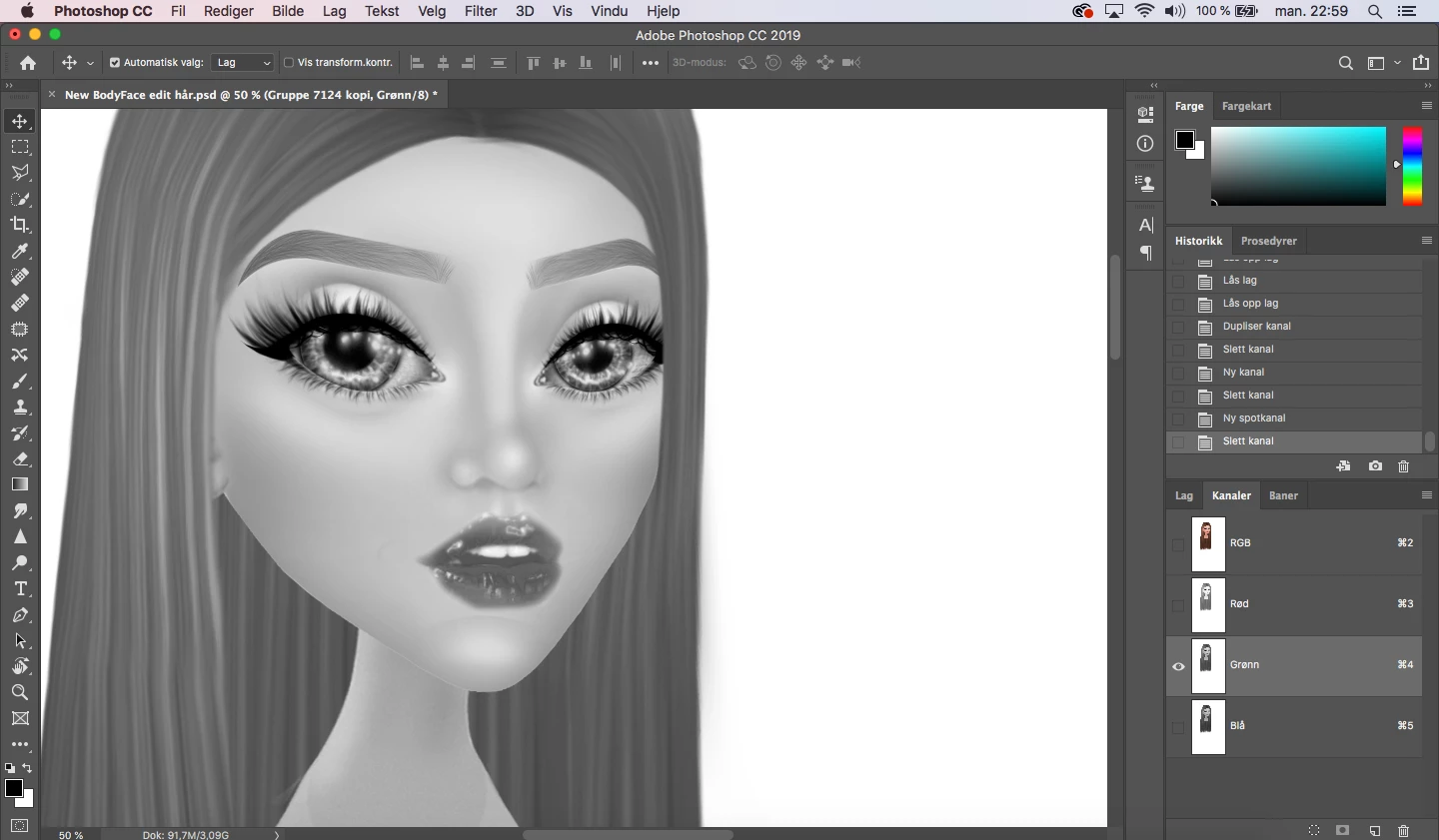
Hello my fellow photoshoppers - i did of course the terrible mistake of trying to take a screenshoot of my photoshop work on my macbook and pressed surprisingly the wrong buttons. As it turns out some parts of my edit got «pixelated». I was suppose to press arrow up+cmd+4 on my macbook pro - does anyone know how to fix this?
{Thread renamed by moderator}
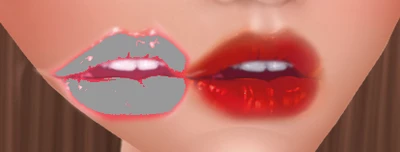
The pink lips are suppose to look like the red ones. So the strange thing is that if i have like layer over the grayish lips the pink colour will be back and it will look normal.
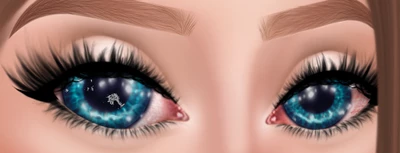
The same goes for the eyes, the left one has gotten the pixelating in it. If i move the eyes to a palce where there is no layers they will look like this:
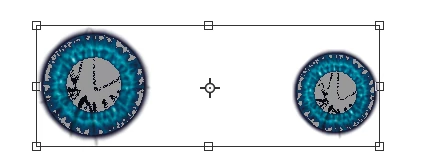
I dont understand what i pressed, but i really hope this can get fixed. I have a 2 backupfiles, but i would rather just fix it in this one.
Thank you guys so much for all the help, sincerly Emily!


 AdChoices