


- Home
- Photoshop ecosystem
- Discussions
- Script to resize and rename images to multiple fil...
- Script to resize and rename images to multiple fil...

Copy link to clipboard
Copied
I have THOUSANDS of images I have to do this to:
Resize to 500x500 and rename to FILENAME_MD.jpg
Resize to 374x498 and rename to FILENAME_SM.jpg
Resize to 276x385 and rename to FILENAME_XS.jpg
My process:
I have to separate the Portrait size vs Landscape sizes so when I resize them to 374x498 and 276x385 the images won't get cut off
I tried just trimming the original 2000x2000 and then creating the droplets, but for some reason some of them kept getting cut off, so I am now just eyeballing them and separating them out. (Please tell me there is a better way!)
Here's what my folders/droplets look like:
There has GOT to be a better way of doing this!!!! Please someone help!!!!! I have 50,000 images to do this to!
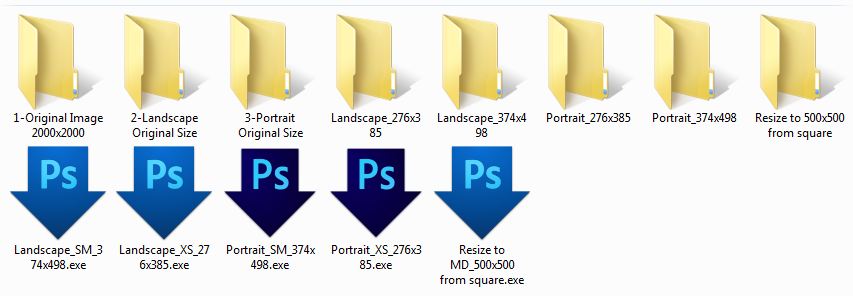


 1 Correct answer

You don't need install xtools. Just install version v3.2b3 from here: ps-scripts - Browse /Image Processor Pro/v3_2 betas at SourceForge.net. You can either install it manually or as an extension.
BTW, if you really do want to install xtools, you have to run PS with admin privileges.


Explore related tutorials & articles
 15
Replies
15
15
Replies
15

Copy link to clipboard
Copied
Here's my droplet.....


Copy link to clipboard
Copied
Have you tried Xbytor's Image Processor Pro script?
Copy link to clipboard
Copied
No I don't know anything about it, can you give me more details? I clicked the link but it doesn't give any details.
Copy link to clipboard
Copied
You might want to check out the link on this forum where Xbytor posted his update. Frankly, I haven't used it, but then I write my own custom scripts. I briefly looked on line, and it looks like you can save multiple instances of files and have the constrained, like you want.
Copy link to clipboard
Copied
Thank you, I tried downloading it and it failed. So I need another solution.
Copy link to clipboard
Copied
How did it fail? Can you give me specifics?
Copy link to clipboard
Copied
This is what I got after trying to install....

Copy link to clipboard
Copied
Here is what I need the final result to be.

Copy link to clipboard
Copied
The image with _LG is the original 2000x2000 file.
Copy link to clipboard
Copied
You don't need install xtools. Just install version v3.2b3 from here: ps-scripts - Browse /Image Processor Pro/v3_2 betas at SourceForge.net. You can either install it manually or as an extension.
BTW, if you really do want to install xtools, you have to run PS with admin privileges.
Copy link to clipboard
Copied
OMG THIS IS AMAZING!!!!!!!!!!! Thank you!!!!!!!! Now I just gotta figure out how to get them to not cut off the images! YES!

Copy link to clipboard
Copied
If all your images and sizes all have the same orientation like your examples are all landscape they are wider than they are tall
Resize to 500x500 and rename to FILENAME_MD.jpg
Resize to 374x498 and rename to FILENAME_SM.jpg
Resize to 276x385 and rename to FILENAME_XS.jpg
The firs being square is OK.
You could record actions that use my Aspect Ratio selections to make center crops of your images then have Image processor pro do the rest thar is resize and save. You would simply record three actions. Each would have two step
Step 1 menu File.Automate>Aspect Ratio Selection In the dialog set the aspect ratio, centered, rectangle, replace, selection, feather 0, OK
step 2 Image>Crop

The other two actions would record the other aspect ratios. These three actions would then be used with image processor Pro the action would crop to the correct aspect ratio IPP would the resize them to fit your sizes. Mixing in Portrait source images would not work on the portrait images correctly.
The Aspect Ratio Selection Plug-in is in my crafting actions package.
Crafting Actions Package UPDATED Aug 10, 2014 Added Conditional Action steps to Action Palette Tips.
Contains
- Action Actions Palette Tips.txt
- Action Creation Guidelines.txt
- Action Dealing with Image Size.txt
- Action Enhanced via Scripted Photoshop Functions.txt
- CraftedActions.atn Sample Action set includes an example Watermarking action
- Sample Actions.txt Photoshop CraftedActions set saved as a text file.
- More then a dozen Scripts for use in actions
Copy link to clipboard
Copied
You lasted not only different Images sizes you listed different aspect ratios. Do you want your images fitted the the sizes you listed or do you wnat you images to be center cropped to the different aspect ratios and sized to the listed images sizes. If you want to retain you images aspect ratios and be resized to fit within the the sizes you listed. Then X's Image Processor Pro plug-in script will do what you want.
If you want to crop and resized your images you would need a different script. You may be able to combine that script into actions that do the aspect ratio crops then have Image processor pro do the resizes and save.
I created an Aspect ratio selection plug-in script based on Adobe Fit images script. However my will rotate the aspect ratio to match the document's orientation. You would need an Absolute aspect ratio selection plug-in script. The reason I rotate the aspect ratio to match the document's orientations is the Cropping a landscape to portrait aspect ratio and cropping a portrait to a landscape composition wise does not work.
Copy link to clipboard
Copied
I don't want the images to skew, so I guess I want them cropped to the center? I can run the action to trim them, and then sort them between portrait and landscape so when I resize to fit the aspect ratio I don't lose the image.
Copy link to clipboard
Copied
The Aspect Ratio Selection Plug-in I wrote will set a crop selection relative to a documents orientation, There is no need to separate Landscape and Portraits. If you want you output images to have a 3:2 Aspect Ratio all you need to do is record an action that uses the plug-in to set the crop selection then follow that step with Image Crop. If you also have a size you want you can follow that with Adobe Plug-in Fit Image set the Width and Height to the same value the length of the longest side. If you record 3 2 in the Aspect ratio selection step If the document has a Landscape orientation the Plug-in will set a centered 3:2 selection if it has a Portrait orientation the plug-inn will set a centered 2:3 Selection. Fit Image will resize and preserve the image's aspect ratio you output images will have a 3:2 or 2:3 aspect ratio.


Get ready! An upgraded Adobe Community experience is coming in January.
Learn more
 AdChoices