Participant
December 9, 2016
Answered

Trying to put 2 photos side by side in photoshop

  • December 9, 2016
  • 1 reply
  • 130096 views

I've seen a question similar to this already asked, but it was back in 2015 and the answers assumed the user already understood things like layers and putting 2 images side by side. All I want to do is put 2 pictures side by side, not blending them or any special effects (nor panorama). Is there a step by step guide for this or video? There were written instructions, but when it said layers, I didn't understand since I don't have separate layers (to my knowledge). Understand, I am very new to this, just started looking into the beginning guides and a lot of this stuff doesn't make sense just yet, so please don't assume I understand it all and no rudeness. I would appreciate a clear and straightforward answer, please.
This topic has been closed for replies.
Correct answer davescm

You are asking a very sensible question - please do not be afraid to ask as we all had to start somewhere.

I am going to assume you have Photoshop. I am using Photoshop CC2017 so my snapshots are from that version.

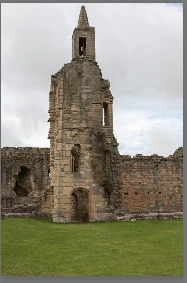
1. Use File-Open and open your first image

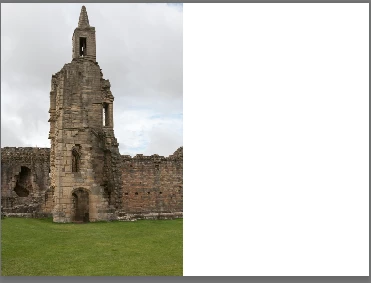
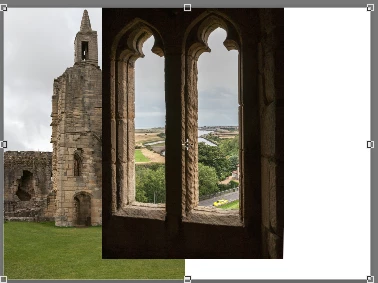
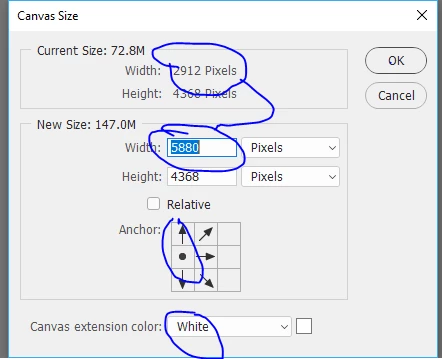
2. Go to Image - Image - Canvas Size and set a canvas size big enough to accommodate your second image (in my case I am going to double the canvas width and add a few pixels so that I can accommodate the second image and leave a gap. Note I have placed the dot on the left (by clicking on it) so that the canvas extends to the right

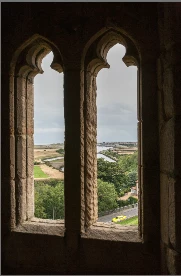
3. Now go to File open and open your second image

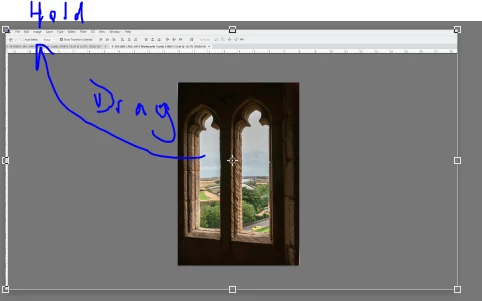
4 With second image open select the move tool

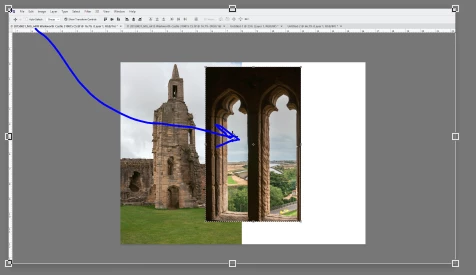
5. Click on the image and drag it up to the first image tab . Whilst holding down the mouse button, wait until the first image appears then drag down over the image  and let go of the mouse button.

6 You will need to click and drag again to position the second image - then click on the tick in the options bar at the top of the screen

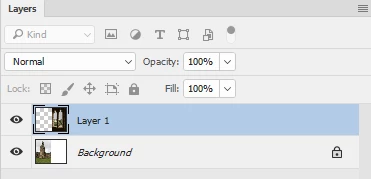
You will see that the second image is on a new layer

Give it a try and shout out if you have any problems

Dave

1 reply

davescm
Community Expert
davescmCommunity ExpertCorrect answer
Community Expert
December 10, 2016

You are asking a very sensible question - please do not be afraid to ask as we all had to start somewhere.

I am going to assume you have Photoshop. I am using Photoshop CC2017 so my snapshots are from that version.

1. Use File-Open and open your first image

2. Go to Image - Image - Canvas Size and set a canvas size big enough to accommodate your second image (in my case I am going to double the canvas width and add a few pixels so that I can accommodate the second image and leave a gap. Note I have placed the dot on the left (by clicking on it) so that the canvas extends to the right

3. Now go to File open and open your second image

4 With second image open select the move tool

5. Click on the image and drag it up to the first image tab . Whilst holding down the mouse button, wait until the first image appears then drag down over the image  and let go of the mouse button.

6 You will need to click and drag again to position the second image - then click on the tick in the options bar at the top of the screen

You will see that the second image is on a new layer

Give it a try and shout out if you have any problems

Dave

paulad56719254
Participant
July 8, 2019

Hi there. Why do I get the chequered grey strip on the background canvas? I have made sure the background reads white in the canvas box?

July 8, 2019

Hi

Can you post a screenshot, it may help to understand your issue better