
New Participant
February 20, 2013
Question

Wacom pen pressure issue, possible solution.

  • February 20, 2013
  • 20 replies
  • 123128 views

In reference to this thread someone had posted, I had has the EXACT same issue, and have gone through long hours of my own troubleshooting.

The problem:

Whilst drawing in either photshop or SAI, the pen pressure sensitivity would just randomly fail and draw solid thick lines as if drawn with the mouse.

See image:
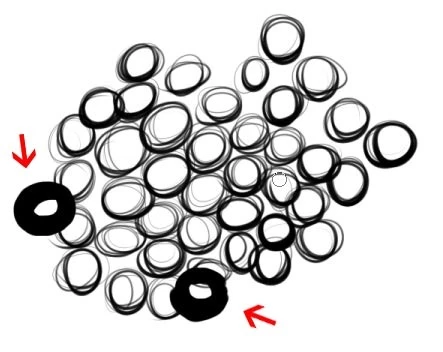
What I also learned, is that once the pressure sensitivity falls out, it doesnt recover until I lift the pen away from the tablet, and then back again, as seen in the following pic:
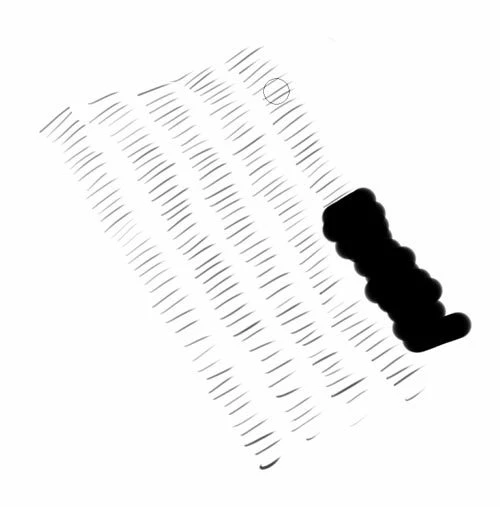
Sometimes it would fail on the 2nd brush stroke, others on the 100th. It's completely random.

What I have tried to fix the problem:

Complete removal of drivers and Bamboo dock, then fresh install from the bundled disc.

Complete removal of drivers and Bamboo dock, then fresh installation from the lates driver download (PenTablet_532-1)

Updated nVidia drivers.

Updated motherboard drivers.

Tried differnet USB ports.

Remove ALL existing USB devices from PC except the tablet.

Tried various tablet driver revisions from the download page.

Disabled press and hold right click.

Disabled buttons on the stylus.

Disabled buttons on the tablet.

I always have the touch feature disabled.

Changed nibs.

Even then, no luck. Lastly I decided to start ending proccesses in task manager one by one to see if there was perhaps a conflict.

The pressure sensistivity would fail ALWAYS within 30 seconds of drawing. So my method was as follows:

End a proccess. Draw a pic. One by one. I have an IT backround so I have knowledge of which proccesses are safe to close etc.

Each attempt the pressure sensitivity would fail well within 60 seconds. Until I hit a proccess called "ouc.exe".

After ending this proccess I have now gone a full day of drawing without this issue. I Googled said proccess and leanred it is an online updater for my USB 3G Modem.

My only guess here is since both the 3G modem and my tablet both use USB there is some sort of driver conflict. May there are intervals in which ouc.exe attempts to check for updates which then might just kick the tablet at that moment.

I will repost a report back here after a full week of testing.

Hope all those people with this issue just all happened to have 3G modems, and this this post somewhat helped.

I am now running the latest driver for the tablet, and latest display driver for my gcard. Bamboo dock is also up to date.

So for me, this was NOT a driver related problem.

My device is a Wacom Bamboo Create.

Please excuse any typos, I always try to type too fast.

    20 replies

    zhi chuanl80438279
    New Participant
    September 12, 2024

    Hello. 
    I had tried many things and seems like turning on the option in the attached image will do the tricks. It solved my problem.

    New Participant
    April 18, 2023

    I have a problem where my wacom pen pressure is max no matter what if my pen gets even a bit close to the tablet  it goes to max pen pressure not even if im pressing down on the tablet. this happened to me twice the first time i had a wacom driver update so i updated it while i slept next morning it worked randomly i tried everything i could (reinstall the drivers, reset pc, unplug and plug it 

    mglush
    Community Expert
    May 1, 2020

    Hi!

    I found this article about compatibility issues and making sure you give the correct permissions and it was estremely helpful. The permission issue might be what is causing the problem. Take a look and let us know if it helps!

    https://machollywood.com/blogs/news/wacom-tablet-compatibility-with-mac-os-10-15-catalina

    Michelle

    Participating Frequently
    April 30, 2020

    I had the same problem and it was Windows inc that f-ed up everything. This trick solved it for me!
    https://hub.flippednormals.com/fixing-all-issues-with-your-wacom-tablet-and-photoshop/

    New Participant
    December 8, 2018

    Tip Double Click Distance set to off from Wacom Tablet Properties solved the problem. Thanks a bunch, now I can work without that problem

    KShinabery212
    Community Expert
    December 21, 2017

    I have never had problems in Photoshop.  Sometimes in Illustrator I end up with a circle at the of a line.  When it happens I usually redraw the line.

    I am using a Wacom Cintiq Companion 2.  I also noticed it is better for me to stay towards the middle of the screen and move my canvas around to where I can always be fairly centered.  This could be because I draw with my table at an angle.  Not sure. 

    Hope to be getting the Wacom MobilStudio Pro soon.... and then I can comment on how it works as compared to the Cintiq Companion 2.

    Which device are you using?  As that would help problem solving.  You can also get questions answered relating directly to Wacom products in the Wacom groups on Facebook. I know the admins quite well... also a great place to share your work!

    New Participant
    March 15, 2017

    so um...I do not know, if my wacom does not work or is the pencil. I have the problem that I do not even touch the surface of the tablet and the pencil is already drawing, I check out how much pressure it makes and it marks half of the pressure supported without even touching the surface. So any solution? thanks

    Bubbly_fantasy15D5
    Inspiring
    December 21, 2017

    while it's an old thread, I'm also posting a solution regarding something that @beckyds' mentions: the tablet registering clicks, even when the stylus is not in contact with the tablet. This could be a hardware related issue:

    Sometimes grime gets stuck inside the tip canal and the switch doesn't read values properly (becomes sticky). I would start by removing the tip (it's replaceable after all) and try refitting it. Perhaps even blow some air in the canal hoping to remove any dust particle stuck there.

    warning: proceed at your own peril

    if this is no software issue, and if you are desperate enough (and don't mind the chance of permanently ruining your pen) you may try disassembling the stylus. It's not very difficult - part of the teardown can be seen in the following video (https://www.youtube.com/watch?v=LnhEqRj3YA0)

    I've made a rough sketch of the various parts that can be removed, and what to be careful about when pulling them apart and putting them back together.

    The stylus in the picture is an intuos4 grip pen - but it's similar in other styluses.

    A small correction on the image above: the spring, underneath the eraser cap, is actually, two small springs, one inside the other.

    - here's a quick walkthrough:

    a) remove the grip

    b) pull and remove the side-button/switch

    c1)pull the lower part of the barrel (to expose the front tip mechanism) or/and

    c2)pull the upper part of the barrel (to expose the eraser mechanism) in this case, be careful: there are some very small springs that may easily get lost

    it will slide and the internal mechanism (circuit board) will be exposed

    d)remove the tip you wish to clean (carefully not to stress the coil)

    e)now that the tip is removed, set the coil aside (it's still wired on the circuit board, don't stress it)

    f) remove the rubbery base from it's socket

    g) remove any particles/grime from the tip, the coil's inner canal, the rubbery base's canal, and the socket's canal.

    h) put everything back together.

    - make sure the wiring of the coil, is not loose, but placed in the surface canal of the rubbery base so that the wiring doesn't rub against the barrel when you put it back on.

    - Also when putting the upper barrel (eraser's barrel) make sure it's aligned properly; there are some dents in the barrel that will allow the circuit board to fit right in.

    Hope this is of use to somebody

    Trevor.Dennis
    Community Expert
    December 21, 2017

    Kal, I am on my third Wacom pen going back about eighteen years.  Actually it's four pens because I gave my original Graphire away with a still working pen, but I have had two pens die on me since I moved to an Intuos 4.  I also own a Cintiq Companion 2, but I very rarely use it, preferring the Intuos.

    Your pen assembly diagram is interesting, and nicely done.  Have a look at Google SketchUp with is free (SketchUp Make is free — SketchUp Pro isn't).  It's easy to use, and there are tons of nice video tutorials for it, and you could make a very nice 3D drawing of the pen.

    In fact there is bound to be one ready made in the 3D Warehouse, but it won't be a detailed exploded diagram like yours.  Here you go.  I enjoy SketchUp almost as much as Photoshop.

    New Participant
    December 11, 2016

    I made an account just to share this.. this issue has plague me for months and I have searched through countless google pages and links to find a solution like an obsessive truth seeker. I finally fix it simply by using photoshop CC instead of CS5. But since there are numerous solutions but not all are working for everyone I wanted to share some of those which I found in my travels.

    -Stopping the process called "ouc.exe" in the task bar
    this process takes priority sometimes and screws up your lines, its an online updater for some modems so not everybody has it.

    -Restarting the wacom driver.
    -Reinstalling the wacom driver.
    -Installing an older wacom driver.

    -Disabling double click in your pen.
    -Setting the double click speed as fast.

    -This solution here: Go to, Wacom Properties > Tablet (on the top of the window) > double click the icon (usually your tablet's version) > Tablet Mode: Recognition
    Read more: http://www.conceptart.org/forums/showthread.php/199564-Pressure-Sensitivity-Problem#ixzz4SUdNjgBB

    -Remove your preference in the wacom tablet preference file utility.

    Ringling has provided a backup preference for this issue, it didnt work for me but it might do for you
    Institutional Technology: Inconsistent Pressure sensitivity for Wacom Tablets and pen


    -Reinstalling Photoshop. Or for my case, installing another version of photoshop

    -Using a different stylus

    Hope this would help anyone even if a little bit in their search for a solution!

    jn67268979
    New Participant
    September 23, 2016

    Here's a Solution for Wacom touch and pen users who are having trouble with the opacity in Photoshop cs6.

    Here's the problem

    When drawing in photoshop your pen/tab seems to not be able to put full opacity even though the opacity is completely toggled up

    This is a simple fix and has nothing to do with the nibs, or driver or even the tablet itself. For some reason Wacom and CS6 do not coincide well.

    Simply go into task Manger and go to services then find a service (should be at the top) called WTabletServicePro and right click then tell the service to stop.

    This should fix the error, just go into PSD and test it. I worked for me so it might for you.

    Hope it helps guys,

              -Firefly

    New Participant
    June 23, 2016

    Someone posted a solution on a DeviantART forum that has worked for me so far. I have a Wacom Intuos 4 and CS6.

    Go to Wacom Tablet Properties

    Double Click your Tablet Icon

    In the Tablet Mode drop down menu, select "Recognition Data"

    Source: Forum: Random Pen Pressure Problems in Photoshop using Wacom Intuos3 - DeviantArt

    I hope this works for you guys too!