


Participant
August 28, 2018
해결됨

How to preserve quality of Panasonic imported Mt2s videos with Adobe première

  • August 28, 2018
  • 2 답변들
  • 415 조회

Panasonic camera HDC SD60 is generating ".mt2s" files. They can be processed with  HD Writer,a video editor that was provided with the camera but having rather poor functional possibilities.

I would like to do video editing with Adobe premiere 2018. The import accepts those files. However the quality is not what it should be comparing to the rendering in HD writer, or connecting the camera to a TV. Videos are twinkling - very tiring for the eyes.

How to import those files without loosing quality.?

Thanks
    이 주제는 답변이 닫혔습니다.
    최고의 답변: Steve Grisetti

    If you use an optimal workflow, the video you output should look identical to the video you put in.

    1) Your camcorder likely has several settings. Make sure it is set to the best quality possible.

    2) To get the video from your camcorder to your computer, attach the camcorder to your computer via USB, set the cam to playback and then go to Premiere Elements' Add Media/From Cameras and Devices to open the Video Importer. Use it to get the footage from your camcorder.

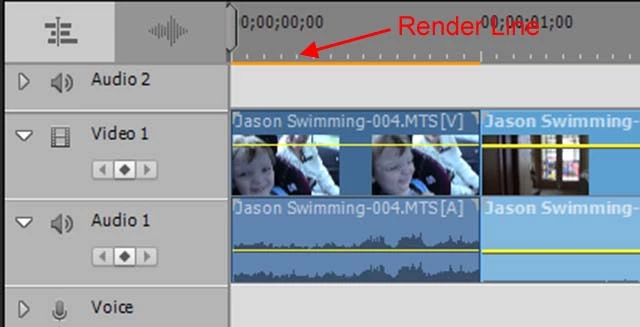
    3) Ensure that your project settings match your video specs. If these match, you should see NO yellow orange render line above your video when you first add it to your timeline.

    2 답변

    Legend
    August 29, 2018

    You will not able to mark the question as answered in the email. You need to go to the Adobe forum and respond to the thread.

    Participant
    August 29, 2018

    hello

    Sorry to come back

    I whish I could see on the screen what is described in the FAQ.

    Here a capture of my screen in the forum discussion

    Regards

    Le mer. 29 août 2018 à 22:42, Steve Grisetti <forums_noreply@adobe.com> a

    écrit :

    How to preserve quality of Panasonic imported Mt2s videos with Adobe

    première created by Steve Grisetti

    <https://forums.adobe.com/people/Steve+Grisetti> in Premiere Elements - View

    the full discussion <https://forums.adobe.com/message/10589564#10589564>

    Legend
    August 29, 2018

    If you use an optimal workflow, the video you output should look identical to the video you put in.

    1) Your camcorder likely has several settings. Make sure it is set to the best quality possible.

    2) To get the video from your camcorder to your computer, attach the camcorder to your computer via USB, set the cam to playback and then go to Premiere Elements' Add Media/From Cameras and Devices to open the Video Importer. Use it to get the footage from your camcorder.

    3) Ensure that your project settings match your video specs. If these match, you should see NO yellow orange render line above your video when you first add it to your timeline.

    HOTELECHOMIKE
    Inspiring
    August 29, 2018

    FWIW since 2014 I have a Panasonic HC-V727 (HD) Camcorder which produces .mt2s files.

    I download the files from the Camcorder using the HD Writer software supplied with the Camcorder.

    I have no problems processing these file with Premier Elements 14 & obtain very satisfactory results.