


- Home
- Premiere Elements
- Discussions
- Video saved to OneDrive how to reload?
- Video saved to OneDrive how to reload?
Video saved to OneDrive how to reload?

Copy link to clipboard
Copied
I saved a video in progress to my OneDrive cloud. When it was saved it was removed from my computer. When I open Premiere Elements v.14 now it says that the media is offline. I have found rendered files but when I try to import them I get "This type of file is not supported, or the required codec is not installed." I can't figure out how to get the video back intact. I’m not totally computer illiterate, but I am way out of my league here. Can anyone help me from having to starting this project over again?


 11
Replies
11
11
Replies
11



Copy link to clipboard
Copied
OneDrive is usually a backup for your files. Your files should exist on both your computer and OneDrive - it shouldn't be removed from your computer.
What happens if you download (or copy) the file from OneDrive back to your hard drive?
Copy link to clipboard
Copied
I tried that and it didn't work. When I try to open the video I get this:
If I choose the XMP file I get this message:
If I choose the MPEG file I get this:
Not sure where to go from here. Any advice is much appreciated.
Copy link to clipboard
Copied
I'm not sure what you're saying in that last post, NanaJ.
Is the video on your OneDrive? Can you download it?
What file format is the video?
Copy link to clipboard
Copied
Sorry - reposting here with the clips that did not attach before.
Hi Steve,
I tried that and it didn't work. When I try to open the video I get this:

If I choose the XMP file I get this message:
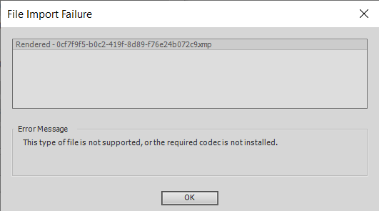
If I choose the MPEG file I get this:

Not sure where to go from here. Any advice is much appreciated.
Copy link to clipboard
Copied
Hi Steve,
Not sure if you saw my reply of August 11. Any other suggestions?
Thanks.


Copy link to clipboard
Copied
"a video in progress" would be saved as a project file. Those end in ".prel". The project file has no video in it. It is a road map of editing links and markers to your sources. "XMP" files are not related. Any output put from a project file will most likely be an ".MP4" file not an MPEG. If you find any ".prel" files anywhere, double click on it and the project should open. However, if you have moved the source files, or worse, deleted them, you will get a lot of errors.
Copy link to clipboard
Copied
When I open a .prel file my only choices to select are MPEG or XMP files. I select skip all and and get this :
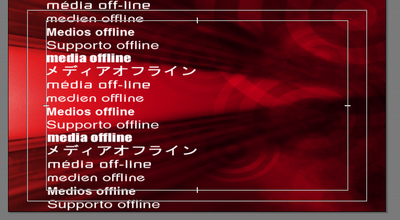
The music is there and the transitions that I put in are all there, just no video or sound.
When I look at the project assets it shows .MTS for the name and under media type is offline. However there are rendered videos that are .mpeg under media type as well but when I open them they play without sound. Example below.

Thoughts?

Copy link to clipboard
Copied
The mpeg file is of no use to you as its a preview file.
When relinking you need to search your harddrive for the original files.
Copy link to clipboard
Copied
"Thoughts?"
When you start a new project all the source files and the project files themselves are linked with exact locations. They can't be moved, deleted or altered. The multilanguage "offline" screen is the indicator that you've moved, renamed or deleted the source files. An MTS file is typically from a camera advertised to shoot "AVCHD" and probably a Sony or Panasonic. Where are those files? In the Project Assets box you can right click on the file icon and find a choice to locate those files.
I'm guessing, but did you build your project with the video files still on the card or camera?
It may be easier to start over with all the files in the same place and not moving them until the project is complete.
Copy link to clipboard
Copied
Thanks for your assistance...I guess I will chalk this disaster up as a learning experiance and just start over.
Copy link to clipboard
Copied
"chalk this disaster up as a learning experiance and just start over."
I've done that a few times! The same Steve Grisitti that posts here has a relatively quick 8 part series for Premiere Elements on his YouTube channel. He has a more in depth course on LinkedIn Learning which has a free trial that is long enough to take the course.
If video editing or Premiere Elements is new for you, either or both courses will quickly be of benefit.


Find more inspiration, events, and resources on the new Adobe Community
Explore Now
 AdChoices