


Francis-Crossman17221443
Community Manager
Community Manager
September 1, 2025
Answered

[Now Released] New Masking Tools

  • September 1, 2025
  • 47 replies
  • 56234 views

We’re excited to push an early development preview of new masking workflows to Premiere Pro (beta).  Whether you are color grading, applying effects, or cutting objects out from the background, these new masking tools are built to help editors work faster, smarter, and more creatively without needing to go to After Effects for simple tasks.


Note: This beta is an early look at upcoming Premiere Pro workflows and is not intended to reflect general availability performance or polish. Please contact us with bugs, feedback, and feature requests to improve these features.


  • Object Mask – Automatically identify objects and people in your footage using AI and isolate them with a single click. Plus mask refinement tools and fast tracking throughout clips.
  • Redesigned Shape Masks – the traditional shape mask tools (ellipse, rectangle, pen) have been rebuilt from the ground up with many performance and UI improvements.
  • Faster Shape Mask Tracking – the tracking algorithm has been completely rebuilt too.  It’s significantly faster than before, more accurate, and offers more precise control for correction.
  • Compositing tools – blend any combination of Object and Shape Masks to create complex masks with new blend modes: add, subtract, intersect


Quick Start guide

Follow these steps to get started with New Masking.

  1. Make sure you have enabled New Masking (see above).
  2. Select a clip on the timeline.
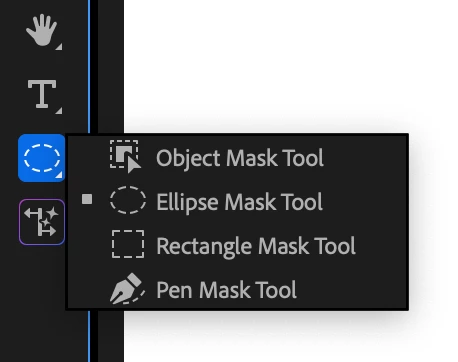
  3. Find the new Mask Tool group in the toolbar. Long-press to see all the masking options. Choose the Object Mask tool.
     

  4. Hover the mouse over the program monitor, watch as objects are identified, and click. This will draw a static mask around the object or person.
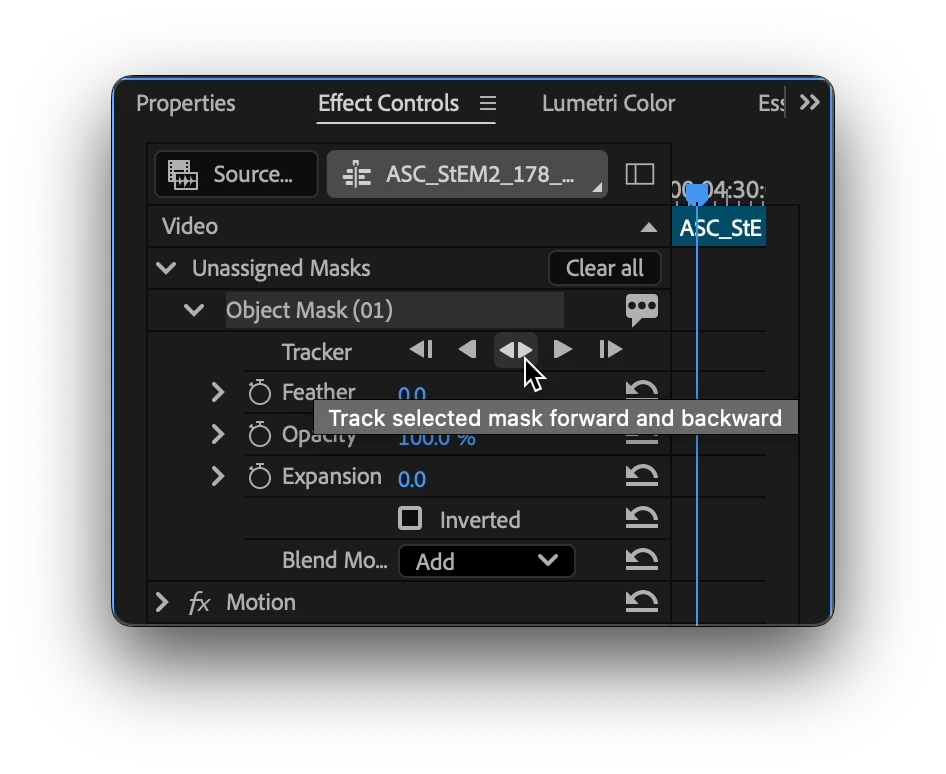
  5. Track the motion. Find the new “Object Mask” in the “Unassigned Masks” section of the Effect Controls Panel. Click on the forward and back button.

    Tip: the Effects panel is a different panel from the Effect Controls Panel. Find it in the Window menu.
  1. Add an effect. Find the Gaussian blur effect in the Effect Panel. Drop it on the clip in the timeline. The mask will automatically be applied to the effect.
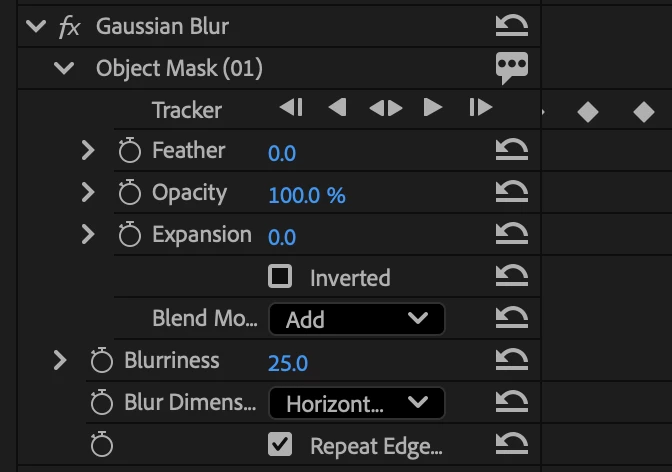
  1. Congratulations, you just used Object Mask to blur an object!
  2. Now, try to use the other tools in the group in a similar manner.


Visit here for the complete documentation. https://helpx.adobe.com/premiere-pro/using/object-masking.html


We want to know what you think.  Join the conversation below.

This topic has been closed for replies.
Correct answer kes_akalaonu

Make sure to right click on the tracked mask in the Effect Controls and select Change to Opacity Mask. Duplicate your video and remove the tracked opacity mask and placed that on V1 and your masked layer on V3 or above. Place your graphics on V2 and it should show up.

47 replies

Francis-Crossman17221443
Community Manager
Community Manager
January 29, 2026

This feature has shipped in 26.0.  Thank you to everyone who gave us valuable feedback. Please move additional discussion into the forum for released version of Premiere – https://community.adobe.com/p/premiere-pro

scottm28675139
Participant
January 29, 2026

with the new masking tool in Pr I'm experiencing a error when I try exporting from Pr to Me I get this error message. some of the object masks are offline and will be ignored premiere pro exporting through media encoder

Known Participant
November 20, 2025

I’m very satisfied with the accuracy of the Object Selection tool. The standard mask tools have also become much easier to use, and I now find them more user-friendly than those in DaVinci Resolve.

However, there is one improvement I would like to request.
When animating an ellipse mask frame by frame and adding position keyframes, if I apply rotation partway through, the rotation value gets applied retroactively to earlier keyframes. Ideally, the previous keyframes should keep their original rotation and not be affected by later adjustments.

At the moment, the only workaround is to manually add a rotation keyframe to the previous position keyframe before applying any rotation.
It would greatly improve workflow if rotation adjustments did not affect earlier keyframes automatically.

FlyingFourFun
Inspiring
November 20, 2025

@narisan I feel your feedback for the key framing needs further discussion.  How you describe the key framing as blending to the prev keyframe seems to be a typical behaviour,  and expected.  


For example:

1) if you have no keyframes set, and in frame 100, you move the keyframe, the new position set at frame 100 becomes the global position.

2) if you set a position in frame 10, and a new one at frame 100,  frame 10 becomes the starting position for all frames prior to it, and from frame 10 to frame 100 the position is interpolated, and the last position in frame 100 continues to the end of the clip.


If I read your information correct, it seems as if the keyframe process is operating within normal and consistent behavior from both how Premier, and other tools handle Keyframes.


If I have missed something, please advise.   


I think the keyframes should behave as per industry norms and not differ as the guideline.

Participating Frequently
November 19, 2025

Another issue related to the transform of regular masks that i hope will be adressed before an official release of this feature, is that clicking the reset button of position and anchor point was not reset to 0,0 but more reasonable and expected values.

For position it would make much more sense to be the center of the frame and not at the top left. That should be an easy fix.

For anchor point the issue is a bit more involved i know. But I think that a reset anchor point should be at the center of a mask shape, and if the shape has been modified i would expect the anchor point to be re-calculate for the shape at the current time (like how you can re-calculate the anchor for a layer in AE that has a mask applied by ctrl+click the Move Anchorpoint Tool button) . This would potentially move a mask if it has been keyframe, but it is much more desireable than the current behaviour where the mask will in most cases be moved way outsider the frame when the anchor is reset to 0,0.


Participant
November 19, 2025

Ich finde das neue Tool unfassbar stark, für eine Beta.

Kann gerade jede Person, welche vor meiner Kamera ein Interview gegeben hat, mit einem Klick freistellen.

Das Tool an sich funktioniert tadellos, habe bisher keine Mängel entdeckt.


Allerdings habe ich beim Export Probleme. Ich dupliziere meinen CLip und lege passend über den anderen.

Beim oberen entferne ich durch das Objekt Maskieren Tool den Hintergrund und finalisiere dann den Look der oberen Videoebene (bezüglich der Hauttöne).

Beim Export, hat nur der untere Clip die Lumetri auf sich angewendet. Das obere "freigestellte" video, ist im log exportiert.

Hat jemand hier einen hint? Hab ich ggf Fehler im Media Encoder oder in den Exporteinstellungen von Premiere?


Beste Grüße und besten Dank

Ron Rigler
Community Manager
Community Manager
November 19, 2025

@Felix_Althaus5149 is your version of Media Encoder the latest available. If not, please update it and let us know if the problem persists. I would recommend using the latest beta version for both Preemiere Pro and Media Encoder to ensure the best results. Thanks!

Francis-Crossman17221443
Community Manager
Community Manager
November 10, 2025

!!Be advised!! The size and shape of shape masks may change after updating your beta app to 26.0 build 25 (released on Saturday, November 8).

We are changing the way we handle scaling of shape masks (rectangle, ellipse, pen).  Previously, we were using numbers based on the size of the sequence (e.g., x=1920, y=1080), when we should have been using percentages, as other scale parameters do throughout Premiere. Unfortunately, its a somewhat significant architectural change and requires a new data structure under the hood.  If you had masks with scale before, the scale will be reset to default (100%) after updating to build 25.  As a result, the size of your mask may change slightly or significantly.  We apologize if this interferes with any creative work you have done.  As always, it is not advisable to work on mission-critical work in beta.  This does not affect object masks, as they cannot be scaled. Please take a look and lets us know if this makes more sense. This is based on feedback from @Shebbe in this previous post. Thank you for pointing this out!


Here is what the scale parameter looks like now.

Shebbe
Community Expert
Community Expert
November 11, 2025

Thanks a lot for reiterating this while we're still in beta. Addressing this now under the hood rather than 'band-aiding' it long after release is always the best tactic. 


Curious, is there interest in additional Size (under path) parameter as per my feedback? I can see confusion with it when a 4k clip's drawn rectangle size would not be == real pixels if it's used in an HD timeline with scaling applied, but there could still be benefits like being able to type values to make the drawn rectange a certain ratio regardless of what the initial drawn object's ratio was if that makes sense. This would not be possible with the current mechanisms where you only get 100/100% relative to initial drawn ratio which may be arbitrary.


FlyingFourFun
Inspiring
November 13, 2025

Deleted.

Participant
November 4, 2025

Hello, I cant see the "enable new masking" on the top of PR. Is that normal ?

MyerPj
Community Expert
Community Expert
November 5, 2025

Take a look at the original post, specifically 'To get started".

Participant
November 3, 2025

Love the new AI-powered Object Mask tool! My question is, will it be added to After Effects as well? As good as the tool is in Premiere Pro, it would be expremely powerfull in After Effects. Rotoscope is cool, but an AI-powered Object Mask tool for After Effects would dominate the VFX world.

Sassy_Llama
Francis-Crossman17221443
Community Manager
Community Manager
November 4, 2025

@Sassy_Llama Yes, we plan to bring this to After Effects early next year! Keep an eye on the After Effects beta. 

Known Participant
November 4, 2025

Cool!

Participant
October 29, 2025

hey all seems good but i am not able to use this because it is not avilable for macbook i am really upset for this can you pls tell me how can i install in my macbook currently i am using m2 chipset


Ron Rigler
Community Manager
Community Manager
October 30, 2025

@harsh_4394 what version of beta are you using? It should be enabled in the currently avaialable beta build.

Participating Frequently
October 24, 2025

Will we see edge refine in the edge?