



[Now Released]: Search panel finds the shot faster with visual search
Now in Premiere Pro (beta), AI-powered Media Intelligence automatically identifies visuals such as people, objects, location, camera angles, and more across thousands of clips in seconds. With the new Search panel, use natural language to find these visuals, plus spoken words in transcripts or clips with embedded metadata like shoot date, location, or camera type – all at the same time. The media intelligence analysis is faster than real time and runs locally on your computer, there is no internet connection required. Your media and searches are never used to train Adobe’s AI models.
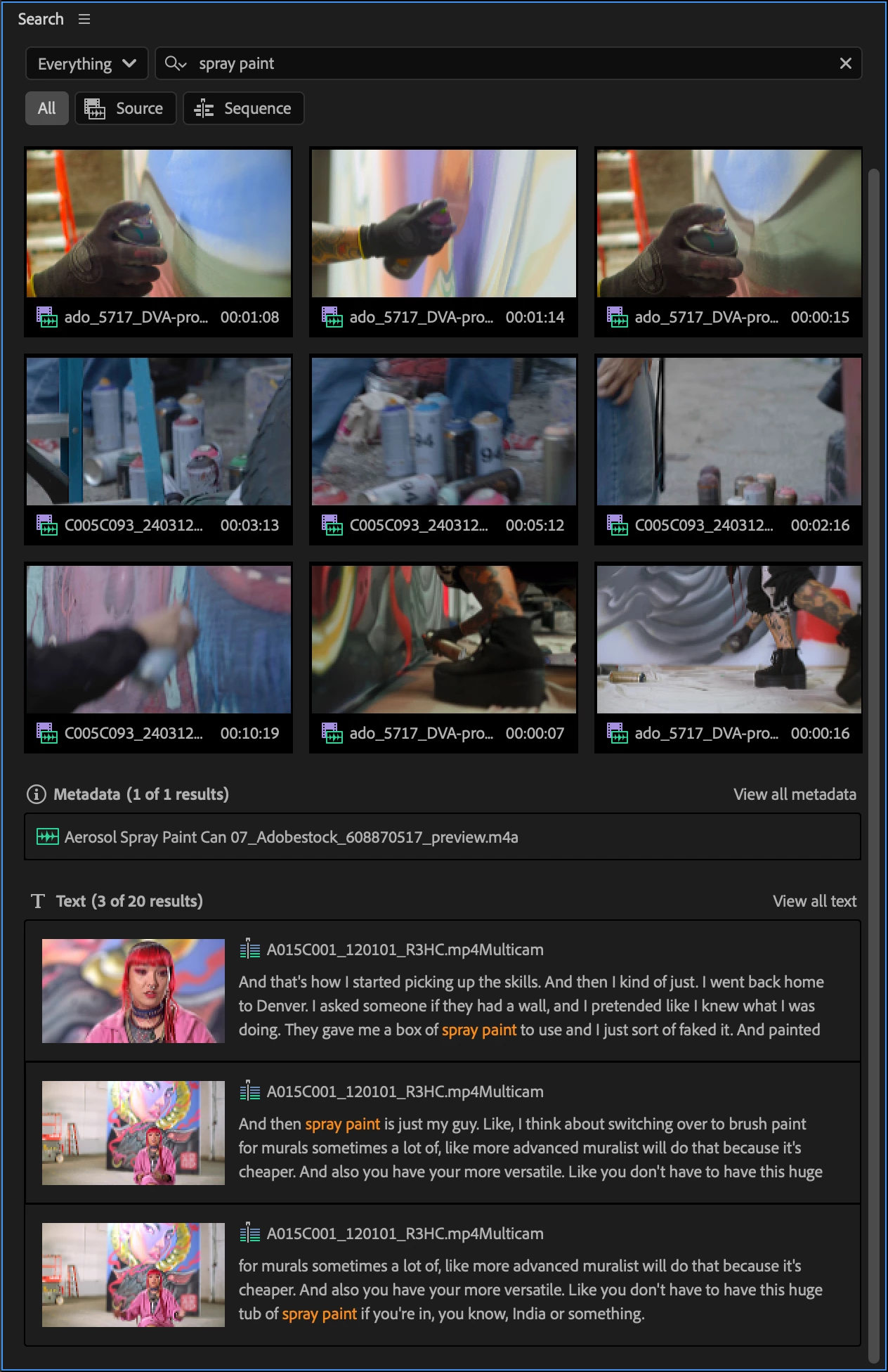
This new search can help you at any stage of your edit, whether you’re diving into organizing hours of new footage, or you need to quickly find that one shot you know you’ve seen before.
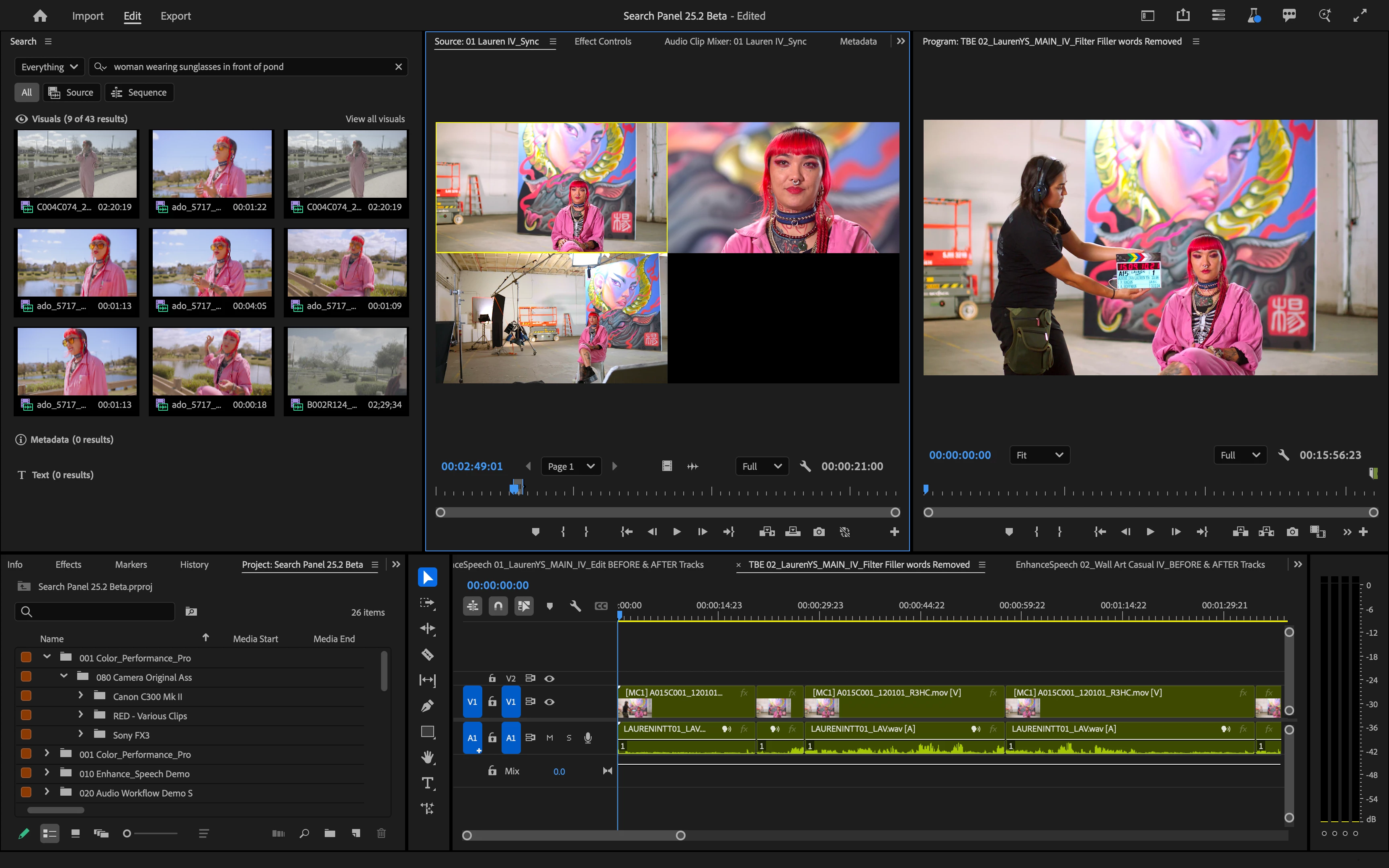
How to get started:
- Import your footage into a new project or open an existing project.
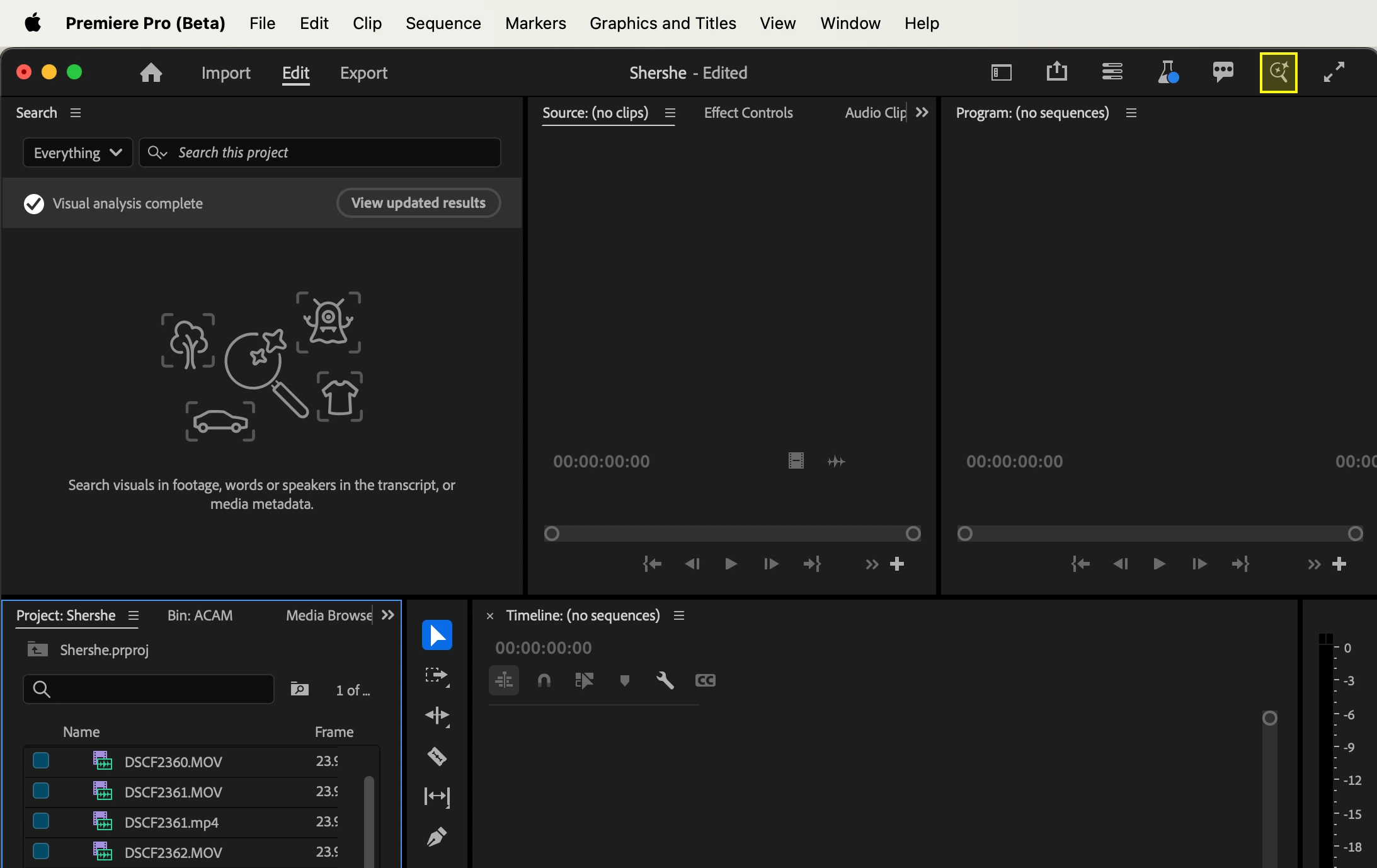
- Open the Search panel by clicking the magnifying glass button in the upper right corner of Premiere Pro app or under Window > Search.
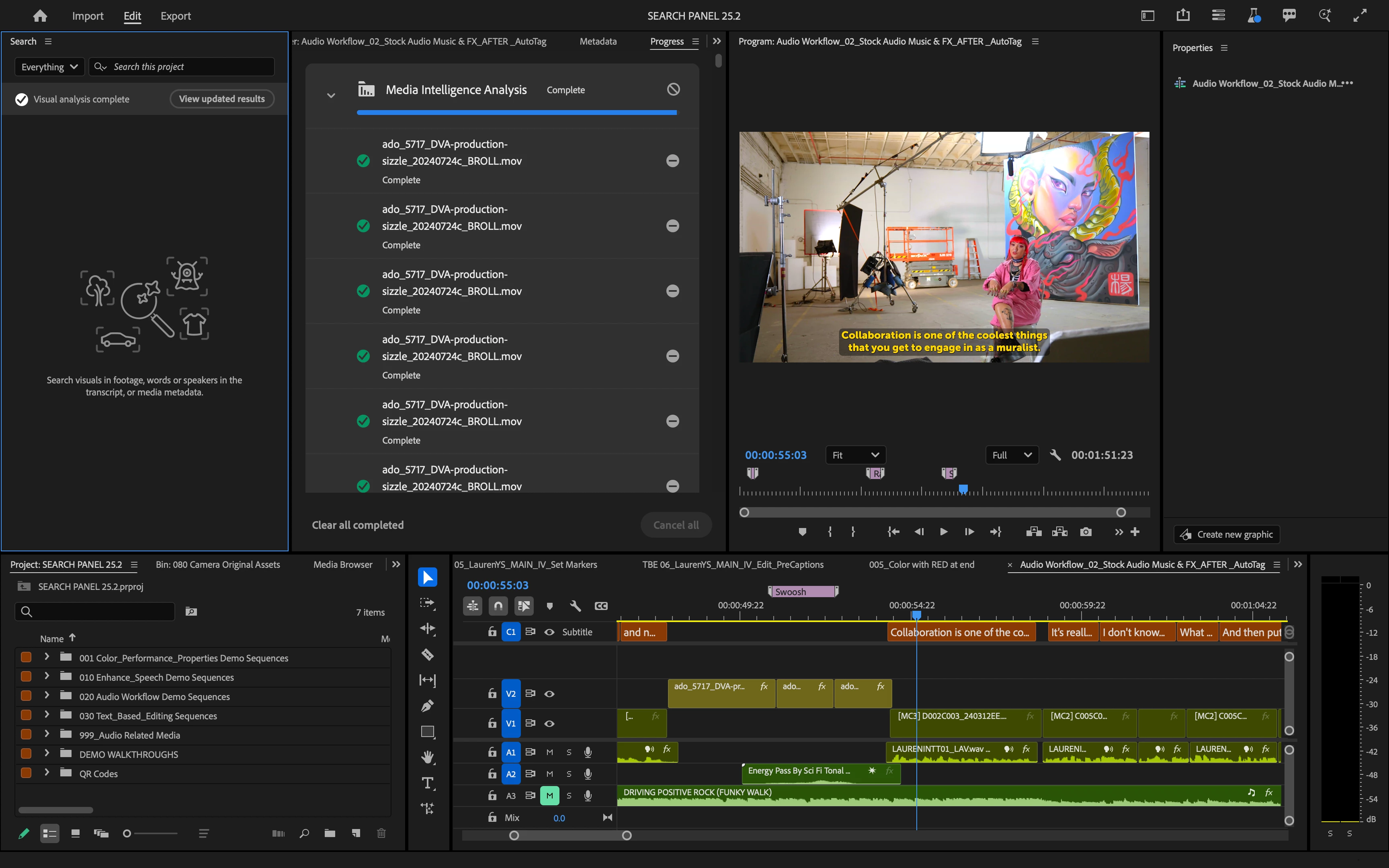
- Let the background analysis process finish. When the analysis is finished you should see ‘Visual analysis complete’ in the Search panel.
- Type in the search field. Visual search can give better results the more specific you are in describing the scene.
How media intelligence visual search works:
- Premiere Pro analyzes your footage using on-device models. You have settings to control caching of the analysis. You can turn off analysis altogether in Preferences > Media Analysis & Transcription.
- The analysis from each clip is collected into an index for your project. You’ll see this as a new .prin file next to your project file.
- When you type into the Search panel, your text is analyzed by the same models and then compared against all the analysis collected in the index to find the best semantic matches.
Read more about Media Intelligence search and check out the Frequently Asked Questions.
While Search panel is in beta your feedback is invaluable – please give it a try and share how it went for you: what worked, what needs work, and what you’d like to see us do next with media intelligence.
Once you’ve tried out the new search, let us know what you think in this short survey: https://forms.office.com/r/r0nxuQkPZH – Thank you!


 AdChoices