


Copy link to clipboard
Copied
As of Premiere Pro v25.2, the option to choose software rendering was removed on Windows, Intel-based Macs, and in Media Encoder across all platforms. In v25.2, customers could still temporarily enable software rendering by holding the Shift key while launching Premiere Pro and selecting “Use Software Rendering Only (one-time only).”
In the latest beta versions of Premiere Pro and Media Encoder, this fallback has now been fully removed – software rendering is no longer available.
Software rendering can significantly reduce performance and limit rendering to 8-bit, which may cause image quality issues. Our goal is to ensure that Premiere Pro and Media Encoder always render correctly using the GPU.
If you encounter a project that renders correctly in software mode but not in v25.2, we’d greatly appreciate your feedback. Please follow the instructions here to report the issue:
👉 https://community.adobe.com/t5/premiere-pro-bugs/how-to-report-a-problem/idi-p/13361863
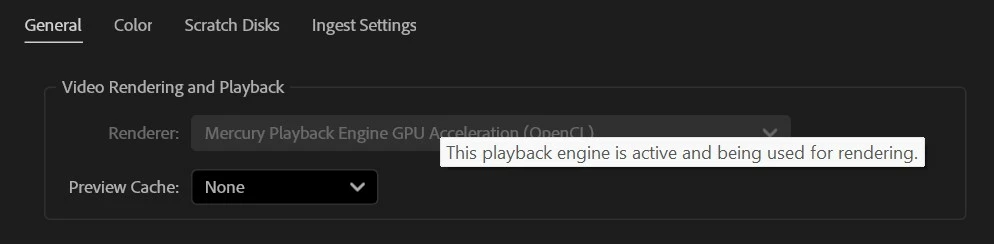
In the latest beta of Premiere Pro, we have also made a small change to the Project Settings dialog. In v25.2, a customer using a computer with a single GPU type would see the Renderer menu option greyed out. This indicated that there were no options to select but some customers reasonably thought that it meant that their GPU was not working. In the latest beta of Premiere Pro, we have added a tool tip to clarify that the GPU is being used for rendering. We'd welcome your feedback on this change; we had a lively discussion on the right wording for this and we're open to better ideas!
Best regards,
Fergus
Copy link to clipboard
Copied
Hey, I appreciate that the option to remove software encoding was removed due to slower performance with users 'not realising' that they're using it, but I do have to say I think the descision to completely remove it is problematic.
For example I use premier daily and always stay on GPU encoding for all my projects, however I use one specific effect plugin that for some reason will not export from either media encoder or premiere with hardware encoding and shows a compiling error whenever it is used in a sequence. I have tested this with multiple NVIDIA drivers and Premier versions and still get the same error.
The plugin's official guidlines on this is "to switch to software encoding in the project settings" just for when I use this one specific effect. Now you're telling me that every time I want to export a video with this effect I need to restart premier and enable software encoding for that whole session? And then once exported close premier, and then manually switch back over so it doesn't have performance issues while editing? It seems very long-winded and arguous. Wouldn't a better solution be some kind of setting that by default is unticked? Like "Show software encoding option" that way people don'y accidentally have it enabled, or maybe if it is on (software encoding) then there could be a little warning message saying "if performance is slow consider switching to hardware encoding" something like that?
Again I appreciate you're working on this but it seems to be a pretty inefficient and inconveniant solution. I'd really appreciate if you take some time to reconsider this decision especially since myself (and many many other people) do frequently switch to software encoding to bypass rendering issues with specific effects. And yes I understand that the fact that the effect does not work may not be premiere's fault, however it's much faster to meet deliverable deadlines to simply switch easily to software only rather than spend hours troubleshooting.
Thank you in advance.
Copy link to clipboard
Copied
@Joe25844148mcca I appreciate the questions! The answer is two-fold:
1. Let us know - via the How to report a problem link - what plugin you're using that requires Premiere Pro to be manually switched to software rendering mode. We'll contact the partner who built that plugin and help them move to GPU rendering.
2. While we are removing a human's ability to switch to software rendering mode, Premiere Pro itself has the ability - without any intervention - to switch to software rendering. There are several things that can cause this to happen, including plugins (some of which are Adobe plugins!) that don't work on the GPU. It's not clear to me why the plugin you're using is not doing that; we'll find out.
We are working on removing the causes for that automatic fallback to software rendering and, by the end of 2027, plan to remove the software rendering path entirely from our products. It's going to make Premiere Pro faster and more reliable.
Regards,
Fergus
Copy link to clipboard
Copied
@Fergus H
S_UltraGlow & S_Shake (sapphire) both cause the noted issues for me. I started a thread here in early june; https://community.adobe.com/t5/premiere-pro-beta-bugs/rendering-heavy-effects-failing/idc-p/15371601...
removing the ability to fallback to software encoding so quickly is honestly a nightmare move, this will cause more headaches than it will solve in the near future, please consider reverting this choice - you guys don't see every forum thread, things get missed but we're left to suffer in the meantime. Give devs more than a few months, most of them probably haven't even caught on yet.
Copy link to clipboard
Copied
Hi Tom,
I've followed-up with you in the other thread; in short, we'd like to get more information about what you are seeing.
I hear you about the pain that this change has the potential to cause. While we don't see every forum post, we do have a great deal of data about how often Premiere Pro falls back to using the software rendering pipeline and the impact on performance and qualty this has. We're eager to strike the right balance of moving to a GPU-only future and not causing too much pain while doing it.
Thanks,
Fergus
Find more inspiration, events, and resources on the new Adobe Community
Explore Now