Exit
  • Global community
    • Language:
      • Deutsch
      • English
      • Español
      • Français
      • Português
  • 日本語コミュニティ
  • 한국 커뮤니티
0

PPro masking has GONE!

Advocate ,
Sep 24, 2025 Sep 24, 2025

Am I being thick or has PPro, since the introduction of the whole AI-powered roto/"Unassigned Masks"(?!) thing lost its ability to do simple masking?


Until recently, to mask out a portion of a clip, I'd open the clip's Opacity in the Effect Controls panel, click the pen icon and draw a mask. That's it.


But that's now gone, and it seems every reference I can find to masking now only refers to masking an effect. And there's the new AI mask/rotoscoping thing, which I'm not interested in this project. How can I simply add a mask to a layer - I just want a portion of it to show; the mask will not move, and I have no effects on the layer - it's effectively like a garbage matte. Am I missing something?


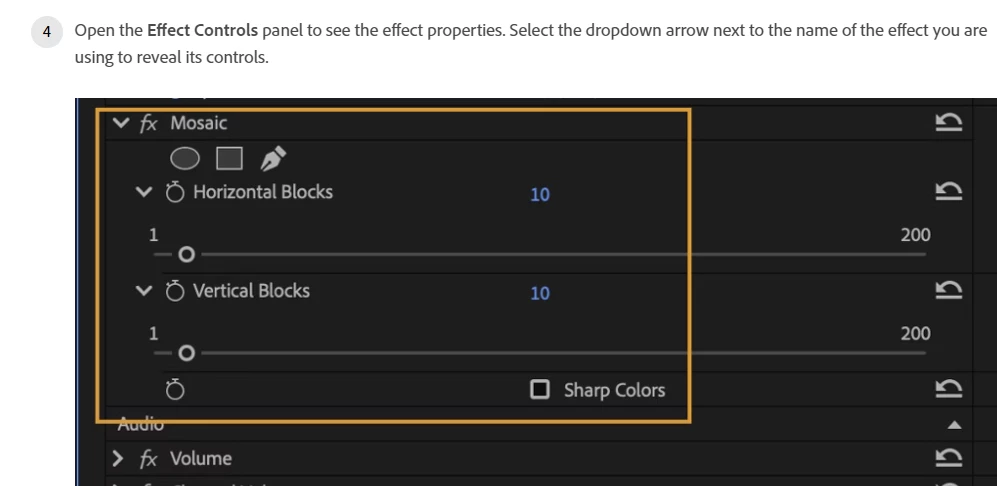
This is from Adobe's help page (https://helpx.adobe.com/premiere/desktop/add-video-effects/create-masks-and-composites/create-masks-...😞

hellopaul4_1-1758707292460.png

...in reality, the maksing tools have gone:
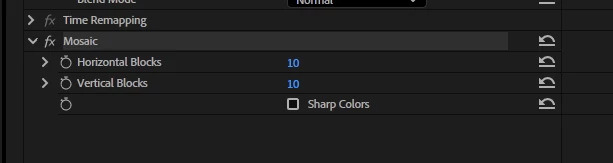
hellopaul4_0-1758707273376.png

...and if I select the pen or rectangle tools from the tool panel, if I also have a clip selected in the sequence (because I want to draw a simple mask on it), clicking in the Program or Source panels does absolutely nothing. If I deselect the clip, I can draw vector shapes with those tools (which is not what I want).


What on earth is going on here?!


PPro Beta 25.6.0x78

Windows 10


Update: I have now deactivated the "New Masking" beta feature, converted my project to version 43, and loaded it up again. Phew - the masking controls have made a welcome return! Let's hope (I did not use any of the new masking features) PPro hasn't put anything anywhere in my project that will break things down the line!

TOPICS
Bug , Error , Feedback , Performance , Question
787
Translate
Report
Community guidelines
Be kind and respectful, give credit to the original source of content, and search for duplicates before posting. Learn more
community guidelines
Community Expert ,
Sep 24, 2025 Sep 24, 2025

Draw your mask with the new tools, then drag from unassigned mask to Opacity or add an effect.

Or highlight Opacity first, then draw the mask.

Build 78

Translate
Report
Community guidelines
Be kind and respectful, give credit to the original source of content, and search for duplicates before posting. Learn more
community guidelines
Advocate ,
Sep 24, 2025 Sep 24, 2025

Ah - thanks Ann! I didn't see those new mask tools in the tool panel...I guess I should've RTFM: https://community.adobe.com/t5/premiere-pro-beta-discussions/now-in-premiere-pro-beta-new-masking-to...

Kind of obscure that one has to drag that mask into the Opacity thing though. Would have been useful if this was the default behaviour maybe.

Translate
Report
Community guidelines
Be kind and respectful, give credit to the original source of content, and search for duplicates before posting. Learn more
community guidelines
Community Expert ,
Sep 24, 2025 Sep 24, 2025

Dont need to drag.

Highlight Opacity (or effect) and draw.


When drawing a mask it appears in the unassigned mask section.

Adding an effect auto sets the mask to this effect but does not do so with opacity have to drag a premade mask.

At least this is my experience with the new mask.

Maybe I have got it wrong..........


After mucking about found this (which is to my knowledge not in the Help)

Update 

AnnBens_0-1758718472270.png

BTW rtfm is usually last on my list too.


Translate
Report
Community guidelines
Be kind and respectful, give credit to the original source of content, and search for duplicates before posting. Learn more
community guidelines
Community Expert ,
Sep 24, 2025 Sep 24, 2025

I change the post from bugs to discussion.

Translate
Report
Community guidelines
Be kind and respectful, give credit to the original source of content, and search for duplicates before posting. Learn more
community guidelines
Community Beginner ,
Nov 11, 2025 Nov 11, 2025

I just noticed this too...and I found it. 

Adobe moved the "regular" masking tools under that new Object Mask tool button, so now you have to: 
1) Select the effect you are applying masking to first in your Effects Control (let's say Opacity, though I was trying to do this with Brightness/Contrast after applying that)

2) Click and hold down on the new button for Object Mask to reveal the other options for masking.
3) Draw your mask as you normally would.

After you do this, the feather, opacity, etc. for the mask you drew will show up in the Effects Control panel as they normally would.


I'm never a fan of programmers deciding to hide tools that people use frequently under a new toolbar or button without telling anyone. I understand the logic of putting all of the masking tools under one button, but there's no reason to remove the masking capabilities from Opacity, etc. in the Effects Control panel where we have all been trained to look for them for years.

Translate
Report
Community guidelines
Be kind and respectful, give credit to the original source of content, and search for duplicates before posting. Learn more
community guidelines
Community Expert ,
Nov 11, 2025 Nov 11, 2025
LATEST
Translate
Report
Community guidelines
Be kind and respectful, give credit to the original source of content, and search for duplicates before posting. Learn more
community guidelines