


TeresaDemel
Community Manager
Community Manager
May 16, 2022
Question

Text Panel Enhancements: Pauses, Navigation and Selection

Available now in Premiere Pro Beta: Use keyboard shortcuts to navigate transcripts in the Text panel so you can find pauses and navigate your sequence using keyboard shortcuts. This means that when you transcribe your sequence at the beginning of a project, you can now scan the transcript to find moments of interest, bad takes, good quotes, and long pauses.


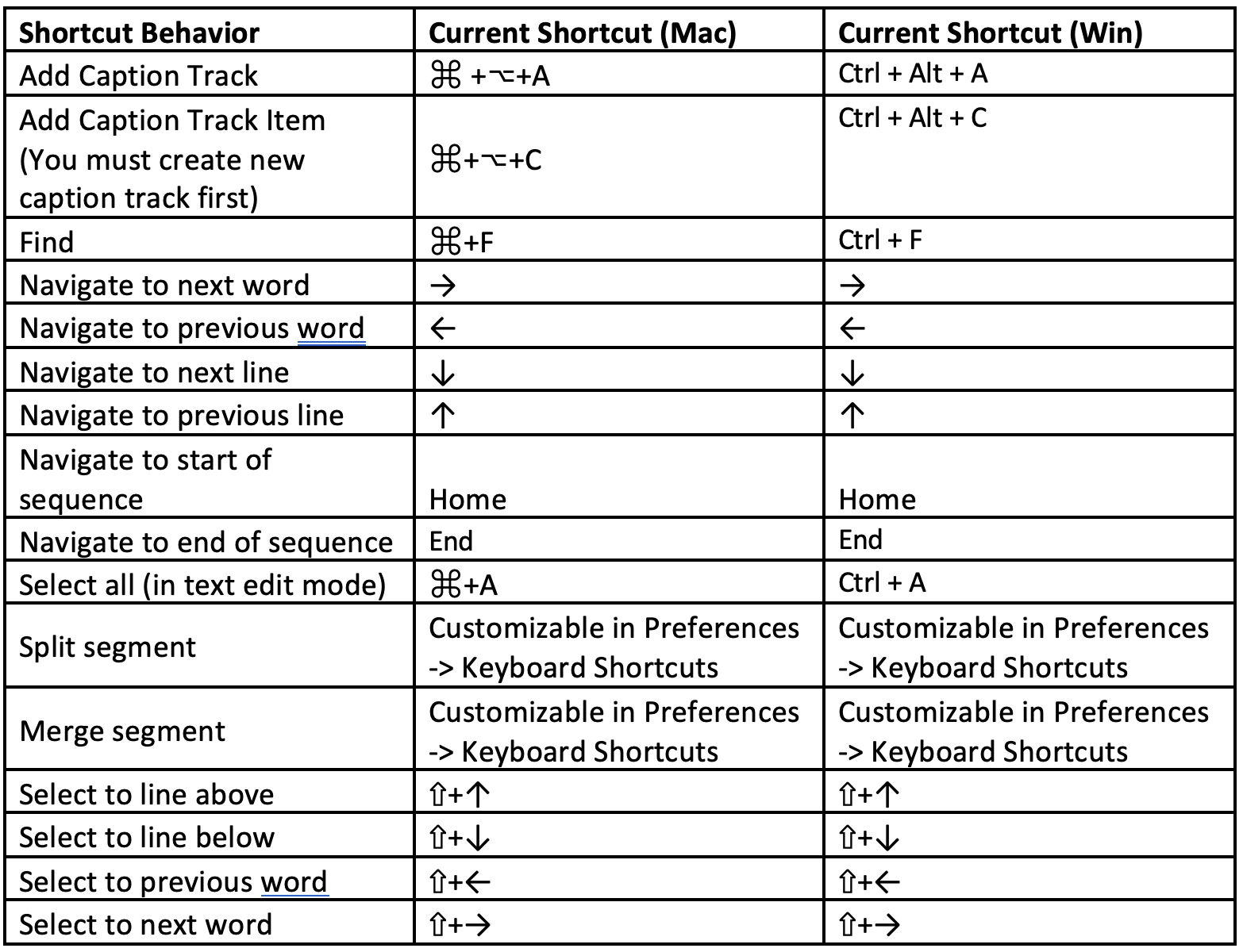
  • Navigation: Navigate through the Text panel using familiar text editing keyboard shortcuts. The playhead will follow your cursor navigation so you can easily jump to the selected moment in the transcript.
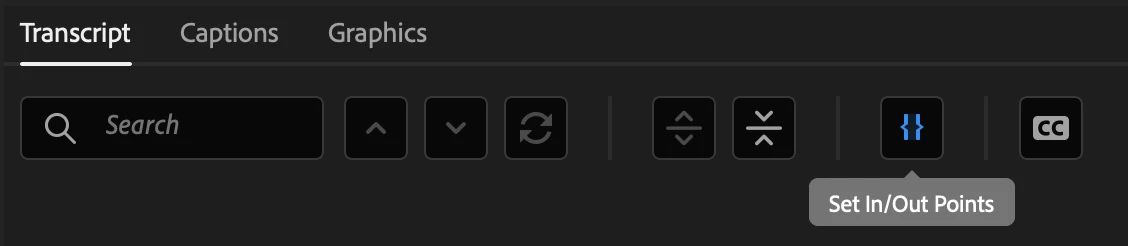
  • Selections: Use text selections to set in/out points in your sequence. Enable and disable the in/out point button in the Transcript tab to activate this functionality.
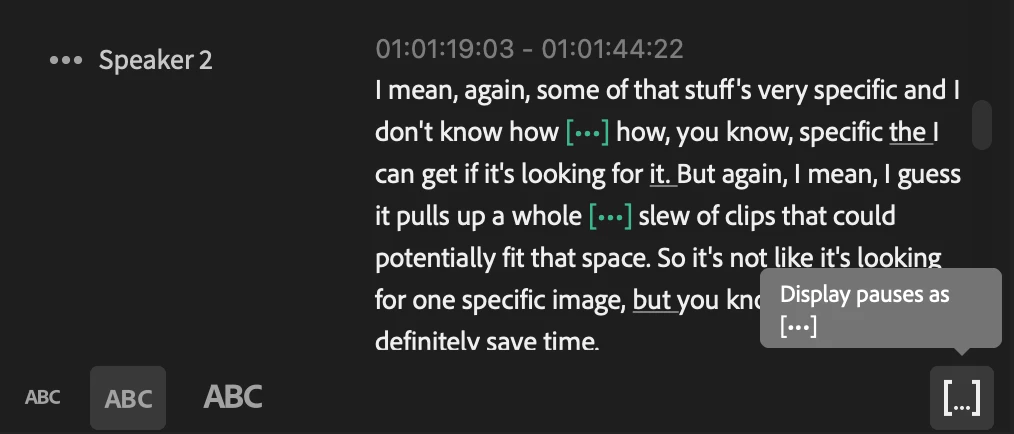
  • Detect pauses: Show or hide pauses in a transcript and navigate between pauses. This will allow you to easily find long moments of silence that you don’t want included in your edit.


Please be aware of the following:

  • These features are designed to help you at the beginning of a project, when you are first assembling your rough cut. The transcription won’t change even if you edit your timeline. To use Speech to Text for captioning, make sure to re-transcribe your sequence after completing your edit.
  • This is the beginning of our work to augment the Text panel. Keep your eye on the beta forum for more announcements as we evolve it. Throughout this process we want to hear from you on the quality of navigation and selection, as well as any feature requests that would make your experience in the Text panel easier and more enjoyable.
  • In case you missed it, you can share an .xls or .txt transcript with a collaborator that includes speaker name and timestamp.


Keyboard shortcuts:
 

Ce sujet a été fermé aux réponses.

5 commentaires

Participating Frequently
September 19, 2023

Hi! can they add an easier way to lable speakers? so you can listen while you label?


joshualpearson
Participating Frequently
November 14, 2022

Sorry, i'm playing catch up here... am i to understand that this will give us the same functionality as Avid Script Sync? Aside from creating a transcript, will we simply be able to open a transcript, find a word or phrase, click on that phrase, which loads a source clip into the source monitor, ready to edit into a timeline?... it seems one cannot do that now, that the transcripts in the "Text" panel are only useable with a "program" timeline.... i have been on Avid for many years now, just getting reintroduced to Premiere (learned on it back in 1998).. apologies for my ignorance. I am totally addicted to Avid script sync.

Stan Jones
Community Expert
Community Expert
November 15, 2022

Joshua, they announced this enhancement in May. In August, this one, that may be closer to what you are describing:

https://community.adobe.com/t5/premiere-pro-beta-discussions/text-panel-enhancements-part-2-assemble-rough-cuts-from-transcripts/td-p/13110343


Stan


joshualpearson
Participating Frequently
November 15, 2022

Thanks Stan... fior some reason i find these articles hard to digest... are we talking about functionality that is only avalable in PP v2023? Are they still betas? becasue neither me nor my assistant can make this work in v2022, which we must stay on due to OS issues (can't upgrade to Monterey yet)

Legend
May 24, 2022

This is a good start! We do need to be able to use keyboard shortcuts to select text, set in/out point, and insert/overwrite, though. 

Inspiring
May 17, 2022

Hi @TeresaDemel,


Thanks for posting this! The ability to set In/Out ranges as transcript selections is an incredibly exciting feature that I think will make logging and storycrafting easier to do than ever before. Genuinely: awesome stuff! That said, I do think there are some hold-ups that, in its current beta state, prevent it from being helpful in practical use. The two main issues I see:


ISSUE #1.) Transcriptions are currently limited to sequences only, source clips aren't supported.

As you full well point out in your post, transcript selections can help the start of our projects, to assemble rough cuts/skeletons/radio cuts... whatever you want to call it. The issue is, I assume most editors will be looking to pull bites from their source clips, not sequences. One might argue a workaround would be to "put the interview into a sequence!" - but unless you're using multicam, I would argue that adds unnecessary steps, but bigger yet, issue #2 remains a factor, which is:


ISSUE #2.) "Set In/Out Points" for transcript selections only mark In/Outs in the Sequence/Program panel context.

Considering transcripts currently only work with sequences, it makes sense why it functions this way currently - however I feel this leaves us with an odd way to go about making rough cuts. Let's say I go ahead and put my interview in a sequence and transcribe it, marking in/outs in my sequence will only let me perform Lift or Extract edits to take away from the timeline. I can't insert/overwrite to my edit sequence.


To sum those up, the best way I can put it is: it inverts the three point editing approach so many editors are used to, with no way to 'build' a rough cut from transcription selections. As I mentioned though, there's so much potential for this feature to be a powerhouse story-crafting tool and I'd love to see it get there. Some suggestions I'd like to offer in aim of that goal:


1.) Add the ability to transcribe source clips

I think this is the core thing that needs to happen, because it sets the foundation for logging an interview by letting us associate a transcript to a source clip. I noticed the sequence name is currently placed in the top-right corner of the Text panel, that seems like a great place for a drop-down to navigate between all transcripts in your project!


2.) Have source clip transcripts set Source In/Outs, and give sequence transcripts a way to toggle between setting Source or Program In/Outs.

As mentioned, transcript in/outs only mark their Program panel equivalents.  At the end of the day, I personally see more value in being able to highlight a transcription range, set Source panel in/outs, and add my selection to a sequence. Still, some folks might find the current functionality useful with sequence transcriptions, hence the toggle suggestion.


3.) Allow for Insert/Overwrite edit functions to be performed into a target sequence, directly from the Text panel.

To drive it all home, we just need a way to get our marked In/Out ranges on transcripts into a target sequence. I saw the Lift/Extract keyboard shortcuts worked in the Text panel, so Insert/Overwrite very well may indeed - but if source clip transcripts are handled differently, that might change. Ultimately, the raw power of this function is being able to bring a selection into a sequence without ever having to leave the Text panel.

---

A final, very nit-picky suggestion: I'd love to see Mark In/Out shortcut keys specifically bindable as Text Panel shortcuts too. @Kerstin Ebert actually touched on this a bit in her post. Clicking and dragging or using the Select to Next/Previous word shortcuts works great. No complaints there. That said, my instinct as an editor (and I'm sure many others) is to use I/O to set ins and outs. Ironically enough these keys do technically still work for me, as they are app-wide shortcuts. When I click on a word, the playhead automatically moves to the start of the word, meaning pressing 'I' works perfectly, but pressing 'O' will mark my out before the word is spoken (which in my mind - I expected it would include that word in full). I think it'd be awesome to be able to tweak some Text-Panel specific behaviors and allow for traditional I/O keyboard behavior in the Text panel - simply because it's so engrained to muscle memory. Maybe not as high of a priority, but would still be great!


Sorry for the long post, but I wasn't kidding before - this truly can be a game changer that rivals dedicated transcription services and software. The dream scenario I see is:

  • Being able to transcribe an interview as text
  • Press I on the first word I want
  • Press O on the last word I want
  • Press Insert/Overwrite and that selection drops into a sequence.
  • Rinse and repeat to build a rough cut.


Really awesome stuff, with a lot of great potential to fundamentally change how people approach logging and forming their stories. Thanks!

TeresaDemel
Community Manager
Community Manager
May 17, 2022

Hi ah.photo,

First off, Thanks for pointing out that "O" targets the start of the word and not the end. Second, never apologize for a long post! Your feedback is wonderful and is consistent with what we have heard from other customers in our initial investigation. It's true that this isn't great for three point editing. The text panel will be evolving a lot in beta this year. This current flow builds on existing behaviors and is good for some of the simpler things, like the beloved task of cutting down a zoom meeting. Not making excuses here, just saying that this is v1.


Keep your eyes on this space. We are really excited to have you continue to test these developing features.

Best,

Teresa

Inspiring
May 17, 2022

I completely understand! Looking forward to seeing its evolution. Exciting stuff!

Kes Akalaonu
Inspiring
May 16, 2022

Do these shortcuts only work if you have captions or are they meant to work in the Text transcription window? I had a bug where the transcription was following the playhead in the my timeline and I tried to use the set in/out selections and it wouldn't work

Kerstin Ebert
Adobe Employee
Adobe Employee
May 17, 2022

The shortcuts listed above are meant to work in the transcript tab of the Text panel.

If you want to set In/Out points in your sequence, you can use the I/O shortcuts in the timeline – this will also automatically select the text in the transcript. The In/Out shortcuts won't work when you're in the transcript tab.

To set In/Out points in the transcript tab, you can select the text (with your mouse or by using shift+arrow keys), then click on the { } button to create the In/Out selection. If you want In/Out points to be set automatically every time you click+select text in the transcript, you can go to "..." -> "Set In/Out around selection".