




Question
Text Panel Enhancements: Pauses, Navigation and Selection
Available now in Premiere Pro Beta: Use keyboard shortcuts to navigate transcripts in the Text panel so you can find pauses and navigate your sequence using keyboard shortcuts. This means that when you transcribe your sequence at the beginning of a project, you can now scan the transcript to find moments of interest, bad takes, good quotes, and long pauses.
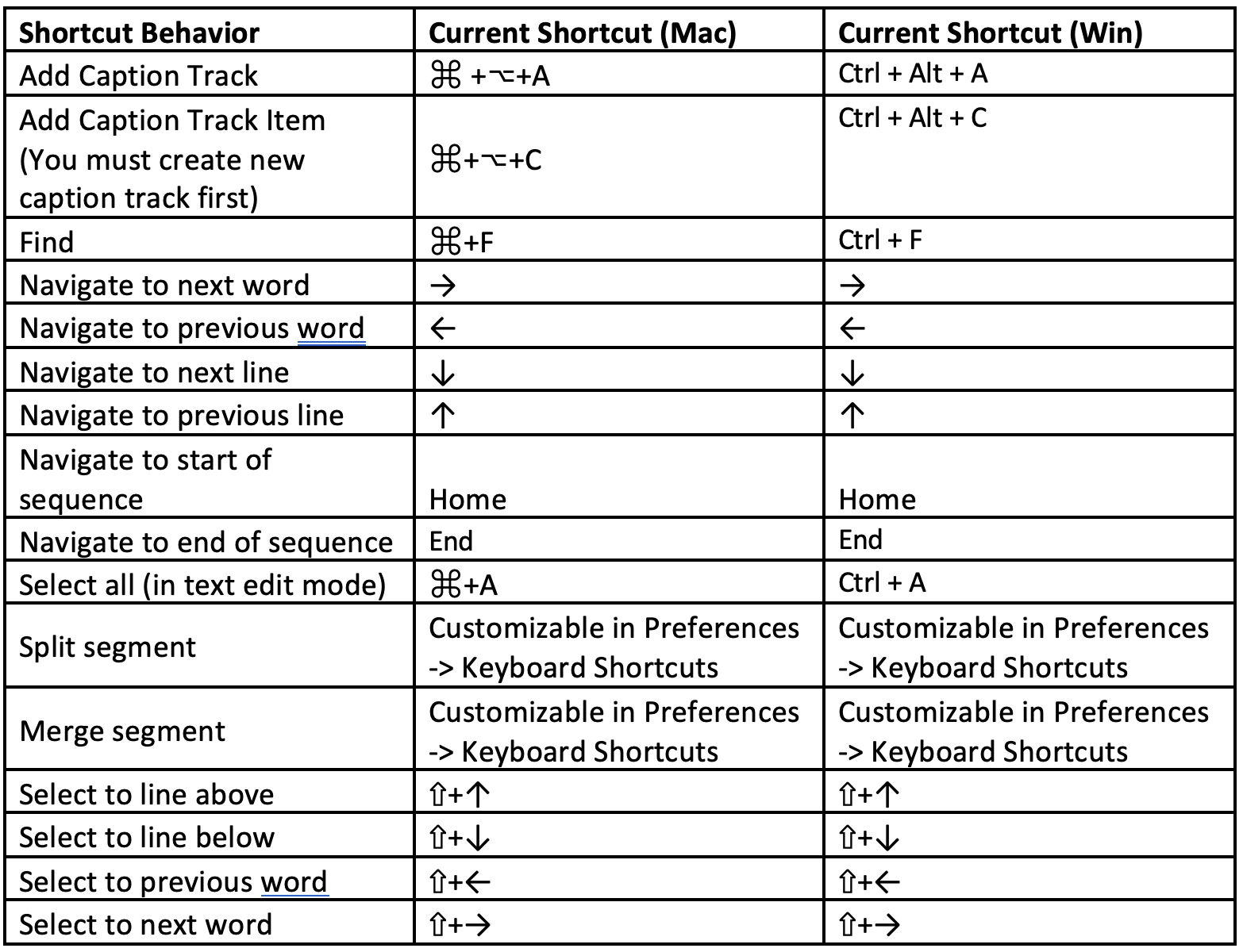
- Navigation: Navigate through the Text panel using familiar text editing keyboard shortcuts. The playhead will follow your cursor navigation so you can easily jump to the selected moment in the transcript.
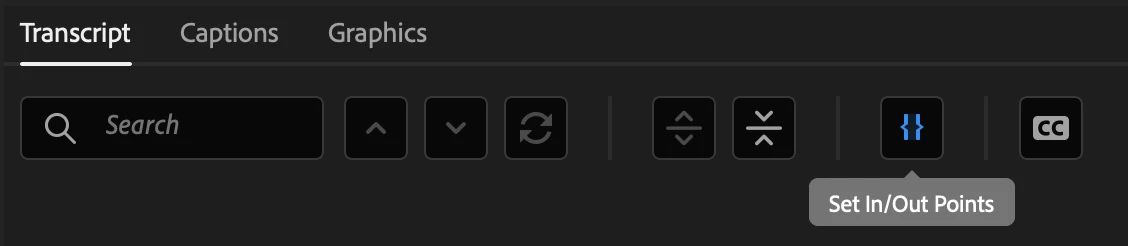
- Selections: Use text selections to set in/out points in your sequence. Enable and disable the in/out point button in the Transcript tab to activate this functionality.
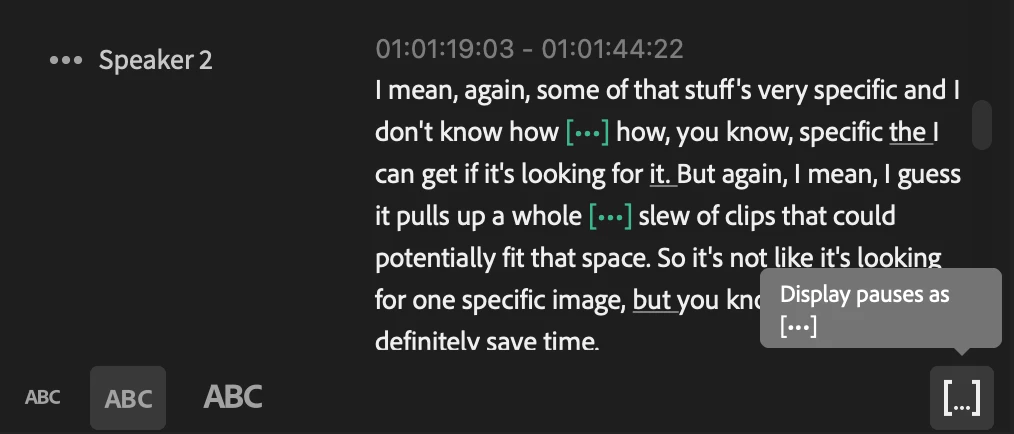
- Detect pauses: Show or hide pauses in a transcript and navigate between pauses. This will allow you to easily find long moments of silence that you don’t want included in your edit.
Please be aware of the following:
- These features are designed to help you at the beginning of a project, when you are first assembling your rough cut. The transcription won’t change even if you edit your timeline. To use Speech to Text for captioning, make sure to re-transcribe your sequence after completing your edit.
- This is the beginning of our work to augment the Text panel. Keep your eye on the beta forum for more announcements as we evolve it. Throughout this process we want to hear from you on the quality of navigation and selection, as well as any feature requests that would make your experience in the Text panel easier and more enjoyable.
- In case you missed it, you can share an .xls or .txt transcript with a collaborator that includes speaker name and timestamp.
Keyboard shortcuts:
 AdChoices