
Inspiring
April 1, 2025

Premiere Export Tab Preview Double LUT Looking

  • April 1, 2025
  • 6 replies
  • 385 views

Just updated to Premiere 25.2 on the iMac 2020 i9 with the AMD Radeon Pro 5700 XT 16 GB running macOS Sonoma 15.4, and when I go to the export tab, the preview window makes the video looks like it has had the same LUT applied twice over, and so the video looks very incorrect.
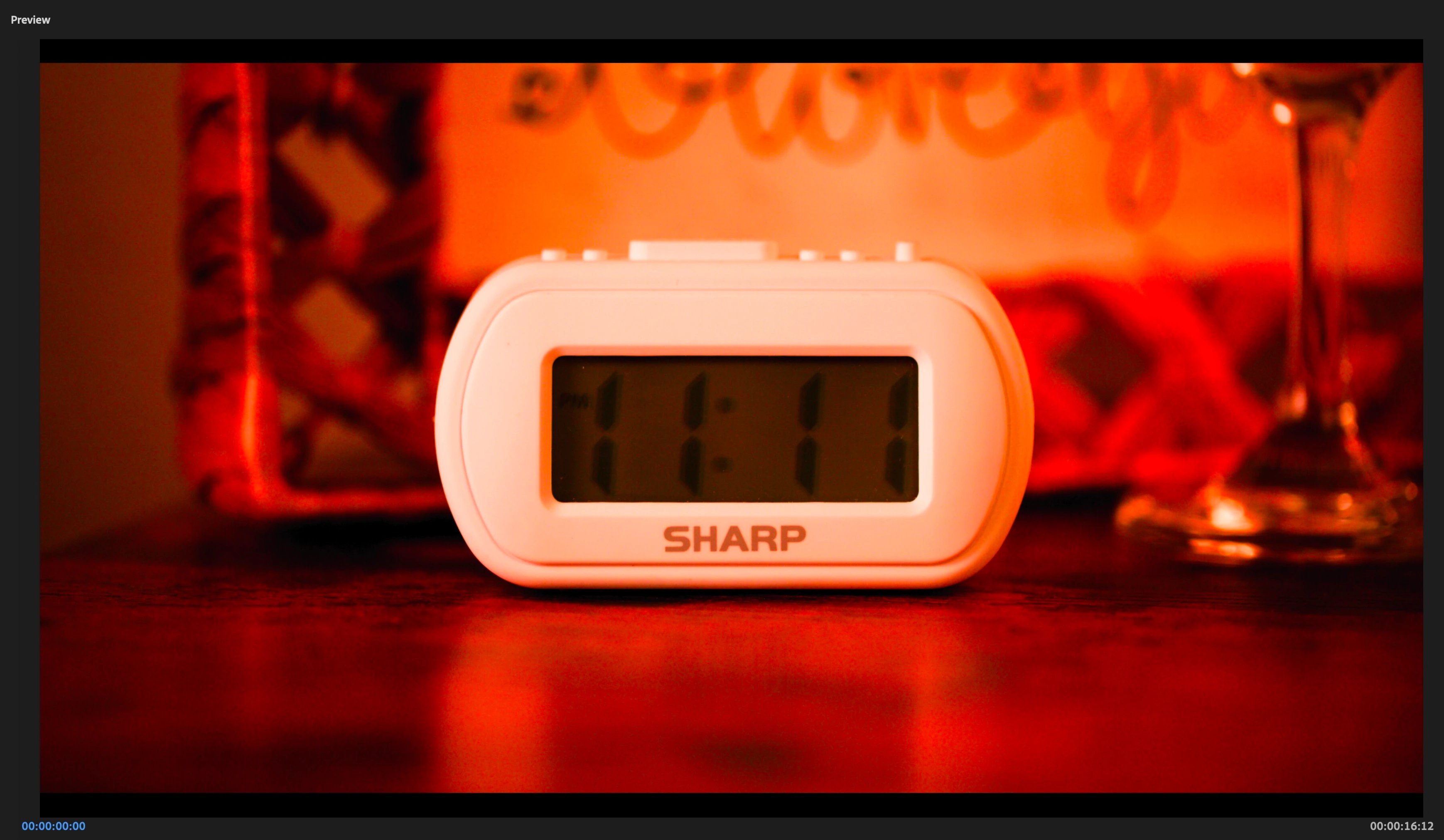
 

This does not effect the preview thumbnail at the bottom of the window in Media Encoder, nor does it affect the resulting render. This is solely the preview shown in the Export tab, but this did throw me for a loop the first time, and had me checking all of my settings.


This so far only happens with C500 Mark II, C400, C80 Canon Cinema Raw in Full Frame 5.9 and 6K. I haven't been able to duplicate this situation with C300 Mark III DCI 4K Canon Cinema Raw clips.


The LUT is being added via "Modify Footage", then "Color" then input LUT and choosing Canon's official Clog2->CMT709 LUTs.
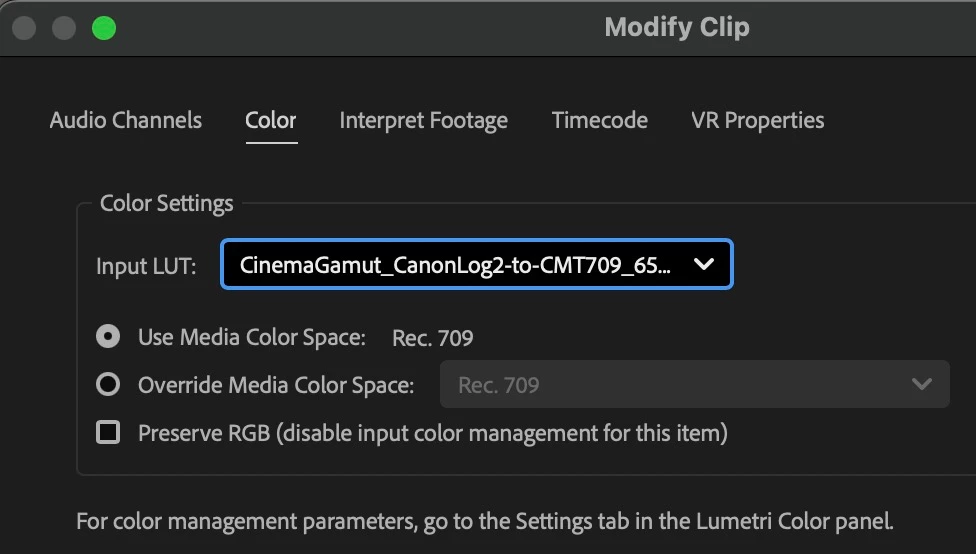
 

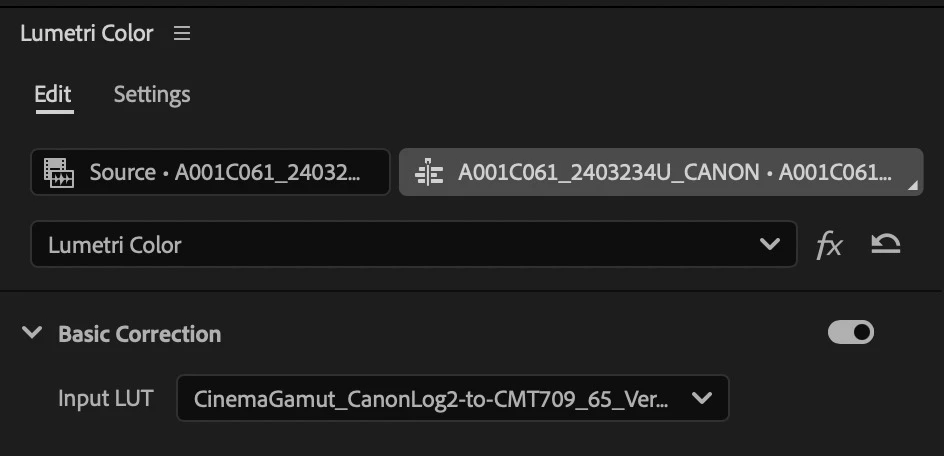
If I add the LUT via the Lumetri effect, the Export tab's video preview window looks correct, so it appears to me as a bug that only occurs through this very specific use-case.
6 replies

jamieclarke
Community Manager
Community Manager
April 4, 2025

Updating Status to Acknowledged

ghuffAuthor
Inspiring
April 1, 2025

Instead of using Modify > Color, try adjusting the Lumetri Panel settings while selecting the clip on the timeline.


@jamieclarke in my original post, you can read where I wrote, "If I add the LUT via the Lumetri effect, the Export tab's video preview window looks correct, so it appears to me as a bug that only occurs through this very specific use-case."


Adding the LUT via the Modify Footage option that Premiere has is done for a specific reason in this use case, and so that's why I am flagging this minor bug. The solution to just add a Lumetri effect to each of the clips in this project has its own issues with this workflow that make it not ideal.


I can confirm that so far I cannot get this bug to show itself on any footage lower than the 5.9K of the C500 Mark II Cinema Raw Light. The 4.2K of the Super35 crop mode of the C80/C400 also does not have this view display bug. I can also confirm that this view display bug appears in Media Encoder when adjusting the Export Settings, where the preview window also shows this "LUT applied twice" look.

jamieclarke
Community Manager
Community Manager
April 1, 2025

Hi @ghuff - I see this issue.

This issue occurs when you right-click a media clip, select Modify > Color, and apply an input LUT. Then, when you click the Export tab, the preview image appears as shown in the post.


Instead of using Modify > Color, try adjusting the Lumetri Panel settings while selecting the clip on the timeline.

This also occurs when "Display Color Mangement" is off and changing the input LUT in the Lumetri settings

ghuffAuthor
Inspiring
April 1, 2025

"So ... to  see your entire CM settings, simply do not do color management settings in Premiere anywhere but the intended spot, the Lumetri panel's Settings tab."

Hello, @R Neil Haugen, the workflow I have outlined is the intended spot. There is no workarounds I am doing in order to make Premiere do something it was not designed to do.

ghuffAuthor
Inspiring
April 1, 2025

Hi @jamieclarke


As you could see in my screenshot, I do not have "Preserve RGB" checked. Preserve RGB on or off makes no difference. I have also had Display Color Management both on and off as I did a whole reset of preferences including clearing my media cache, and that turned it back off. It was the same experience with it turned off, and then when I turned it back on, the preview window also looked the same. 


By "my own LUT" do you mean a LUT I have personally created? There is no way to access the LUTs built in to Lumetri via this window, but as stated, these are offical Canon LUTs provided by them that work just fine with this method if the footage is DCI 4K Canon Cinema Raw light from the C300 Mark III and do not cause the preview display in the Export Window to look wrong.

What specific export settings would you like to see that might solely affect the preview window of the Export tab when the resulting export looks correct?

jamieclarke
Community Manager
Community Manager
April 1, 2025

Hi @ghuff -  Thanks for submitting your bug report. We need a few more details to try to help with the issue.


If your workflow involves your own lut, you want to make sure you have "Preserve RGB" checked.  Do you also have "Display Color Management" on?

Can you show your export settings?
Sorry for the frustration.