
heyholou
Participant
October 30, 2022
Answered

2023 Version - Footage showing up as green

  • October 30, 2022
  • 3 replies
  • 13732 views

Hi there,


A few days ago I updated my Premiere Pro to 2023 and all of a sudden all my footage files appears as just green. After a brief search, I read that it might be caused because of my computer is not updated, then I proceed and did tbat. However the problem still continues.


I use a MacBook Pro (Late 2013) and the latest I can update my macbook is macOS Big Sur version 11.7.1 - It doesn't allow me to update to macOS Ventura for instance. (I cannot afford a newer pc nowadays so I'm stuck with this one) 


I checked if the video files are broken or something like that but Premiere Rush 2.0 seems to read them with no problem, I can transfer them to my iPhone and they work on it too, so files are fine.


I'm not comfortable using Rush because I'm so used to work on Premiere Pro. 


I even uninstall and re-install the program but I don't know how can I solve this problem. 
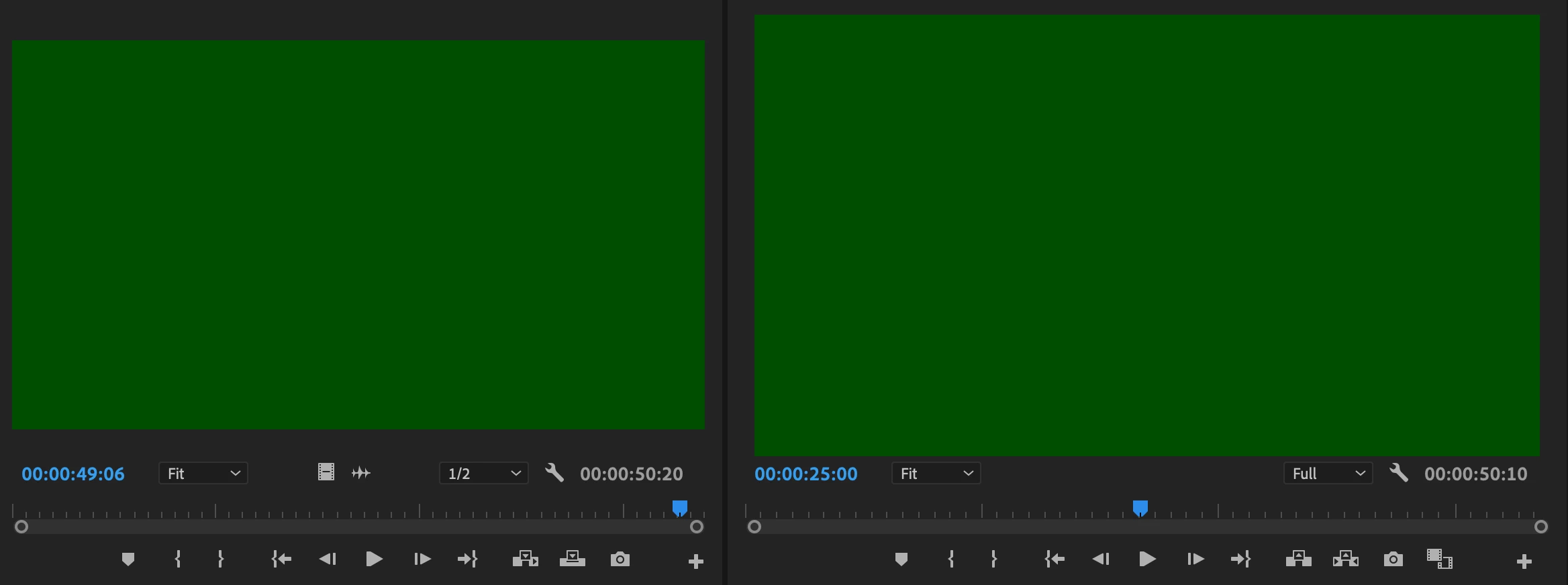


Is there any solution to this? 


Correct answer Kartika Rawat

Hi heyholou!

Sorry about the trouble. Which device is used to capture footage? Could you try switching to "Software Only"? https://community.adobe.com/t5/premiere-pro-discussions/faq-how-to-change-the-video-renderer-in-premiere-pro-and-adobe-media-encoder/td-p/9851383#:~:text=In%20Premiere%20Pro%2C%20choose%20File,opens%20the%20Project%20Settings%20window.


Let us know how it goes.

Thanks,

Kartika

3 replies

Participant
March 8, 2023

Hi, I have the same problem with all footage green, switched to software only (instead of GPU acceleration or something like that) and could edit the material just fine. But: when I try to export through media encoder  (or directly) the footage is green again. If I have to switch back to the older version of premier pro, how can I do that?

thanks for advice,

AA

Participant
March 8, 2023

No, just when you export also make sure software only is being used. You can still do it without having to go to a lower version of premiere

Participant
March 8, 2023

Allright, I'll try that, but where do I choose software only in media encoder? Or is it in the export settings of premier?

thanks again...

AA

Kartika Rawat
Community Manager
Kartika RawatCommunity ManagerCorrect answer
Community Manager
October 30, 2022

Hi heyholou!

Sorry about the trouble. Which device is used to capture footage? Could you try switching to "Software Only"? https://community.adobe.com/t5/premiere-pro-discussions/faq-how-to-change-the-video-renderer-in-premiere-pro-and-adobe-media-encoder/td-p/9851383#:~:text=In%20Premiere%20Pro%2C%20choose%20File,opens%20the%20Project%20Settings%20window.


Let us know how it goes.

Thanks,

Kartika

heyholou
heyholouAuthor
Participant
October 30, 2022

It worked, thank you so much

Ann Bens
Community Expert
Community Expert
October 30, 2022

It still means you have an issue with your gpu.

I would, if I were you, revert to 2022 and be able to use your GPU. Because it will be a big pain editing without.

Ann Bens
Community Expert
Community Expert
October 30, 2022

Green usually means a gpu issue.

What is the origin of these files?

Do they look normal in 2022?

heyholou
heyholouAuthor
Participant
October 30, 2022

Yes, they were working fine in 2022 version, they were shot on my Sony RX100 mark IV.