
Participating Frequently
November 6, 2018
Answered

4K SOURCE SEQUENCE EXPORT TO H.264 BLU-RAY

  • November 6, 2018
  • 3 replies
  • 2518 views

Greetings,

Currently trying to export media timeline sequence (source 4k - Phantom drone video, 29.97 fps) to H.264 Blu-Ray, 1080i, 29.97, m4v.  I have tried many variations including just the standard defaults as well as max depth, max rendering, VBR1, VBR2, increased bitrates, etc.. AND the quality just does not seem to be as good as the originals.  I seem to get slight pixelation and what I would describe as some blurring.  While it is not terrible it certainly is noticeable to me AND not as crisp and clear as the originals.  When I export with just regular H.264, there is some significant improvement.

When I export it out at just H.264 to where it comes out really good (near as good as the originals)--  when I bring it into Adobe Encore to burn Blu-Ray Disc, the disk does not come out as good as the exported mp4.  I'm guessing that is because Blu-Ray is fussy and just does not want any H.264 BUT wants the H.264 Blu-Ray preset??

The goal is to have a Blu-Ray BD for my client.

Any suggestions, ideas on how to overcome this AS my thought is I should be getting a quality equal to the 4k but in 1080?

Thanks so much--  God Bless!

Kevin from the Coast of Maine
    This topic has been closed for replies.
    Correct answer Averdahl

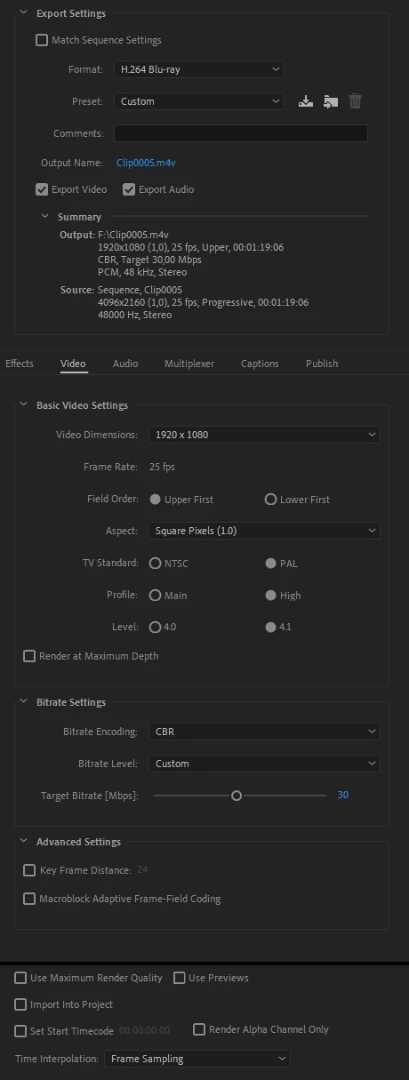
    Yes, Encore demands files exported with the H.264 Blu-ray preset and will re-encode plain H.264 files, thus a loss in the quality. 4K downscaled to 1080 will always suffer from a loss of quality and will never look as crisp and clear as the original footage. I get good quality with the settings in the image below. Avoid Maximum Depth, Maximum Render Quality. Maximum Render Quality should only be used if your computer does not support GPU Accelleration.

    Personally i think the built in H.264 encoder in Adobe apps has some serious flaws, one of them being that the quality is uneven. When there are lot of details in the footage the output is smeared. I use TMPGEnc Movie Plug-in AVC for Premiere Pro - Export Premiere Pro projects using the TMPGEnc H.264 encoder. for all my H.264 encodes, including H.264 Blu-ray. I have never looked back since i bought it. Download it and try it, no watermarks or other limitations during the trial.

    3 replies

    MetrailAuthor
    Participating Frequently
    November 6, 2018

    Hi Jim,

    Completely understand that BUT when I output to the Blu-Ray BD, the actual disc video does not even look as good as the exported H.264 Blu-Ray @ 1080i file AND the H.264 Blu-Ray file itself is not as superior as when I just export to H.264 (non-Blu-Ray), although it is satisfactory.

    Thanks for the input--  will keep you posted on what ends up working best!

    Kevin

    Inspiring
    November 6, 2018

    How are you viewing these exported files? Once you interlace - it will never look good on a computer (progressive) monitor. It will appear slightly pixelated and with stair-stepping on diagonal lines.

    If you can, import one of your exported interlaced files back in to Premiere and view it there with the Source or Program monitor set to display a single field:

    or view it on an interlaced monitor (tv set).

    MtD

    Legend
    November 6, 2018

    Your originals are 4K, you're delivering HD.

    Of course there's a difference.

    Averdahl
    Community Expert
    AverdahlCommunity ExpertCorrect answer
    Community Expert
    November 6, 2018

    Yes, Encore demands files exported with the H.264 Blu-ray preset and will re-encode plain H.264 files, thus a loss in the quality. 4K downscaled to 1080 will always suffer from a loss of quality and will never look as crisp and clear as the original footage. I get good quality with the settings in the image below. Avoid Maximum Depth, Maximum Render Quality. Maximum Render Quality should only be used if your computer does not support GPU Accelleration.

    Personally i think the built in H.264 encoder in Adobe apps has some serious flaws, one of them being that the quality is uneven. When there are lot of details in the footage the output is smeared. I use TMPGEnc Movie Plug-in AVC for Premiere Pro - Export Premiere Pro projects using the TMPGEnc H.264 encoder. for all my H.264 encodes, including H.264 Blu-ray. I have never looked back since i bought it. Download it and try it, no watermarks or other limitations during the trial.

    MetrailAuthor
    Participating Frequently
    November 6, 2018

    Hi Averdahl,

    So I downloaded TMPGEnc Movie Plug-in AVC for Premiere Pro and exported my sequence to TMPGEnc H.264 Blu-Ray/NTSC (just keeping the other default settings w/ exception of resolution which I changed to 1920x1080) AND than burned in Encore as a Blu-Ray BD--  DID NOT TWEAK ANYTHING...

    W O W !   What a difference--  Night and Day, it LOOKS GREAT!  So my next question is; why doesn't Adobe Premiere Pro already have this or an equivalent encoder.  This issue could have been solved many many hours ago.  Thanks again for your help Averdahl--  I think you were the ANSWER.

    Respectfully,

    Kevin

    Averdahl
    Community Expert
    Community Expert
    November 6, 2018

    Great that you found a solution!

    I have no answer to your question and i don´t know why Adobe continue with the current H.264 encoder. If you are pointing the camera to the blue sky without clouds the built in H.264 will look great. But when shooting material with details such as water, trees with leafs, panning camera, motion, etc, it fails pretty quickly.

    I have noticed the same thing as you do, no tweaking is necessary with the TMPGenc Movie Plug-in for great results.