Answered

This topic has been closed for replies.
I have seen that before and if i remeber correctly this happens if Premiere Pro don´t have full read & write permissions to the Documents folder on you Mac. After you have set the permissions you will probably have to either unistall/reinstall Premiere Pro or just reset the Preferences so files that not could be written can be written/placed in the correct folders.
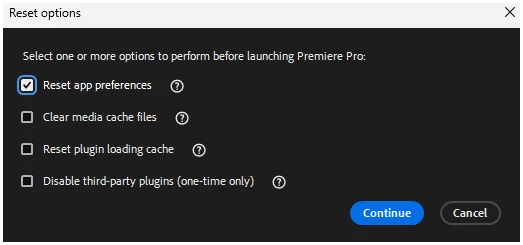
To reset Preferences, hold down the Command key while launching Premiere Pro and check the Reset app preferences in the dialog that pops up and click on Continue.
- Change permissions for files, folders or disks on Mac – Apple Support (UK)
- How to Set File Permissions on a Mac | Macinstruct
Sign up
Already have an account? Login
To post, reply, or follow discussions, please sign in with your Adobe ID.
Sign inSign in to Adobe Community
To post, reply, or follow discussions, please sign in with your Adobe ID.
Sign inEnter your E-mail address. We'll send you an e-mail with instructions to reset your password.
 AdChoices