Participant
October 28, 2020
Question

Alexa Footage Imported with AUTO LUT. Alexa Mini embed LUT can't be deleted.

  • October 28, 2020
  • 2 replies
  • 9678 views

Hi, I'm working with Alexa Mini footage, and by default the footage has LUT applied to it once imported. I have tried "Disable Masterclip Effects", disable Lumetri Color(Both on Master and single clip), follow the correct answer from this post(Set the LUT to something else and then NONE):

https://community.adobe.com/t5/premiere-pro/premiere-2015-how-to-remove-auto-lut-from-multiple-master-clips/td-p/7450277?page=1

None of these work. 

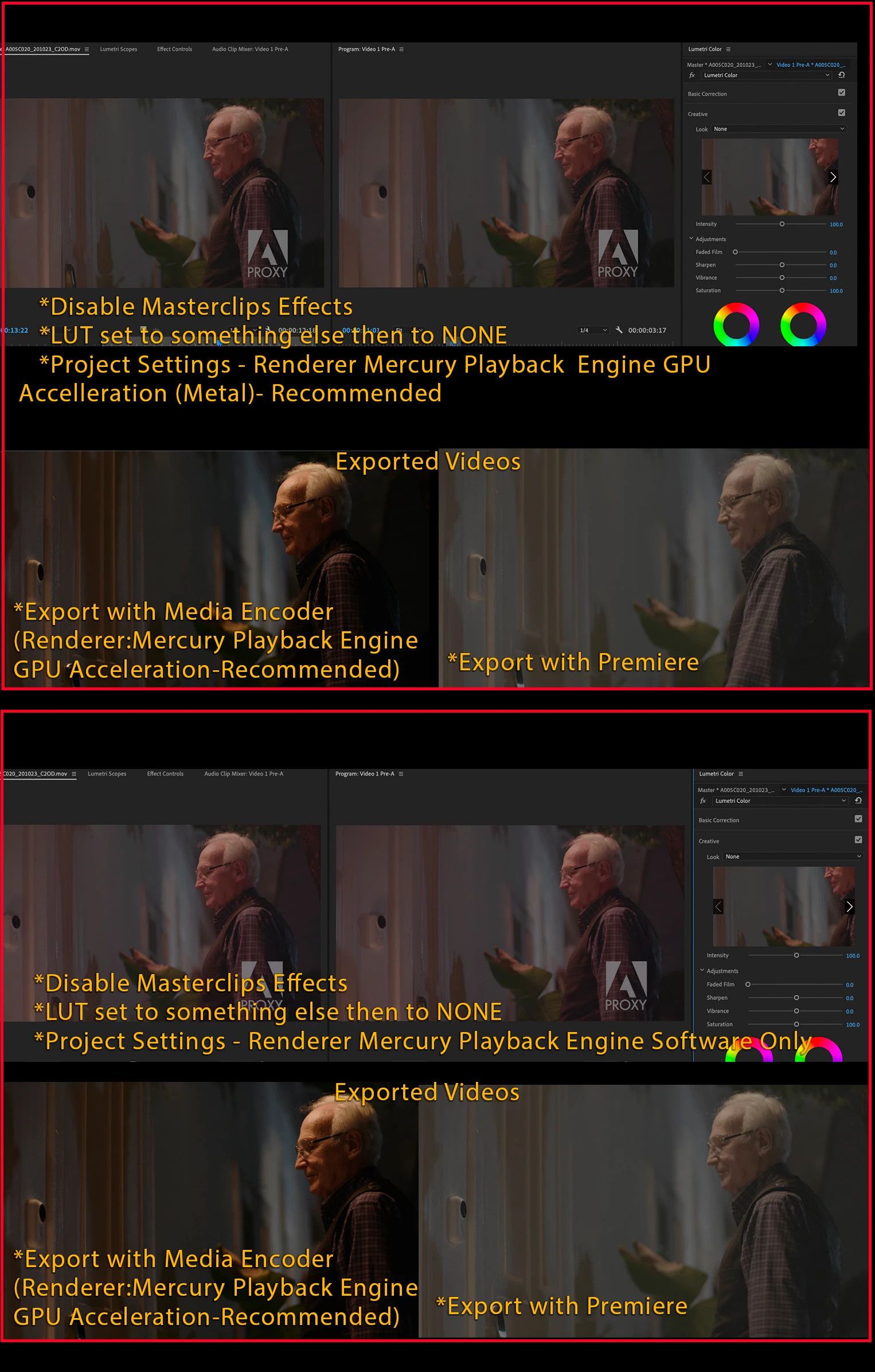
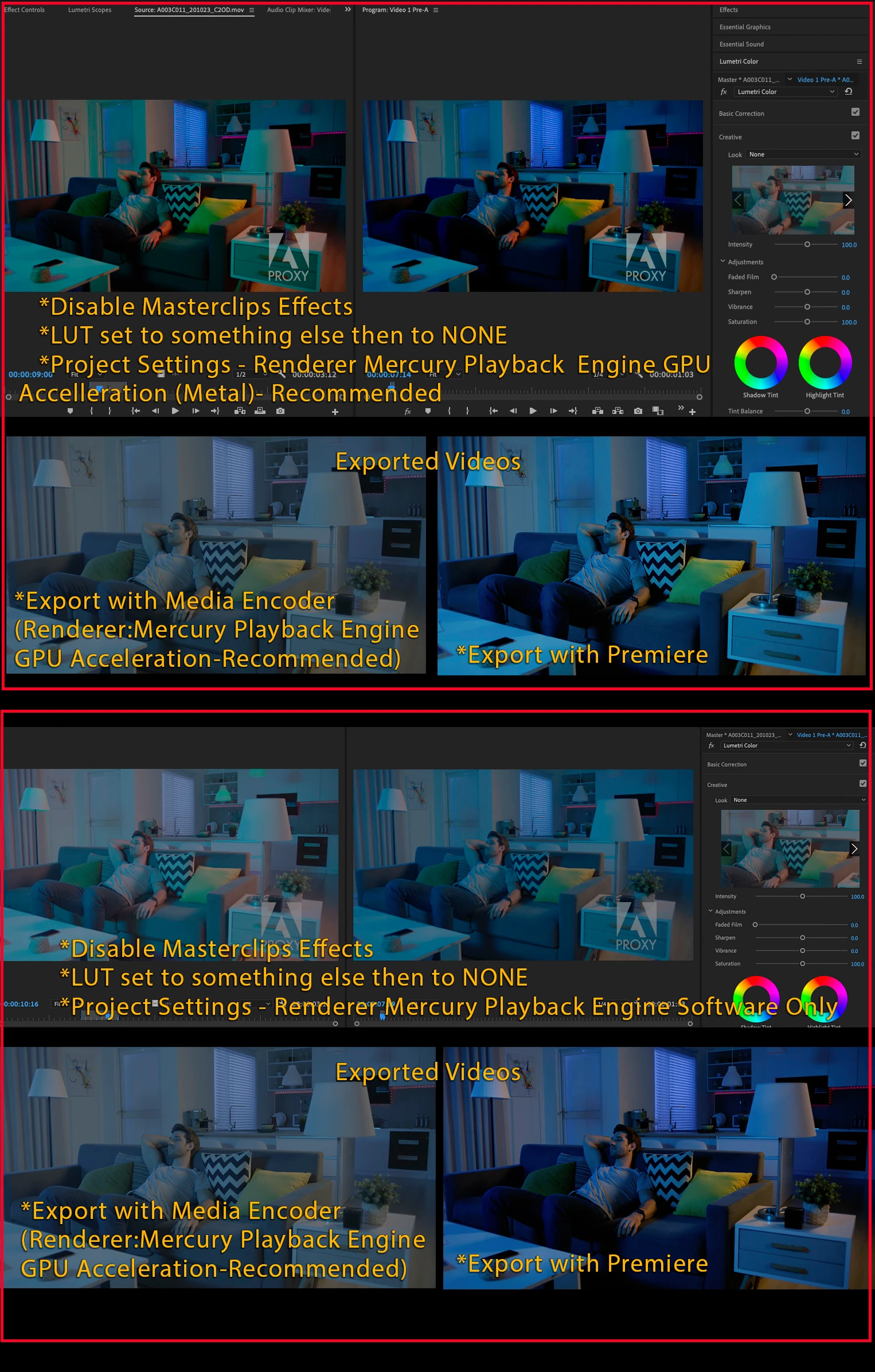
And the colors look different with different footage(shot on the same camera) and settings and renderers. Please check the screenshots below. I have listed every scenario and the result.

It's making me very frustrated. It's impossible to work like this...
This topic has been closed for replies.

2 replies

Known Participant
October 12, 2021

I just figured out how to batch disable the auto LUT. Select a batch of clips > right click > Disable source clip effects. 


Previously, it was a look hack in lumetri. Then it was right click > modify > interpret footage > none. Then it was select single clip > In Lumetri Color Panel > dropdown to Clear. This last one was not batch-able. 


Doing a notch conform for a 2 hour feature and have to conform for master QT. Reimporting any Alexa footage in ProRes auto LUTs over and over. So annoying and a huge waste of valuable time. 


Adobe, please kill this feature altogether, or at least give us the option to disable universally. 


Thanks,

J

Known Participant
October 12, 2021

Forgot to add that although you can disable source clip effects, in Lumetri Color panel and Effects panel when you load a clip into the Source window, is still set to the Amira auto LUT, but the entire effect is turned off.


When you load a clip into the source window, and go to Lumetri Color Panel and click on Amira LUT and select Clear, it effectively removes the effect entirely. Only problem is you can only do this one clip at a freaking time. 

Participant
December 1, 2020

I had this happening to my Alex ProRes footage. I found a simple solution. 

Reveal the clip in your project, right click and scroll to Modify > Interpret footage

In the interpret window, you'll see the Color Management section at the bottom has Input LUT: Alexa/Amira default. - change it to none. 


stoutfilm
Participant
August 25, 2021

This is the new correct way to do this. Willyon, you were correct for the way that used to work but is now obsolete. The big problem with this now is that it seems you can't do all the clips at once, you have to go through each one and Modify>Interpret footage and remove the LUT. It's quite ridiculous if you have a project with hundreds of clips. A shame because my guess is 90% of people editing Arri footage want to grade off the Log image. I suppose most are bouncing to Davinci one way or another, but it is still common to grade within Premiere.  I hope Adobe has a better answer or a fix for this. Please help, Adobe!

stoutfilm
Participant
August 25, 2021

Hmm- it appears I can actually get rid of multiple ones at once, even though it doesn't allow the Embedded LUT vs None dropdown.  It's not obvious but somehow I got multiple clips to lose the LUT.  I stand by that I would love for this to be clearer and easier on the part of Adobe. I will keep my eyes and ears open. Did we lose the "master clip effects" muting for a reason? Thanks!