
Participant
April 23, 2018
Answered

Aligning Horizons between several clips.

  • April 23, 2018
  • 3 replies
  • 4636 views

Hi All - first post, and complete beginner to PP, so go easy 🙂 I've searched for a similar situation here but cant find one.

I have several clips that I need to merge together to make one complete video, but each clip has slightly different horizon levels. These were shot with a drone, and the angle/position isn't precisely the same as the previous flight.

I would imagine there is a function that could align them and crop as necessary, but can't seem to figure it out.

Any guidance would be highly appreciated!

Thanks
    This topic has been closed for replies.
    Correct answer Meg The Dog

    Place one clip above another on the timeline (clip one on V1, clip 2 on V2). Click on the clip on the higher track to select it.

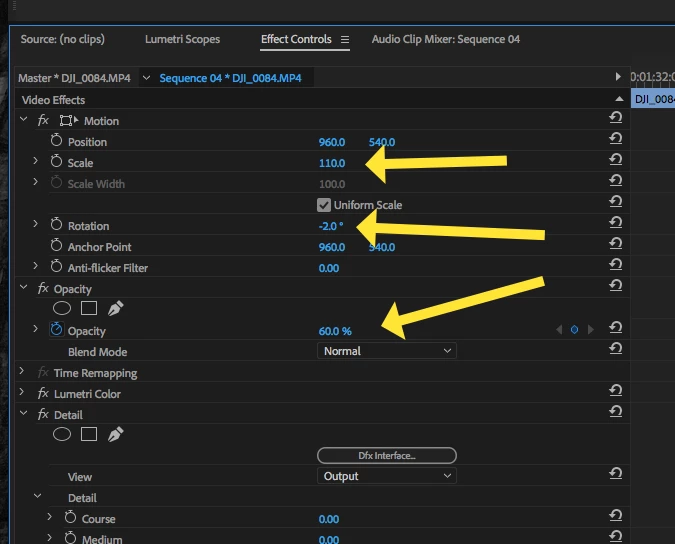
    Go to the Effects Control panel and lower the opacity of the clip on V2 until you see it superimposed over the clip below it. Adjust the Rotation, Scale and Position until the two horizons line up and the upper clip still fills frame.

    Once that is done, restore the opacity to 100% and move the clip that was on V2 to where you want it on the timeline.

    MtD

    3 replies

    InnovistaAuthor
    Participant
    May 1, 2018

    Thanks for the help everyone!

    angie_taylor
    Legend
    April 23, 2018

    Instead of lowering the opacity of the layers and even better way is to change them to Difference blending mode. This way it will highlight the differences between layers. Always a great technique to use when you want to line up two layers so their positions match.

    angie_taylor
    Legend
    April 23, 2018

    The benefit of using Difference blending mode is that, when the two layers are lined up exactly, the resulting image will go completely black. So it’s very easy to ensure it’s lined up exactly. With opacity or cross dissolve you are relying on visual matching which is more prone to error. But all are possible solutions :-)

    Ann Bens
    Community Expert
    Community Expert
    April 24, 2018

    If you magnify the program window you can get it quite accurate.

    Meg The DogCorrect answer
    Inspiring
    April 23, 2018

    Place one clip above another on the timeline (clip one on V1, clip 2 on V2). Click on the clip on the higher track to select it.

    Go to the Effects Control panel and lower the opacity of the clip on V2 until you see it superimposed over the clip below it. Adjust the Rotation, Scale and Position until the two horizons line up and the upper clip still fills frame.

    Once that is done, restore the opacity to 100% and move the clip that was on V2 to where you want it on the timeline.

    MtD

    Participant
    December 28, 2020

    Great idea, thank you! I tried this and it worked great. Next time I will do this as well as the next advice about Difference blending mode. Thank you, community!