Participant
November 25, 2021
Answered

Apply default Audio transitions in Premier 2022

  • November 25, 2021
  • 1 reply
  • 2547 views

Is there a way to set a keyboard shortcut to apply only audio default transition to a cut? 

It used to work as Shift + Ctrl +D but now it doesn't work this way and according to commands in keyboard shortcuts menu you can only apply 'to playhead' or 'from playhead' which is obviously not the way I want it.


I kinda want it to work as it is when you use Shift +D but without default video transition applied.


Using 2022 latest version of Preiere.


Any help?

This topic has been closed for replies.
Correct answer Averdahl
quote

In a mew version it's called "Apply default audio transition to playhead" but it doesn't work too. Neither when you select both clips, nor between cuts.


By @Skillard


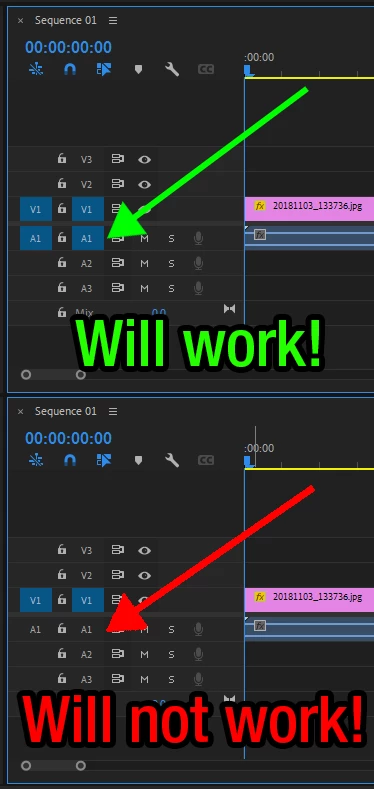
The command you are looking for is Apply Audio Transition. This is the default shortcut, iow Ctrl+Shift+D, and it will apply the default audio transition.


But, you must have the correct audio track targeted otherwise it won´t work. See the attached image for details.


1 reply

Graeme Bull
Community Expert
Community Expert
November 25, 2021

Weird, ctrl-shift-d works fine for me between cuts to do the default audio transition of "constant power". Is that not what you mean?


If you select both clips (they are next to each other) and then hit the ctrl-shift-d sequence, it puts a transition in there.

Graeme Bull
Community Expert
Community Expert
November 25, 2021

I'm wondering if you mean you don't want the transition also applied to the beginning and end of those clips too. If those clips butt up against other clips, it only applies the transition to the join of the two clips you select. If there is an end/beginning of either of those clips then it applies it to there too. I don't think there's a way to do this otherwise though.