
Participant
March 6, 2022
Answered

Applying Track Matte Key Changes Frame of Text Above It

  • March 6, 2022
  • 3 replies
  • 3117 views

Hello, jumping into Premiere on Windows after almost exclusively using FCPX where I've run into a puzzle with the Track Matte Key.
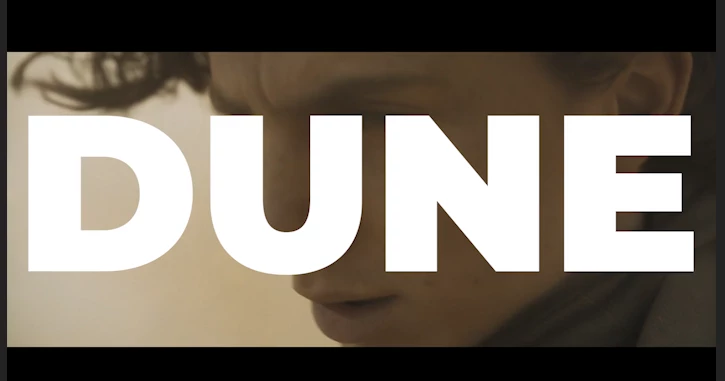
Here I'm looking to put the video inside the text so first I make it all nice and big. Video on V1, Text on V2.
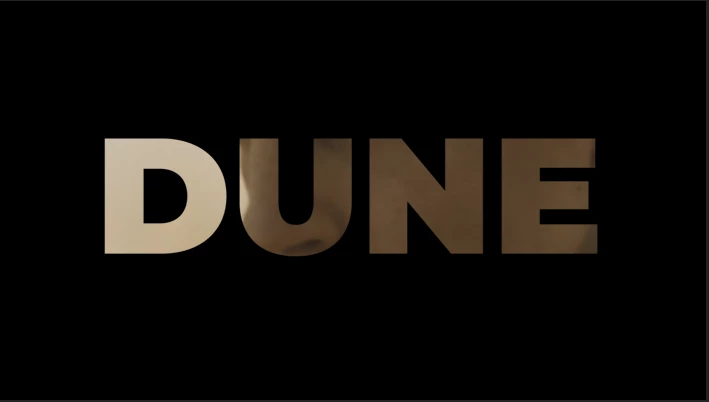
Then when I pop the effect on the video and set the matte to video 2 and suddenly the text is a lot smaller. which wouldn't be a problem if...
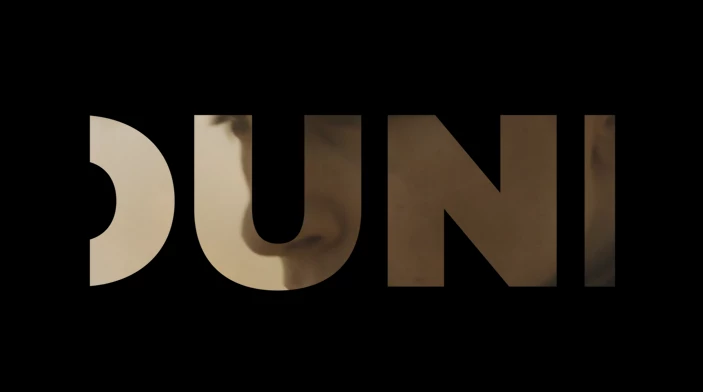
It didn't limit how much I could scale the text back up! There's some kind of smaller frame on top of the video that cuts off the text. I'll scale up the text more to show the edges of the new frame better. 
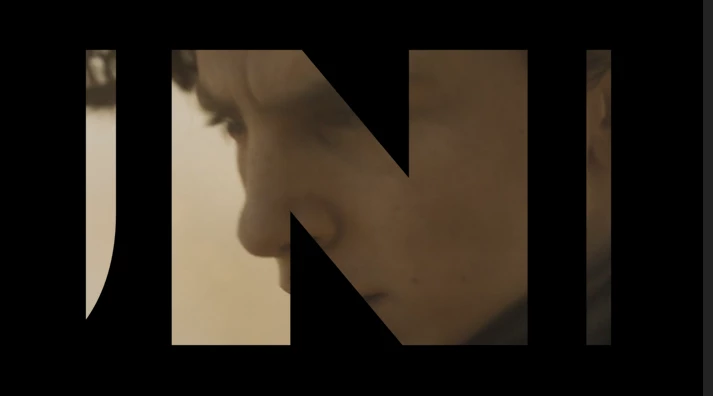
I haven't been able to find what's causing this yet, so I thought I'd ask.


This topic has been closed for replies.
Correct answer Phillip Harvey

Are you making any Scale adjustments to the Track Matte or the video that's applied to the Track Matte? The Track Matte Key in Premiere has kind of a funky behavior when it comes to scaling. The Motion effects, which include the scale, are applied at the end of the effects chain. To get around this, if you need to scale your video at all or the text for the matte, try using the Transform Effect and put it before the Track Matte Key (if you're doing the scaling on that video layer). Otherwise the behavior is that the Track Matte Key and the video you're using as the Matte are basically locked together.

3 replies

Phillip HarveyCommunity ExpertCorrect answer
Community Expert
March 7, 2022

Are you making any Scale adjustments to the Track Matte or the video that's applied to the Track Matte? The Track Matte Key in Premiere has kind of a funky behavior when it comes to scaling. The Motion effects, which include the scale, are applied at the end of the effects chain. To get around this, if you need to scale your video at all or the text for the matte, try using the Transform Effect and put it before the Track Matte Key (if you're doing the scaling on that video layer). Otherwise the behavior is that the Track Matte Key and the video you're using as the Matte are basically locked together.

ninap9xdAuthor
Participant
March 7, 2022

Thank you so much! Applying the Transform effect to the Text itself did the trick!


Community Expert
March 7, 2022

I'm glad that worked @ninap9xd. Another helpful effect to keep in mind in these types of situations is the Offset effect if you only need to move X,Y position. I can't remember the situation but maybe a week ago I was working on something or helping somebody with something and Offset worked but Transform did not. Just something to keep in the back pocket.

MyerPj
Community Expert
Community Expert
March 7, 2022

You can also make that in Essential Graphics, just make the text, drop the video into Essential Graphics and click Mask with Text


ninap9xdAuthor
Participant
March 7, 2022

No luck yet, sorry. It just made the white text disappear.

Peru Bob
Community Expert
Community Expert
March 6, 2022

Can you post a screenshot of your timeline and of the Effects Control Panel?

Do you have any other effects applied?  If so, try changing the order of the effects in the Effects Control Panel.

ninap9xdAuthor
Participant
March 7, 2022

Grabbed a screenshot of all the layers. I'm going to want an orange background to this so I went ahead and move the others up and put it in V1