
Participating Frequently
June 18, 2024
Question

Artifacts exporting in Premiere 2024 on PC only

  • June 18, 2024
  • 9 replies
  • 2728 views

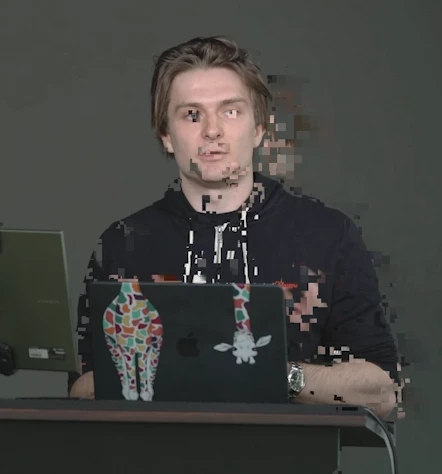
Currently, I'm having an issue with exporting in Premiere on PC (only). Basically, periodically, I'm getting encoding artifacts randomly in the videos I export. It is consistent in where it appears in the video (always in the same places), the errors don't appear in the source video, and when I export on a Mac - the artifacts aren't there. Here is an example of what we're seeing:
9 replies

Participating Frequently
January 17, 2025

Old thread, but recently ran into a version of this kind of glitch and wanted to share a possible fix -

Problem: Video file exports ok to ProRes, but exporting to h.264 (or transcoding from the good ProRes export to h.264) would result in video glitching similar to OP's image. Happened both directly out of Premiere and through Media Encoder.


Solution: Had to change from 2-pass to 1-pass encoding, and that fixed it. Alternative solution, if 2-pass encoding is a must, would be to use Handbrake (or your other transcoder of choice) to create an h.264 based off of a ProRes (or other all-i) export.

Kuba Skowronski
Participant
November 27, 2024

I hope this helps - the fix for me was changing the renderer to the Mercury OpenCl:


Participant
November 27, 2024

That's my options

Participant
November 15, 2024

Hi,
I have the same problem for a few weeks. I tried everything that was written in this discussion. No effect. Additionally, after converting the file in Sony Catalyst, Adobe Premiere makes the same, unpleasant errors. In VLC, the video displays correctly. After converting to proxy, the video displays without error. However, when I want to render in full quality, the error we already know still appears.

Participating Frequently
July 17, 2024

Interesting development to this issue.... Randomly a co-worker tried rendering this problem file, and Media Encoder rendered the video perfectly. Nothing had been changed, and all files were in their original configuration (I had walked back all troubleshooting efforts). To be sure this stuck, I installed an NVIDIA GPU update, and did a restart. Now the problem is back....consistently the same as it was before 😞 

Averdahl
Community Expert
Community Expert
July 17, 2024
quote

...I installed an NVIDIA GPU update, and did a restart. Now the problem is back....consistently the same as it was before 😞 


By @thom1329_2


  • Does it work if you export the file directly from Premiere Pro, iow take Media encoder out of the equation?


  • If you export as usual via Media Encoder, what happens if you prior to export launch Media Encoder and go to Edit > Preferences > General and under Video Renderer change to Mercury Playback Engine Software Only and then click OK and now export the timeline?


  • One other thing to test in Media Encoder is to once again go to Edit > Preferences > General and this time un-check Import sequences natively.


  • And as R Neil Haugen points out, use only the Studio Driver from Nvidia. Don not use the Game Ready driver.


Participating Frequently
July 23, 2024

To continue the discussion and address ideas/messages above (thank you for the help!):


- It does not work to directly export from Premiere Pro - I get the same exact issue

- I've tried both the Mercury Playback Engine Software Only and Mercury Playback Engine GPU Acceleration (CUDA), neither have fixed this issue

- I tried unchecking the box 'Import sequences natively' in Media Encoder, this did not fix it either, 

- I currently have Nvidia Studio Driver Version 560.70 WHQL for Windows 10 64-bit English (US) installed. I've also tried the following drivers (all Windows 10 64-bit):

  > NVIDIA Studio Driver 556.12

  > NVIDIA Studio Driver 555.99
  > NVIDIA Studio Driver 555.85
  > NVIDIA Game Ready Driver 560.70
  > NVIDIA Game Ready Driver 556.12
  > NVIDIA Game Ready Driver 555.99
  > NVIDIA Game Ready Driver 555.85

None of these drivers exhibited any different behavior, except that the NVIDIA Game Ready Driver 556.12 was the driver I had installed when it miraculously worked before restarting and updating drivers. I've since tried these same drivers again, and the issue is back.  


It appears that by selecting the option 'Use Proxies' in the render settings, this issue has cleared up. I can render from Premiere, or Media Encoder, and mess with all sorts of other settings, and it just works! Not sure why this is the case, but we're going to continue rendering with this option selected to solve this problem moving forward! 

Participant
June 24, 2024

After having an Adobe tech work remotely through all the possible combinations on my comp the best option he came up with was to "render and replace" the trouble clip. He ran with the GoPro preset option which worked although it still doesn't explain why I was able to export out the exact same project with all the same settings a month ago with no artifacts.  

R Neil Haugen
Legend
June 24, 2024

That's a huge pain! Yea ... and why the change? Huh.

Everyone's mileage always varies ...
Participant
June 20, 2024

I too have been dealing with the exact same issues regarding artifacts on export. On A PC as well with everything updated. Rolled back Premiere and AME to the previous version where it seemed to work but doesn't anymore.  The software rendering option still causes issues but they are never in the same spots on the exports and it is ALWAYS on MXF files from a Sony FX6. I've exported other MXF files from the same camera over the past few years and didn't have this issue until the last update. I deleted all the render files as well although everything in the timeline plays as it should. I appreciate the help.

R Neil Haugen
Legend
June 18, 2024

That is a graphics issue ... go to the Project panel dialog, change the GPU setting to Software Only, and see if it disappears. If so, there's your issue ...


Which GPU and what driver version are you using? If Nvidia, try updating to the most recent Studio driver, and using the "Clean install" options.

Everyone's mileage always varies ...
Ann Bens
Community Expert
Community Expert
June 18, 2024

If using a Nvidia card and 24.4.1 or later update to the most current STUDIO driver.

Participating Frequently
June 18, 2024

Is the media on your timeline an All-I codec? While it doesn't help diagnose your exact problem, a solution that should work would be to convert your raw/source media to ProRes or Cineform, and then replace your media on the timeline with that, then try exporting.

I've seen the inverse of your problem (Macs having this issue where PCs didn't) and more or less came to the conclusion that the machines we were using were underpowered. Converting the source media (less work for the computer to use all-I codecs) worked for me.

kglad
Community Expert
Community Expert
June 18, 2024

in the future, to find the best place to post your message, use the list here, https://community.adobe.com/

p.s. i don't think the adobe website, and forums in particular, are easy to navigate, so don't spend a lot of time searching that forum list. do your best and we'll move the post (like this one has already been moved) if it helps you get responses.


<"moved from cc desktop bugs">
Participating Frequently
June 18, 2024

Thank you - looking forward to any guidance on this....


So far, I've tried:

- rebuilding the computer and reinstalling everything to the latest version, 

- walking back versions into 23.XX

- Rendering in other export formats (MPG2/AVI/H265)

- Rendering with all sorts of options switched back and forth in Export settings

- Rendering the same PPROJ/source files from a different PC


So far, if its on a PC, the problem exists, if its with a Mac/OSX, the problem is not present.