
Participant
March 19, 2019
Question

Audio Conforming Error

  • March 19, 2019
  • 4 replies
  • 9329 views

I'm importing video files but the following error appears:
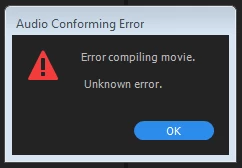
Once I select OK the video imports with an audio track but there is no audio and looks like this:

This is happening to both MP4 and AVI files. I have already cleaned the media cache and attempted the "CommonOld" troubleshooting to no avail. I have also installed the latest update of the program and still receiving the error.

The files definitely have audio, when I open them outside of Premiere Pro the audio plays.

Any help or suggestions on how to resolve this issue is greatly appreciated.

Thank you

    This topic has been closed for replies.

    4 replies

    Participant
    August 27, 2021

    For me the problem was in the format. Using VLC media player I converted all videos from avi to mp4, which fixed it.


    Participant
    March 10, 2020

    Open the audio file that's giving you trouble in Quicktime, then go to "File" and re-export it as a seperate audio file. Then just use that file instead. Worked for me! 

    Known Participant
    June 9, 2020

    I was having same frustrations. I tried the cache thing, but not sure if I was doing that right and problem wasn't solved. I then tried opening in Quicktime and exporting new file. Still no luck. Then, for whatever reason, going to VLC and exporting it from there did the trick.

    Participant
    July 1, 2019

    Has anyone solved this?

    I've been having the same issue for a week now and it's really frustrating, I've tried many things but there isn't much on the web that points to a legitimate solution...

    I'm using mp4 files and this stuff used to work before, but any new video files can't conform the audio in premiere.

    Participant
    July 11, 2019

    Since nobody has replied, I might as well say that I have tried absolutely everything; reinstalling premiere, clearing the cache, trying a different disk, renaming the cache folder, changing the location of the cache folder, but nothing works.

    This happens about 50% of the time with videos recorded through the Elgato HD60 Pro, and this used to work all the time with no problems, but a few weeks ago this just started happening and I have searched on the internet for any possible solution; but nothing works.

    The ONLY workaround I have for anyone who is having this issue is to use VLC or some other video conversion device and export the video out again as an MP4 file, but obviously this can be problematic when it takes 30 minutes longer to upload your daily videos to YouTube.

    Please someone respond with a possible solution.

    Participant
    August 8, 2019

    I had this problem and was able to fix it by going to

    Edit > Preferences > Media & Disk Cache

    I moved both Caches from an older hard drive to my main drive, selected "Delete Database" when prompted, also clicked Clean database for good measure!

    Good luck vfxers!

    gerikp
    Community Expert
    Community Expert
    March 20, 2019

    Could it be that you have the wrong permission settings on that folder?

    Participant
    March 20, 2019

    Thank you for your reply.

    It's definitely not that because I've attempted importing from both the company I:Drive folders and my personal profile folders with the same error from both.

    gerikp
    Community Expert
    Community Expert
    March 20, 2019

    I'm referring to your second screen shot showing the "disk error" message pointing to the folder ".../Adobe/Common/Media Cache Files/"

    Just a guess that this could be the problem. At least that's where I would start. Maybe try a different location for your scratch disk. What are your scratch disk settings now? Found under "File > Project Settings > Scratch Disks"

    Might be helpful to clean your media cache files if you've not done so,to refer to this FAQ: How to clean (delete or trash) media cache files?