
Participating Frequently
January 14, 2020
Answered

Best Set up for MacPro (late 2013) editing h264 4K footage

  • January 14, 2020
  • 3 replies
  • 5529 views

Hi,

I am editing 4k footage from a G85, but it does not play back smoothly, even at ¼ resolution (1/8 is greyed out). It’s a 20 minute interview, no effects or anything done to it yet. 1080p footage plays fine at ¼ resolution.


I have spent a lot of time trying to figure out the best set up for performance, but haven’t been able to find a clear answer on forums, other questions, etc.

Can anyone tell me what I need to do differently for a smoother play back?


My set up:
MacPro (late 2013)

6 core intel xeon E5 3.5 GHz

32 GB Memory

AMD FirePro D300

>>has OS, Programs, Media Cache


Samsung T5 connected via the USB 3.0 port

>>has media, project, previews, exports


4K mp4 footage, h264

Rendering optimization set for: Performance

Renderer: Mercury Playback Engine GPU Acceleration
 

This topic has been closed for replies.
Correct answer jasonvp

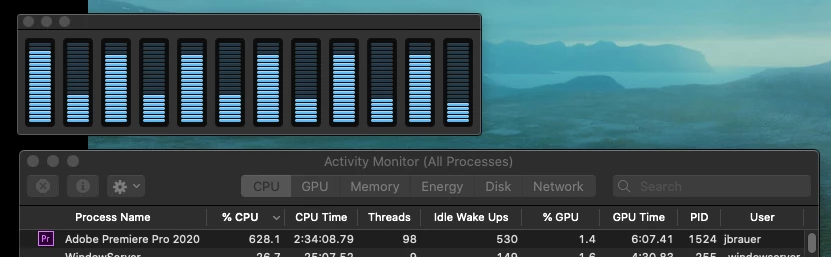
Alright, here is the proper shot:


So you think storing it internally might be faster? 
I could possibly. Is there a recommended amount of free space in storage to have left?
I'll copy the media over and try it out.


Your CPU is pretty much topped out.  Moving the media internally may help, but I'm not too sure by how much.  It's worth a test, of course; it can't hurt.  Ultimately I think you're just hitting a hardware limit of your Mac and you actually do need to transcode to ProRes.  Just understand that's going to make each of your files quite big in comparison to what they are now.  And it's going to take some time to do for each file.

3 replies

Legend
June 14, 2020

why isn't anyone suggesting a proxy workflow?  Will speed up the playback enormously, save drive space over transcoding to a fullrez prores flavor , but still involve slow export times...    it's not the simplest process to wrap your head around, but once you've worked it out, it's usually rocksolid.  

Participant
February 8, 2022

Could you by chance point me toward a good source to learn how to do this. I've heard about it but don't know where to begin my search for how to do it. I just had to edit a music video in 4K 10bit color and I'm either investing into a monster Mac Pro, or I need to figure out a significantly more optimized means of editing in real one -- and this sounds like it could be my solution to this!

Legend
February 8, 2022

check out what's available on the adobe site and google premiere proxy workflow and see what's available on youtube...  then if there's something you don't understand, post back and I'm sure you'll find plenty of help.  You can always DM me with any specific question.  I'm getting hammered with work right now (not complaining, just explaining), but I'll do my best to answer you.  First thing though, when you start doing this, just do a test with a small file to make sure you've got it working properly.  You can doublecheck that the proxy is attached properly by making sure the proxy option is turned on in either the source or program monitor, and then select the clip in the timeline and control clicking and "reveal in finder" and make sure the proxy file is revealed rather than the camera original.   

Inspiring
January 14, 2020

If it were me, I'd transcode the source footage to ProRes and edit from that.


MtD

jasonvp
Inspiring
January 14, 2020

Sure: transcoding to ProRes is probably one solution our OP can do.  But before that, let's figure out where the challenge really is.  If they transcode to ProRes and it's a storage slowness problem, that may make things even worse. 😉

jasonvp
Inspiring
January 14, 2020

Your machine isn't really set up well to deal with large long-GOP formats like h.264.  It can do it, but it's going to do so slowly.  I suspect you're running into a combination of CPU and storage issues.  Call up the Activity Monitor while you're trying to play back the media in Premiere.  In Activity Monitor, Window-->CPU Usage.  This will bring up a graph of each of your CPU's cores.  Now play the media and see if your cores all jump to or near 100%.


If they don't, then your storage is not helping.  USB 3 isn't... fast.  At all.  It's a lot faster than USB 2 of course, but it's still pretty limited in speed.  The next test should involve moving the media to your internal SSD and seeing if that helps.

JB_SCTAuthor
Participating Frequently
January 14, 2020

Thanks for the reply.

I'm testing it again now. In playback, it starts of choppy, but eventaully catches up and becomes more smooth. But I suspect once I start to make more cuts and add transitions and such, it will become more consistentkly choppy. 
Here is a screenshot of the CPU load during playback.


As far as storage goes, I have 116GB free (out of 500) on the Mac and 1.83 TB free on the T5. Are you saying free space isn't helping?

I realize this set up isn't ideal, but I'm in a situation where I need to make the most of it. 
Would it be better to put everything on the internal SSD and just use the T5 for storage? I needed it for additional storage, but was trying to see if splitting th work load would make a difference. However, peoples opinions differ as to where to put your cache/media/etc. 

So any help with a good set up is welcome. Thanks for the advice. 


jasonvp
Inspiring
January 14, 2020

OK, that's not the shot of the Activity Monitor I was hoping to see.  You can see the individual core usage.  In Activity Monitor's menu bar:


Window --> CPU Usage


Or just hit CMD 2.  Another window should pop open showing you 12 bars (6-core CPU with hyperthreading).  Play your footage in Premiere and watch that new window.  Do the bars start kissing 100% or so?  Do some of them?  None of them?


As for storage, USB3 maxes out at a theoretical 5Gbits/sec throughput.  That's theoretical; rarely do USB 3 attached drives even hit that.  5G might seem fast, but... it's not.  Not for storage.  Do you have enough room on the internal drive to temporarily store the media while you're editing?  I'd try that, too.