
kevinholik
Participating Frequently
August 7, 2019
Question

Big Color issues and Compression after export - Premiere Pro CC 2019

  • August 7, 2019
  • 2 replies
  • 4000 views

When exporting my Premiere Pro timeline, the colors and compression are wildly different than I've ever seen in rendering.

I am using Lumetri Color as well as Red Giant Looks. I've never encountered it this badly before.

I'm exporting in 4k, bit rate is 80 VBR 2. What am I doing wrong?

Here's another example, it looks like garbage!
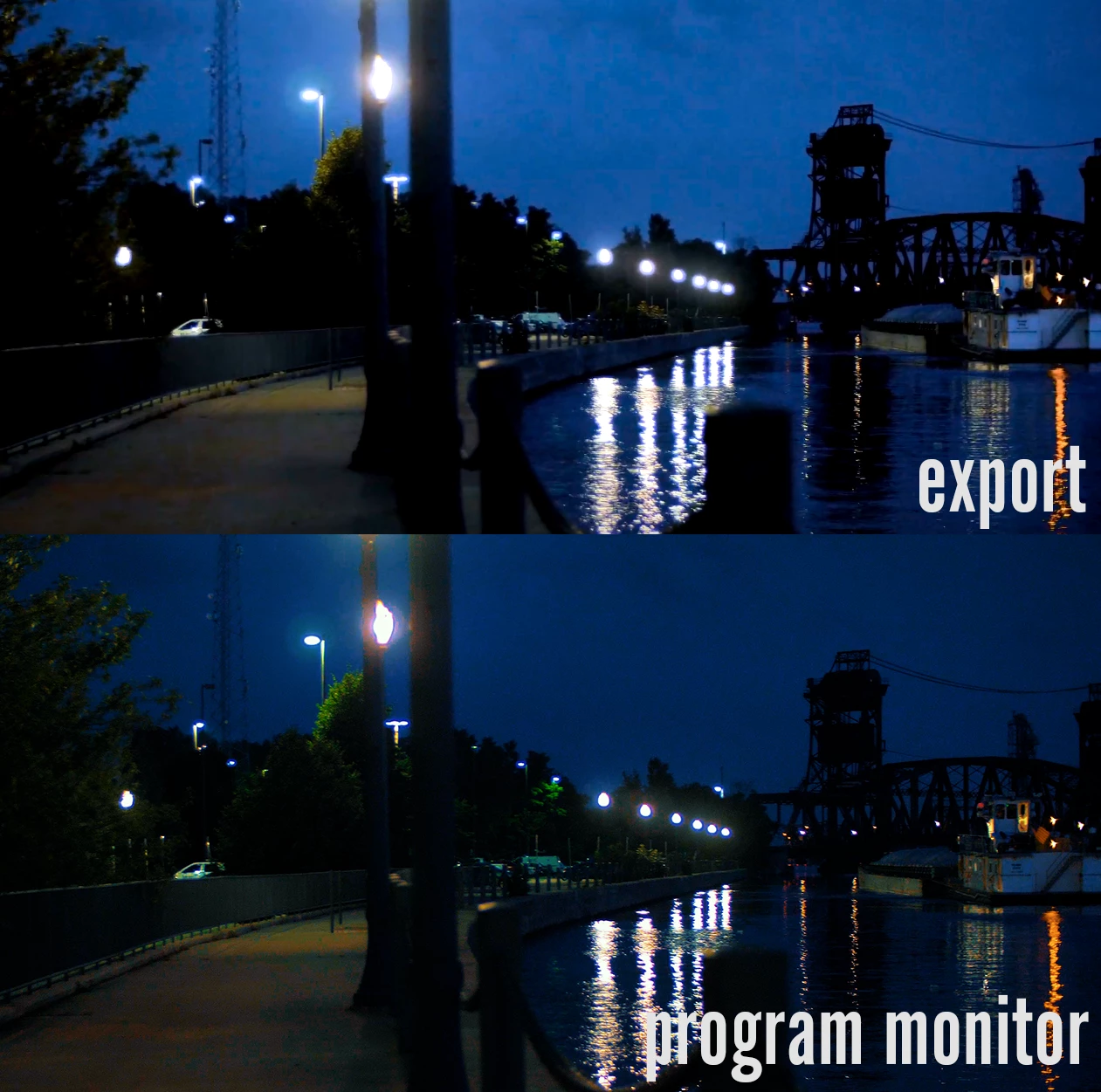
Message was edited by: Kevin Holik

This topic has been closed for replies.

2 replies

Legend
August 7, 2019
What am I doing wrong?

Viewing on a computer monitor through software.  You can't do that for proper color work.

"Variants of this question have been covered to death on this and every other color grading forum. The answer is always the same.  The only way to get a [proper] image you can trust is to run SDI [or HDMI] out to an accurately calibrated reference monitor.  Grading by viewing the image in the GUI just doesn't work."  - Jamie LeJeune

DeckLink | Blackmagic Design

AJA Desktop I/O Tools: Work with the Products You Use Everyday

kevinholik
Participating Frequently
August 7, 2019

Yes, I understand I may not be using the best monitor for color or a perfectly calibrated one. But regardless of how 'accurate" it is, how come I can see such a vast difference between export and program window videos on the same monitor? If I were viewing on 2 different devices, I would understand the inconsistency, but I can spot these differences on the same monitor.

R Neil Haugen
Legend
August 7, 2019

I did a High10 Rec2020 export with "Maximum Render Quality" unchecked, and the colors are still visibly washed out and brighter, but the contrast and shadows retain their darkness which is a plus.
I guess I'll just have to be more cognizant of the color space and stuff next time I start a project. Appreciate your patience and assistance!


Premiere is a tightly color-managed app by engineering hardwiring ... to full long-time broadcast spec standards ... video sRGB, Rec.709, gamma 2.4, and 100 nits brightness. ALL internal/external monitors assume that is your setup.

The only way you can accurately see High10/Rec.2020 media "within" Premiere is by use of specific output devices to appropriate HDR capable monitors ... and the only company so far to mod their gear so it can 'see' and grant the  user the choice of HDR output from Premiere is AJA/Kona. The i0-4k external box for Macs, and the Kona4/5 internal PCIe cards for PC's.

I'm hoping BlackMagic will update their cards so that Premiere's HDR signal can be selected for output, but ain't holding my breath. BM doesn't always rush to make working with any Adobe app ... easy. For some silly reason or other I suppose. But I do dream!

Anything else besides the AJA/Kona gear tried, doth not get an accurate image onto a monitor for PQ/HLG/High10 HDR  Rec.2020 viewing.

Actually most of the pro colorists I know aren't yet into HDR work for delivery. There aren't many places taking it, and those that do require setups including monitors that per monitor are still above $30,000. Yes, I know a few that are delivering ... one even is the first "boutique" colorist/finishing shop on the East Coast to be fully DolbyVision certified, and he was half of the team that's recorded much of the training that DolbyVision uses for those working with it.

And a couple others that do, but have to rent time in a facility setup with such monitors and the BEAST of a system that can run the typically 6-8k media they're working with for those shows.

So unless you've got that specific AJA/Kona kit, you can't see correctly within Premiere what your output will look like in any HDR format. Sadly.

Neil

Everyone's mileage always varies ...
Legend
August 7, 2019

Please post a screenshot of your export settings dialog. Also, how long is your clip?

kevinholik
Participating Frequently
August 7, 2019

The entire project is 9 minutes.

Legend
August 7, 2019

So, this is rather counter-intuitive, but you should turn off Use Maximum Render Quality. This is a confusingly-named setting, and honestly should be renamed by Adobe.

From the docs:

Maximum Render Quality often makes highly compressed image formats, or those containing compression artifacts, look worse because of sharpening.

Create and change sequences in Premiere Pro