

steenfatt
Inspiring
June 20, 2020
Answered

Brightness change on export, especially when zoomed in

  • June 20, 2020
  • 7 replies
  • 39086 views

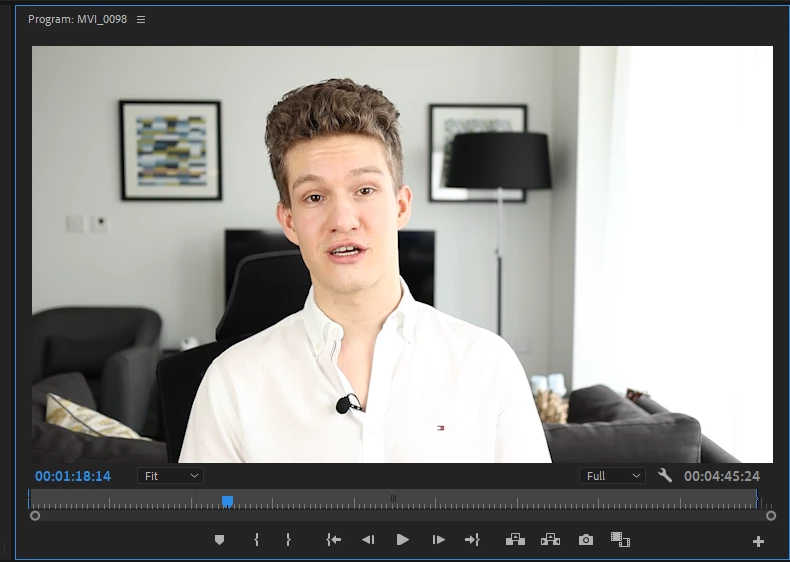
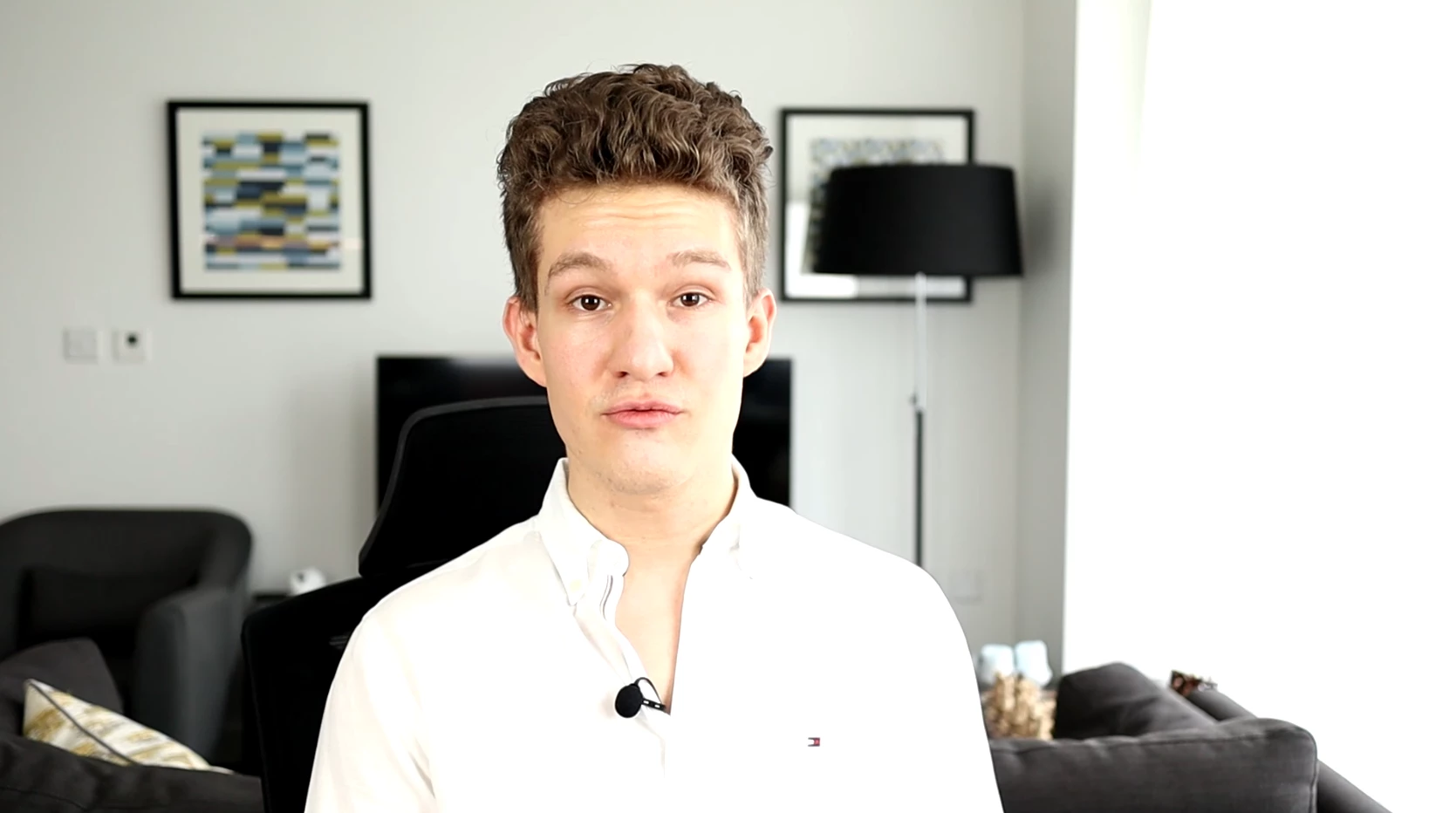
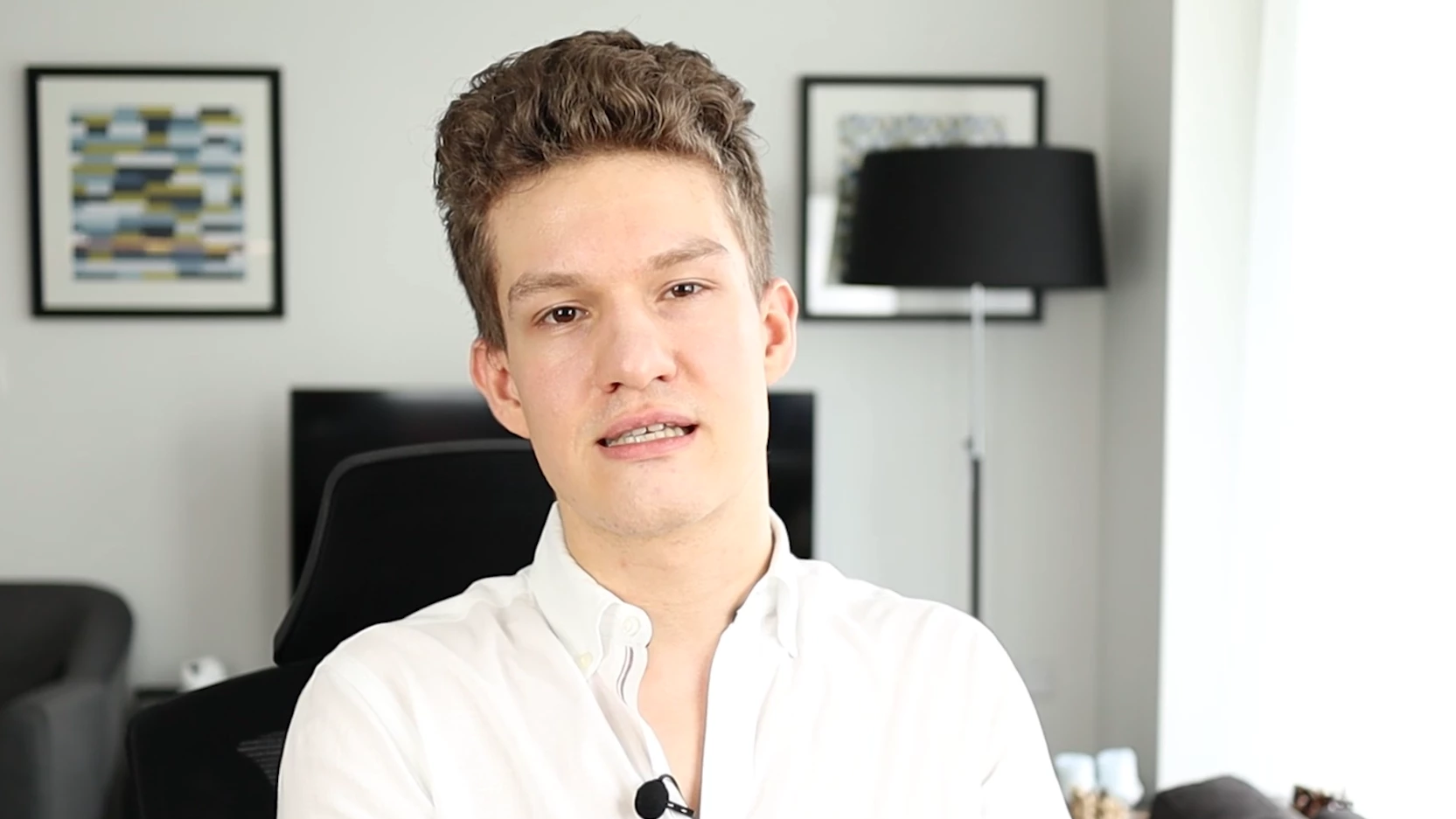
Hey guys! I'm a Premiere Pro newbie. I just noticed that the colouring/brightness changes a lot after exporting to H.264. In Premiere it looks the way I wanted it to (I haven't done any colour grading at all though), but the resulting MP4 looks too bright. What's even more annoying, I'm editing a VLOG where I use cut&zoom a lot, to cover up any bloopers. Now the brightness is actually very different depending on the zoom level. This is not the case when looking at it in Premiere itself.

Can someone explain what might cause this, and any ideas how I could improve it?


In Premiere Pro (same brightness regardless of zoom level):
 

In VLC, zoomed-in fragment:
In VLC, zoomed-out fragment:
 

PS: I'm using Premiere Pro v14.3 (build 38) on a PC. The source files are MP4 in Full HD 30 FPS from an EOS M50.

Correct answer steenfatt

Hey MtD! So to be very clear, there is only one source file. I only have one camera, I never changed any camera settings and I shot everything in one sitting. All I have as source is one Mp4 from the camera.


The first two Mp4s I posted are the result of exporting in Premiere Pro. In the second Mp4 I just made some cuts and exported. In the first Mp4 I additionally did this on every other segment:

Basically I'm exactly following this tutorial: https://youtu.be/CKd16zrW7f8?t=201


Now I understand you're saying that my exposure is already too high in the source file. That may be true and it just shows that I'm a recording noob, too. I probably nee to fix my EOS settings. However, that doesn't explain why it changes when I zoom in (in Premiere).


You aren't seeing the difference because you aren't having the problem on your PC. But you clearly see the difference between the three files, no? And you see in the first file, how the brightness changes with every cut? So the question is, why does Premiere on my PC produce these brightness changes when exporting? 


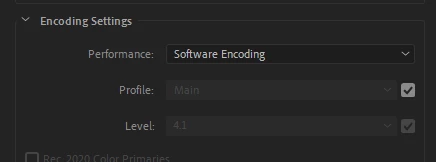
Sooooo I just tried something else which worked! In the encoding settings, I simply changed it from Hardware to Software:

Because clearly this export problem was only happening on my PC so I figured it might be a hardware problem. And indeed, there is no change in exposure when exporting via software encoding!


Looking at the Premiere documentation, this Hardware encoding uses Intel Quick Sync. I'm wondering if there are any Intel settings that I could amend to fix this problem and still use Harware Encoding?

7 replies

Participant
December 10, 2022

The issue isn't Premiere at all. It's the iPhone. 


In your iPhone, go to Settings > Camera > Formats and then make sure you mark the check next to Most Compatible. This fixed the issue for me when exporting onto my iMac. See below.


runtheimpossible
Participant
February 4, 2022

For everyone coming to this issue in 2022, I tried every response in this thread before realizing that after I upgraded to Windows 11 my VLC had changed its settings. I should've checked that first, so learn from my mistakes. VLC was brightening the video using settings, and that just had to be turned off. Doh!

Participant
February 6, 2022

Do you know how to turn off VLC? Im stuggling to find it, Thanks!

runtheimpossible
Participant
February 6, 2022

If on Windows, hit ctrl+E, or go to Tools>Effects and Filters. Go to Video Effects tab and either uncheck Image Adjust, or adjust them to your desired settings, I personally just unchecked the box and hit save.

Participant
January 22, 2022

For me, I had to just add an adjustment layer and use trail and error with the exposure until i found what i liked.

Inspiring
June 20, 2020

Can you upload a clip of the source video that is exhibiting this behavior somewhere public so that it can be downloaded?

MtD


steenfatt
steenfattAuthor
Inspiring
June 20, 2020

Of course, let me see what I can do. But you mean the exported video, no? The source video, as in the originally recorded file from the camera, behaves normally.

Community Expert
June 21, 2020

At first I also thought that this would be using the GPU, but this quite explicitly says that it's using Intel Quick Sync: https://helpx.adobe.com/uk/x-productkb/multi/gpu-acceleration-and-hardware-encoding.html


I see. Quicksync must work for both. I don't have an Intel CPU but I can still use Hardware Encoding with my GPU. If you have an intel CPU then you probably have access to hardware decoding and encoding with that.

Inspiring
June 20, 2020

On your sequence settings, uncheck Composite in Linear Color and do a test export.

Also, go to Preferences > General and toggle off if on and on if off Display Color Management:

and see if that changes anything.

MtD

MtD

steenfatt
steenfattAuthor
Inspiring
June 20, 2020

I tried both, but unfortunately neither of these seems to change the brightness of the exported file. It's still brighter than the source, and the brightness still varies with every cut&zoom.


Thanks for helping though! Any other ideas? 😕😕

Inspiring
June 20, 2020

Click anywhere in the timeline then go to Sequence > Sequence Settings and post a screen shot of your sequence settings.

Also, post a screen shot of your export settings summary from the Export Settings Pane, like this example below:

MtD

steenfatt
steenfattAuthor
Inspiring
June 20, 2020

Here you go:


In the sequence settings I didn't intentionally change anything, so if anything is non-default it would have been by accident. In the export menu, the only change I made was Mbps from 10 to 8.

Community Expert
June 20, 2020

Every media player is going to display differently, so the best thing you can do is reimport the file into Premiere and see if it matches the original (if you haven't done that already.)

steenfatt
steenfattAuthor
Inspiring
June 20, 2020

Good idea to check that! But unfortunately, the re-imported file looks the same in Premiere as in VLC. The colouring is totally different compared to before exporting. And the colouring changes with the zoom level whereas it used to stay the same when editing the original project.