RTHiggins
Inspiring
January 17, 2025
Question

Can Anyone Explain How To Break Out a 12 channel Adaptive Track for an AAF Properly?

  • January 17, 2025
  • 2 replies
  • 564 views

Problem: Every time I export an AAF no matter if I flatten it, I get a stereo output from the track I have labeled as "Production Audio." This houses lav, boom, etc. I seem to have the 12 channels in the multicam configured properly(Mono 12 channels and panned correctly) and have an adaptive channel if my main timeline where the mono tracks are assigned to the respective channel in the adaptive track I have labeled "Production Audio."


What I want to do is be able to edit multicam sequences with multiple tracks of audio in one track in the main timeline and if I need to jump in and mess with any of the levels I can punch into the multicam clip and see all of the audio. By the way, I can already do all of this, but unfotunately I can't use this workflow until I figure out how to prep it for the AAF at the end of the project. If anyone has any experience doing this, please advise. 


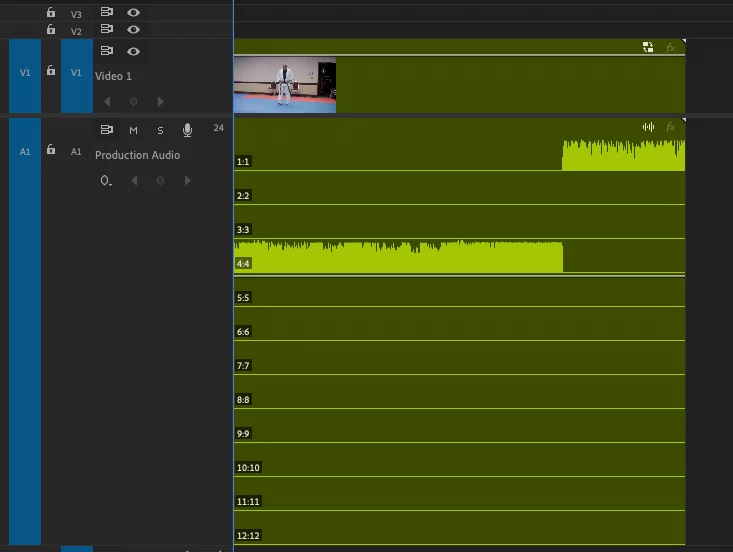
Below, the green is the multicam seq in the main timeline and the blue is the synced multicam clip. 
2 replies

Known Participant
January 19, 2025

I'm pretty sure you won't get that to work. 


Workaround would be to export a multichannel WAV and add that as your primary source to the multicam - although you'd lose the metadata. 


Or build the multicam with multiple tracks rather than trying to work adaptive.


Or - maybe the grave digger extension would work to uncollapse your multicam adaptive clips?

Community Expert
January 18, 2025

When you say you're "getting a stereo output from the track," could you explain a bit more about what’s happening?

Describing audio setups can be tricky, especially since terms like "channel," "clip," and "track" are often used interchangeably. Here’s a quick breakdown to clarify:

  • Channel: The individual audio waveforms, like the left and right channels in a stereo file.
  • Clip: An audio or video file that includes one or more channels.
  • Track: Where you place clips on the Timeline in Premiere Pro.


If you’re exporting an AAF with adaptive tracks for use in ProTools, be sure to enable the “Breakout to Mono” option in the export settings. This separates all channels into individual mono files, ensuring better compatibility.

RTHiggins
RTHigginsAuthor
Inspiring
January 18, 2025

Hey Paul,


My audio terminology is decent at best. I'll try to be more accurate. 


I think I figured out what the issue is - for some reason, premiere only allows the audio it links to cameras to be flattened in adaptive tracks.


If I bring in the same multicam clip in as a sequence(with the same Adpative Clip Channel format via sequence settings) into the main sequence I am working in, it will show me the audio laid out correctly. I can even export the aaf and it will break out the mono tracks correctly labeling them Production Audio_1 - 12 which I can live with. However, with multicam it's a different story. Please scroll down.

If I enable that sequence as multicam and then flatten it, the audio it deems is attached to a given camera will appear. Below is Cam 1.

And if switch to CAM 2 and flatten, I get this. 


Down the line, we are going to have interview with multiple angles and for me personally, I think it would be much more tidy to be able to keep all of the production tracks (LAV, BOOM, CAM Audio) nested in it's own multicam. That is ALMOST achievable here, but not quite. Unless there is a workaround that I am unaware of?


Community Expert
January 19, 2025

You are correct that when flattening an adaptive multicam source sequence made up of multiple audio sources, Premiere Pro cannot recreate the same layout because it does not allow more than one clip to exist on the same track simultaneously.


That said, is there a specific reason why you need to flatten the multicam sequence at some stage? If you're exporting an AAF for something like ProTools, you should be able to keep the multicam sequences intact. This approach will help preserve the organization of your production audio (LAV, BOOM, CAM Audio) without the need to flatten.