If what you meant was whether or not you can see continuous video thumbnails in the Timeline, then yes; however, it takes a few steps.
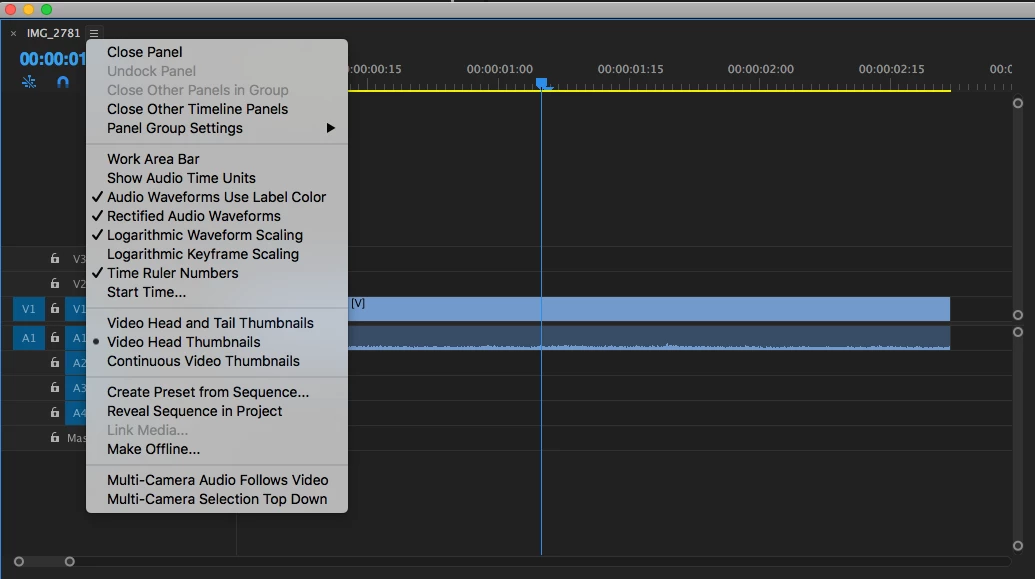
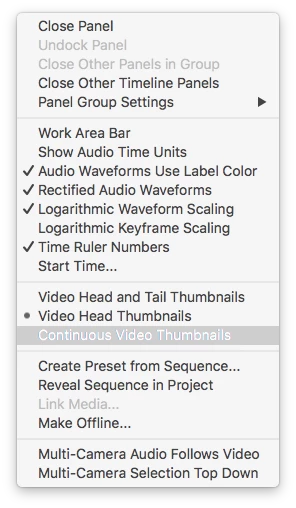
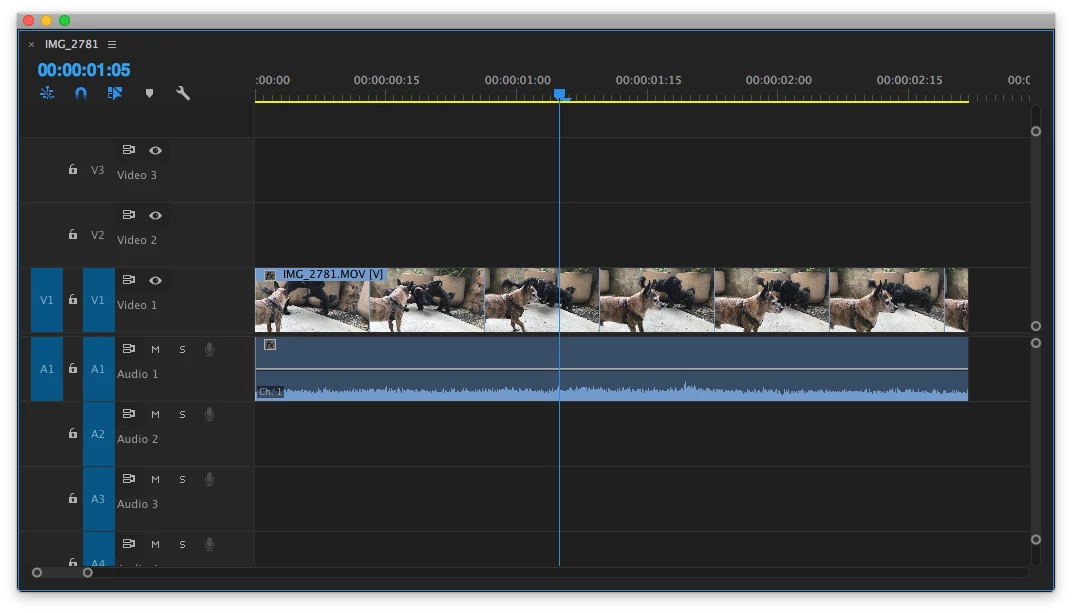
1. In the Timeline Panel pop-up menu, change the default "Video Head Thumbnails" setting to "Continuous Video Thumbnails".
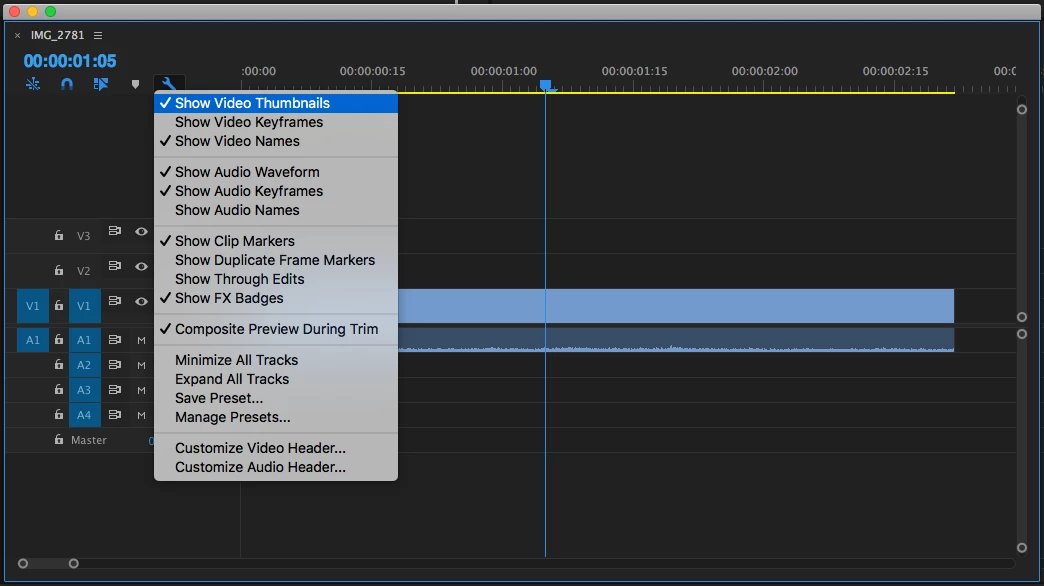
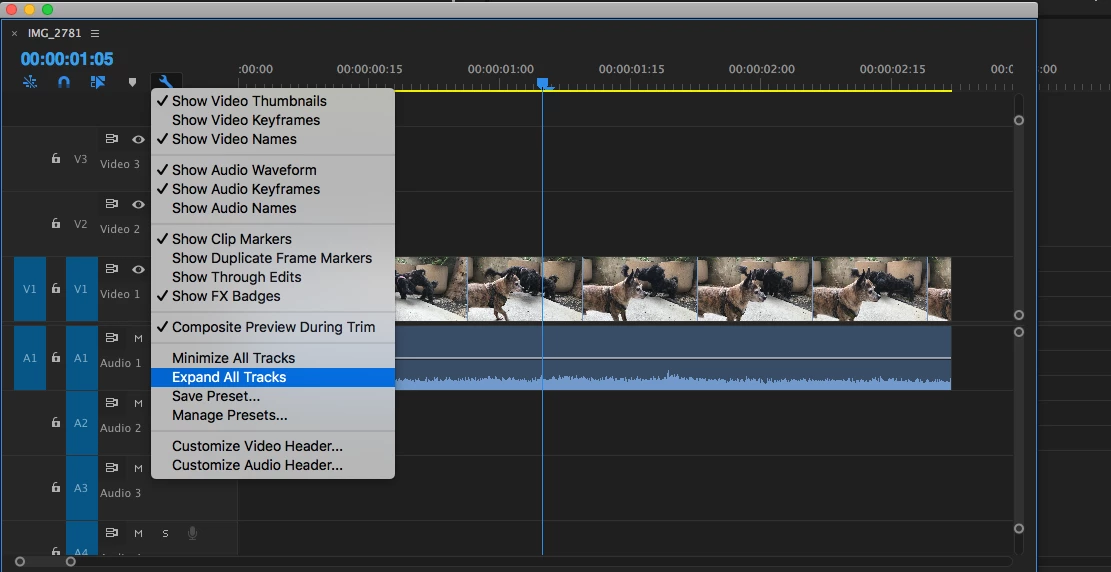
2. In the Timeline Display Settings pup-up menu, enable "Show Video Thumbnails" (it's enabled by default, so it should already be checked).
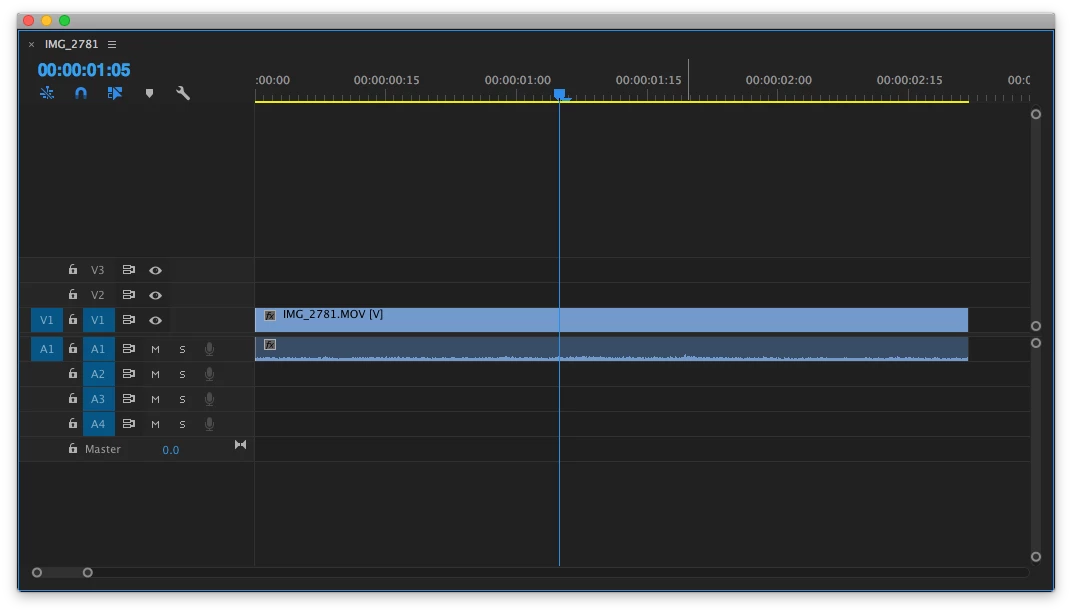
3. Expand your Video Track or Video Tracks
Premiere Pro only shows video thumbnails when a Video Track is expanded. So, if your Video Tracks are at the two lower settings then you won't see video thumbnails even if you've done steps 1 and 2 above. To expand your Video Tracks, choose "Expand All Tracks" from the Timeline Display Settings pop-up menu. Alternatively, you can click and drag the Video Track boundary just to the right of the Toggle Video Output button (it looks like an eyeball) or you can scroll just below the track boundary (if your mouse, trackpad or other input device has a scroll option) to expand or minimize a Video Track.
I've included some screen shots below.
-Warren


 AdChoices