
Known Participant
December 23, 2020
Answered

Can only export sequence in 1080p, stalls on full resolution (effects heavy edit)

  • December 23, 2020
  • 8 replies
  • 974 views

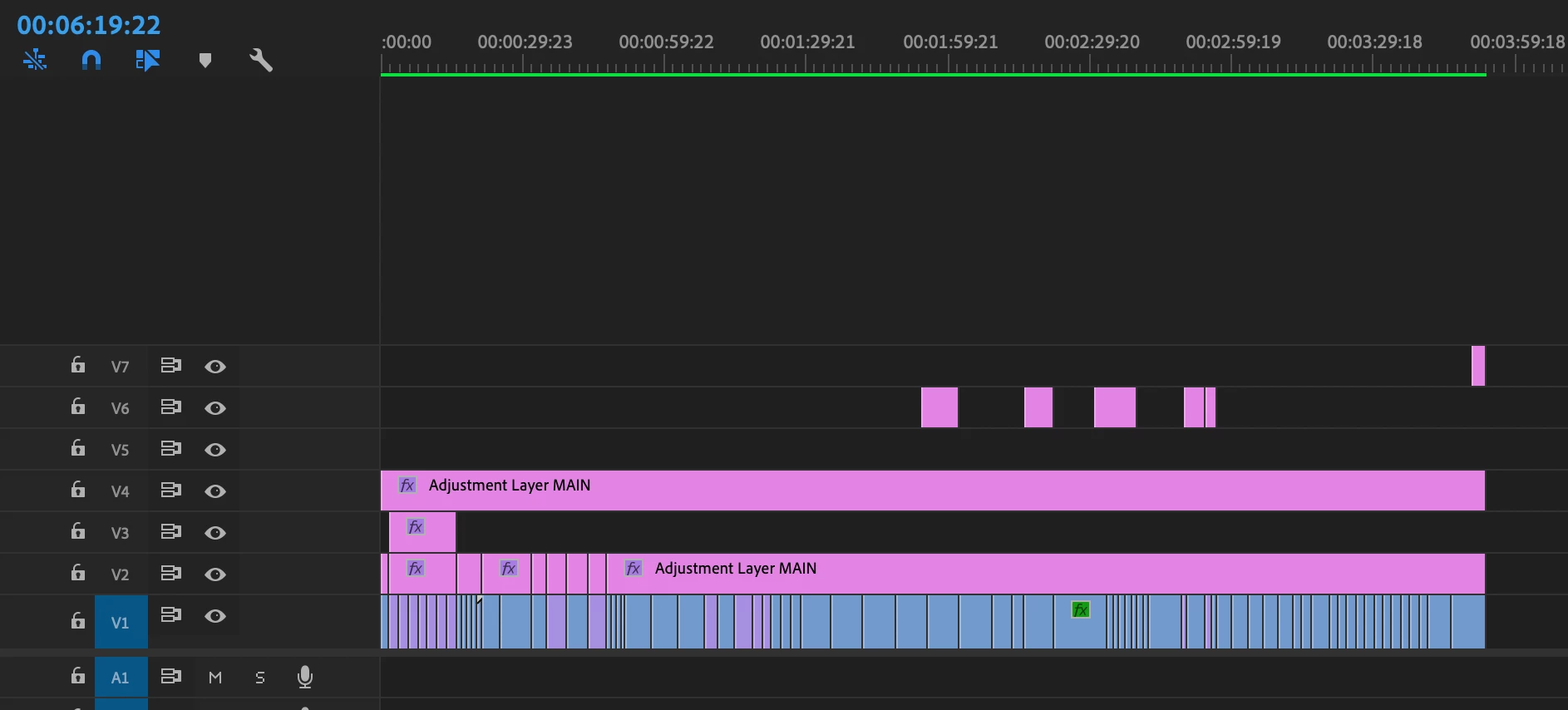
I've got an effects heavy sequence that I can successfully eport in H.264 in 1080p (4:40 in length). When I try to export in full resolution and/or maximum but depth/quality it stalls at the 1st instance of a effect heavy clip. I feel like I've tried everything. It doesn't seem to be maxing out my 64 BG of Ram (only using around 30GB) and the CPU hovers around 70%.  This seems very typical for all other non-complicated seqeuences I've exported. I have cleared the media cache and reset the preferences. PP 2020 is fully updated as well as my MAC OS.  Screenshot of timeline below. The effects are a huge part of this edit. I also tried to switch the preview to Quicktime and use those on export but the process woudl stall on that too. What am I doing wrong or what can I try to get this puppy to export?


Details on the sequence

23.9676fps

4096x2304

square pixels

I-frame previews

Editing with proxies

I have fully rendered the sequence and it plays back just fine, no stutter or delay

Original footage a cpombo of BMPCC 6k and the Canon 5Dmkiv


Details on computer

2019 16" MacBook Pro

Catalina 10.15.5

2.6 GHz 6-Core Intel Core i7

64 GB RAM 2667 MHz DD4

AMD Radeon Pro 5500M 4 GB

Intel UHD Graphics 630 1536 MB
 

This topic has been closed for replies.
Correct answer Phillip Harvey

Ah, yep, you're right. Sorry I missed that part. Whoops, sorry @bliouxbird 


It may be worth baking out the bottom layer if your effects are all on Adjustment Layers (per mrgrenadier), or maybe you can try Rendering and Replacing clips in your timeline (a similar approach but you have the option to bake in effects that are placed on the clips.)

Tacking on another thought: sort of a long-shot type of thing, but it has worked before. Create a new project and use Media Browser to import your sequence into that new project.

Could also be worth rolling back a Premiere version to see if a version change will help if you haven't tried that already.

8 replies

Averdahl
Community Expert
Community Expert
December 25, 2020

When I try to export in full resolution and/or maximum but depth/quality it stalls at the 1st instance of a effect heavy clip.


Skip Maximum bit depth and Maximum quality and export directly to GoPro CineForm instead of to H.264. If it works, use the GoPro CineForm file in Adobe Media Encoder to create the H.264.


Render at Max Depth and Use Max Render Quality - What are those check boxes doing?


Known Participant
December 25, 2020

I'm gonna try this out as well. I never paid attention to that profile because it was "GoPro" 

R Neil Haugen
Legend
December 26, 2020

Cineform is one of the best "digital intermediate" codes out there, besides for many things being a fine delivery codec if size isn't your biggest concern.


Neil

Everyone's mileage always varies ...
Known Participant
December 25, 2020

Got the previews to update with Quicktime/Pro res HQ, using a Samsung T5 2T external for media files. The edit and assets are on another T5 external that's at 75% capacity.

This is a music video using a lot of melty glitch/blur stuff. All these heavy effects are on the 2nd from top layer and not on clips. I'll usually only do slight exposure/sharpen adjustments on the individual clips.

I'll try some of the exporting suggestions here and report back!

R Neil Haugen
Legend
December 25, 2020

If many of the effects are directly on the clips, I would strongly suggest doing a render & replace of the V1 clips using either Cineform or ProRes422. This gets the effects applied to the clips.


Now try exporting and if you use the same format/codec for export, yes definitely use the "use previews" option to speed things along. But even if you don't, because you've already done much of the processing, it's a ton easier on the computer.


Neil

Everyone's mileage always varies ...
Community Expert
December 25, 2020

What I would do for an effects-heavy edit:

At the very least try mrgrenadier's suggestion to export to a different codec like ProRes 422. Or you can try the Smart Rendering Workflow:


Change Video Previews to a high quality master format


Render the timeline.


When you export you have two options:

1. Check just the 'Use Previews' checkbox and encode to whatever codec of your choice.


2. Check both the 'Use Previews' checkbox and the 'Match Sequence Settings' checkbox at the top to encode to the settings you put as your video previews. This usually results in a quicker (and more reliable) export. You can encode your H264/5 file based on the final ProRes Master.


Legend
December 25, 2020

the op did say "I also tried to switch the preview to Quicktime and use those on export but the process woudl stall on that too". of course, that may not mean a high quality format...  

Phillip HarveyCommunity ExpertCorrect answer
Community Expert
December 25, 2020

Ah, yep, you're right. Sorry I missed that part. Whoops, sorry @bliouxbird 


It may be worth baking out the bottom layer if your effects are all on Adjustment Layers (per mrgrenadier), or maybe you can try Rendering and Replacing clips in your timeline (a similar approach but you have the option to bake in effects that are placed on the clips.)

Tacking on another thought: sort of a long-shot type of thing, but it has worked before. Create a new project and use Media Browser to import your sequence into that new project.

Could also be worth rolling back a Premiere version to see if a version change will help if you haven't tried that already.

Inspiring
December 25, 2020

Try to render/export that 'effect heavy' part at std UHD 3840x2160 resolution, I suspect that 4GB of video memory is not enough for heavy effects at full C4K+ resolution.

Known Participant
December 25, 2020

Yeah not sure I'd get myself into effect heavy projects again, it's a pain for sure.

Legend
December 25, 2020

try changing the render option in the project settings to software only and see if that helps.  You might also try exporting v1 in a high quality format like prores 422hq and replace all the clips in v1 with the exported file.   What exactly are you doing with the adjustment layers...

Known Participant
December 25, 2020

I'm still stuck...anyone have any ideas? Magic spells?

Known Participant
December 23, 2020

Forgot to add that this happens in both PP and AME.