Danny Bierset
Participant
January 12, 2017
Answered

Cannot change trim or reposition an open caption in the timeline (Premiere Pro 14.9 and earlier)

  • January 12, 2017
  • 3 replies
  • 17339 views

Hi,


I used this manual Create and customize subtitles and it is very clear to me how the open captions work.

But... after i put the captions in the timeline, i cannot change the length by clicking and dragging it like instructed in the video.

When i try to drag it, the message 'Trim Media Limit reached on video 6' apears in a small white square.


When i put in several text lines in the captions, they are 'glued' together in the timeline. I cannot position them where i want (as explained in the video) make them shorter or longer,...


Help!


Danny Bierset
This topic has been closed for replies.
Correct answer stefan_gru

Danny: The captions feature was slightly improved in the Premiere Pro 2017 release.

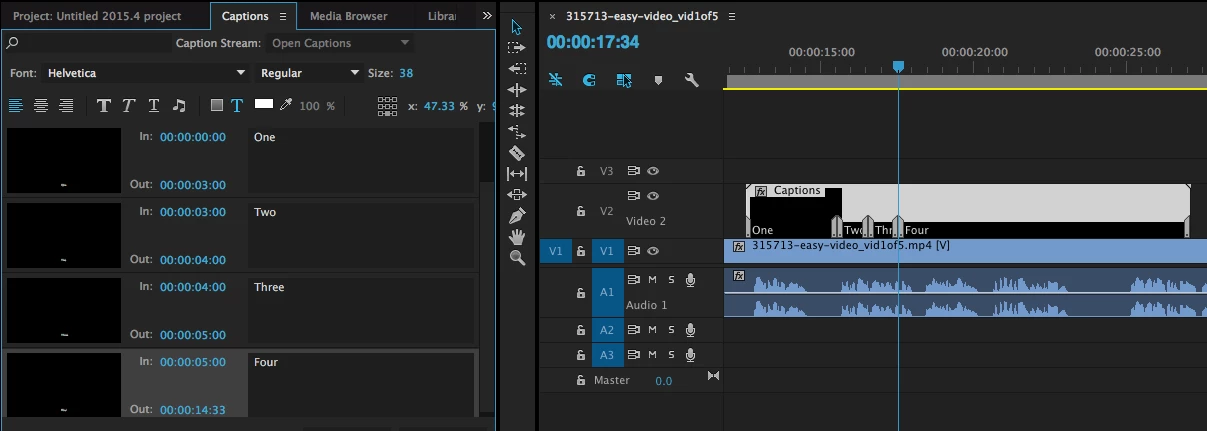
When you add a new caption clip to the timeline, it's only 3 sec. long by default. In the 2015.4 release, dragging with the Rolling Edit tool won't make it any longer because you have to first enter your caption text and set the In/Out times accordingly in order for you to be able to increase the Captions clip’s duration. In my screen shot below (using 2015.4), you can see that the last Out point (in the Captions panel) is 14:33. Only once I added that last caption text entry, could I use the Rolling Edit tool to expand the Captions clip on the timeline to its full 14:33 duration:

It appears they fixed that in the 2017 release. Now the default 3 sec. caption clip can be expanded with the Rolling Edit tool without first changing the Out point. In fact, when I try it, I am able to expand the clip to 29 sec. even though the caption Out point is 2:19.

3 replies

Stan Jones
Community Expert
Community Expert
January 9, 2020

evan_fotis,


Try exporting the caption stream from the sequence rather than the caption stream itself. I assume you have Open Captions. Select the SEQUENCE in the Project Panel. Then File -> Export -> Captions. Does that work?


Stan

stefan_gru
stefan_gruCorrect answer
Inspiring
January 12, 2017

Danny: The captions feature was slightly improved in the Premiere Pro 2017 release.

When you add a new caption clip to the timeline, it's only 3 sec. long by default. In the 2015.4 release, dragging with the Rolling Edit tool won't make it any longer because you have to first enter your caption text and set the In/Out times accordingly in order for you to be able to increase the Captions clip’s duration. In my screen shot below (using 2015.4), you can see that the last Out point (in the Captions panel) is 14:33. Only once I added that last caption text entry, could I use the Rolling Edit tool to expand the Captions clip on the timeline to its full 14:33 duration:

It appears they fixed that in the 2017 release. Now the default 3 sec. caption clip can be expanded with the Rolling Edit tool without first changing the Out point. In fact, when I try it, I am able to expand the clip to 29 sec. even though the caption Out point is 2:19.

Danny Bierset
Participant
January 16, 2017

Thanks for the help. That seems to be the case. I updatet and can now drag the length of the captions clip.

BUT, when i open the captions window i cannot adjust anything. There is no + sign to add a caption, i cannot adjust font or color or...

Even when i added captions by clicking in the captions clip in the timeline, they don't show in the captions window.

Inspiring
January 16, 2017
Inspiring
January 12, 2017

What version of Premiere Pro are you using?

MtD

Danny Bierset
Participant
January 12, 2017

Premiere Pro CC 2015.4

Inspiring
January 12, 2017

I believe that tutorial shows caption functionality added to the latest version of Premiere Pro 2017.

MtD